
Practice Agent Cards
Use Practice Agent cards in Healthbridge Clinical
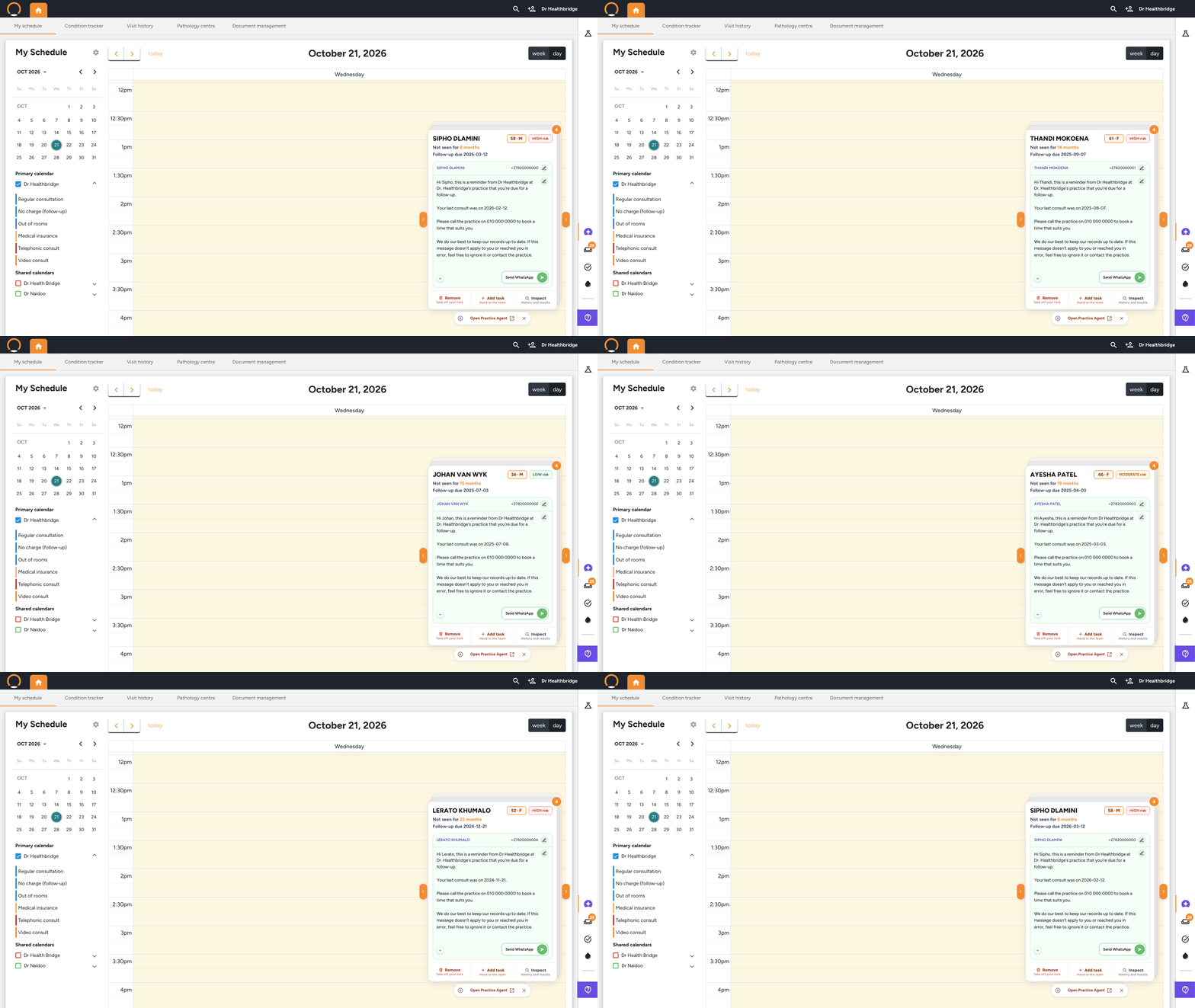
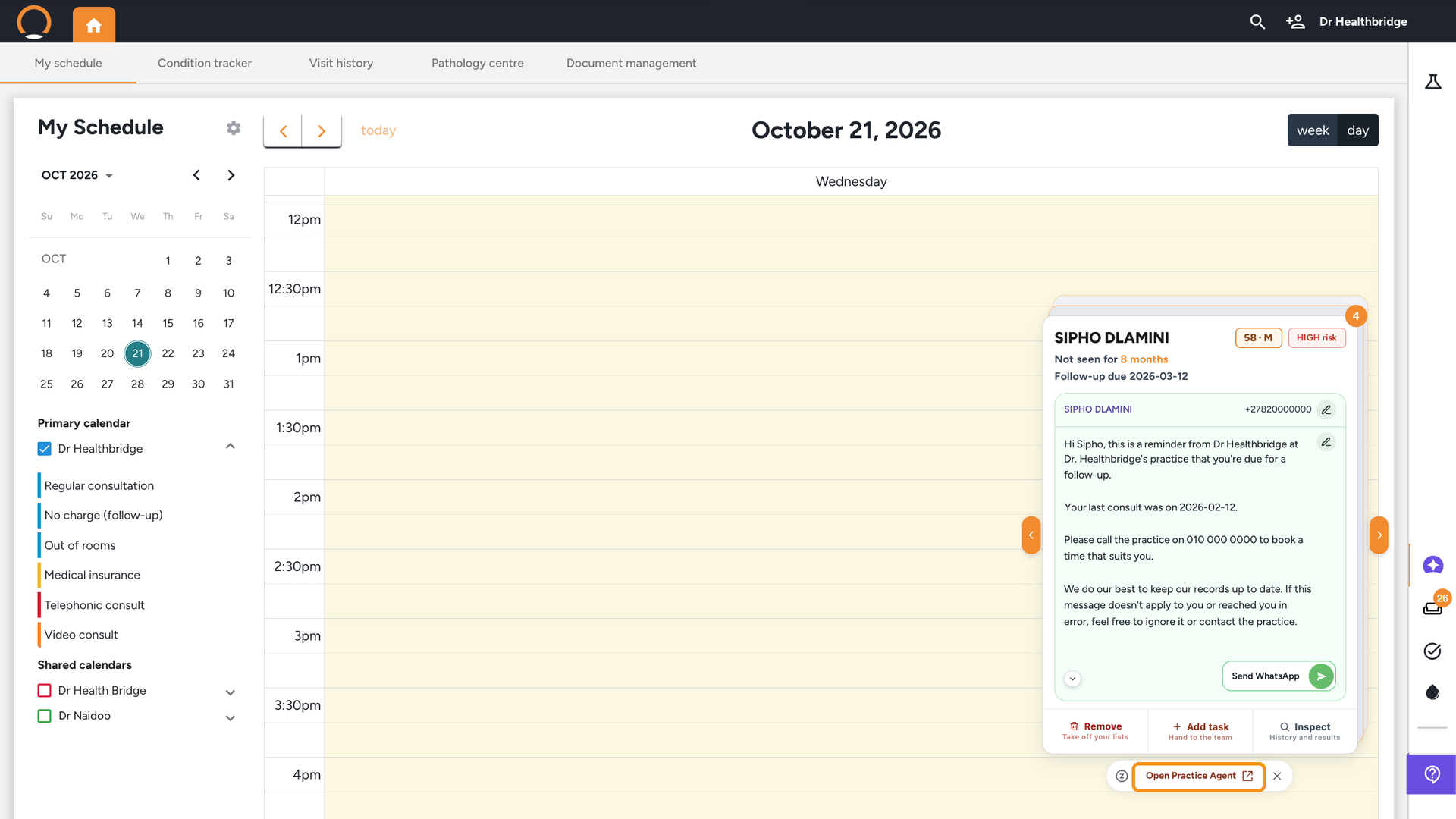
What: Practice Agent cards are a daily stack of patients who are due back, shown over My Schedule, each with a WhatsApp already written for them.
Why: They bring patients who have drifted off your radar back into view, so you can invite them in for a consult in a couple of clicks.
When: Whenever you have a moment between consults: open My Schedule, work through the cards, and send the WhatsApps you're happy with.
Before you start: The cards only appear once Practice Agent is switched on for your practice. If you don't see them on 'My Schedule', contact your Business Consultant to have Practice Agent set up.
See it in action
Send the WhatsApps you're happy with, and watch your schedule fill up as patients come back in.
Steps
1. Find the Practice Agent cards on My Schedule
Location: Home dashboard, My Schedule › Practice Agent cards
Open 'My Schedule'. The Practice Agent cards sit as a stack over your calendar. The orange number on the top corner shows how many patients are in today's stack.
Each day Practice Agent picks a fresh set of patients who are due back, up to 15, and keeps the same set for the rest of the day. When you come back to the cards, they open on the patient you were last on.
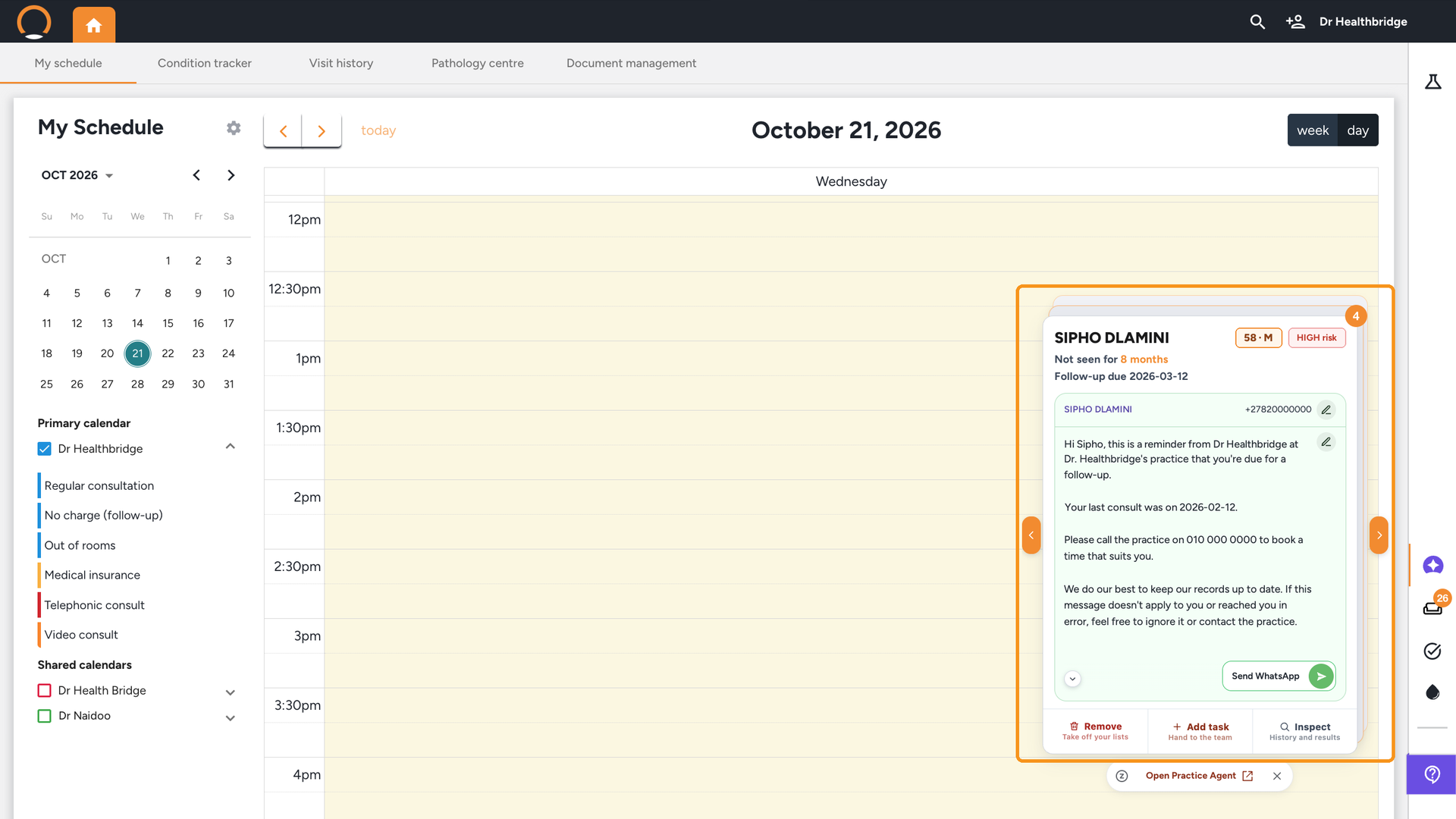
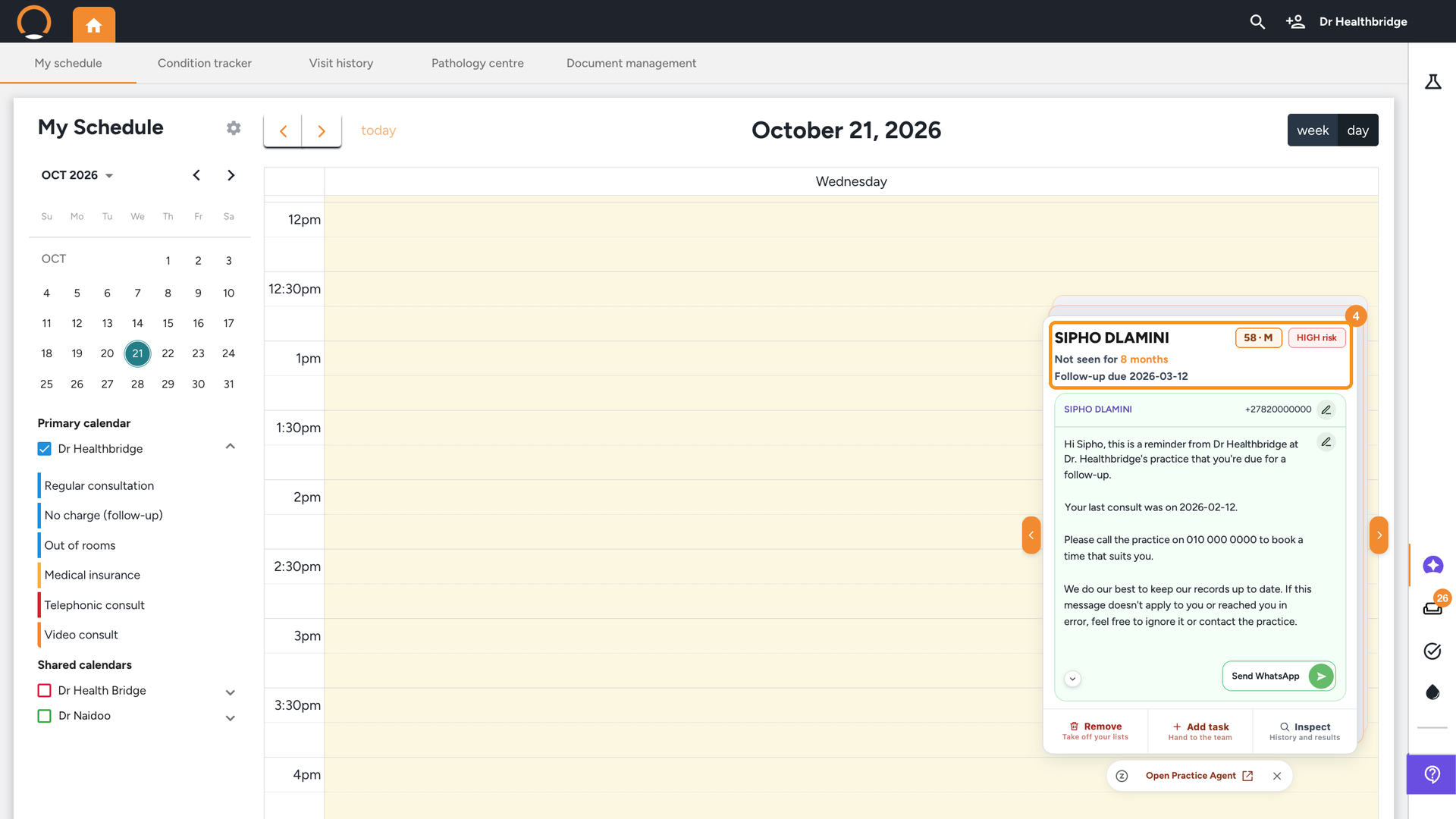
2. Read the patient's details at the top of the card
Location: Home dashboard, My Schedule › Practice Agent card › patient details
The top of the card tells you who the patient is and why they're on the list:
- their name, age and sex;
- their risk: 'HIGH risk' in red, 'MODERATE risk' in amber or 'LOW risk' in green;
- 'Not seen for': how long since their last consult;
- 'Follow-up due': the date their follow-up was due.
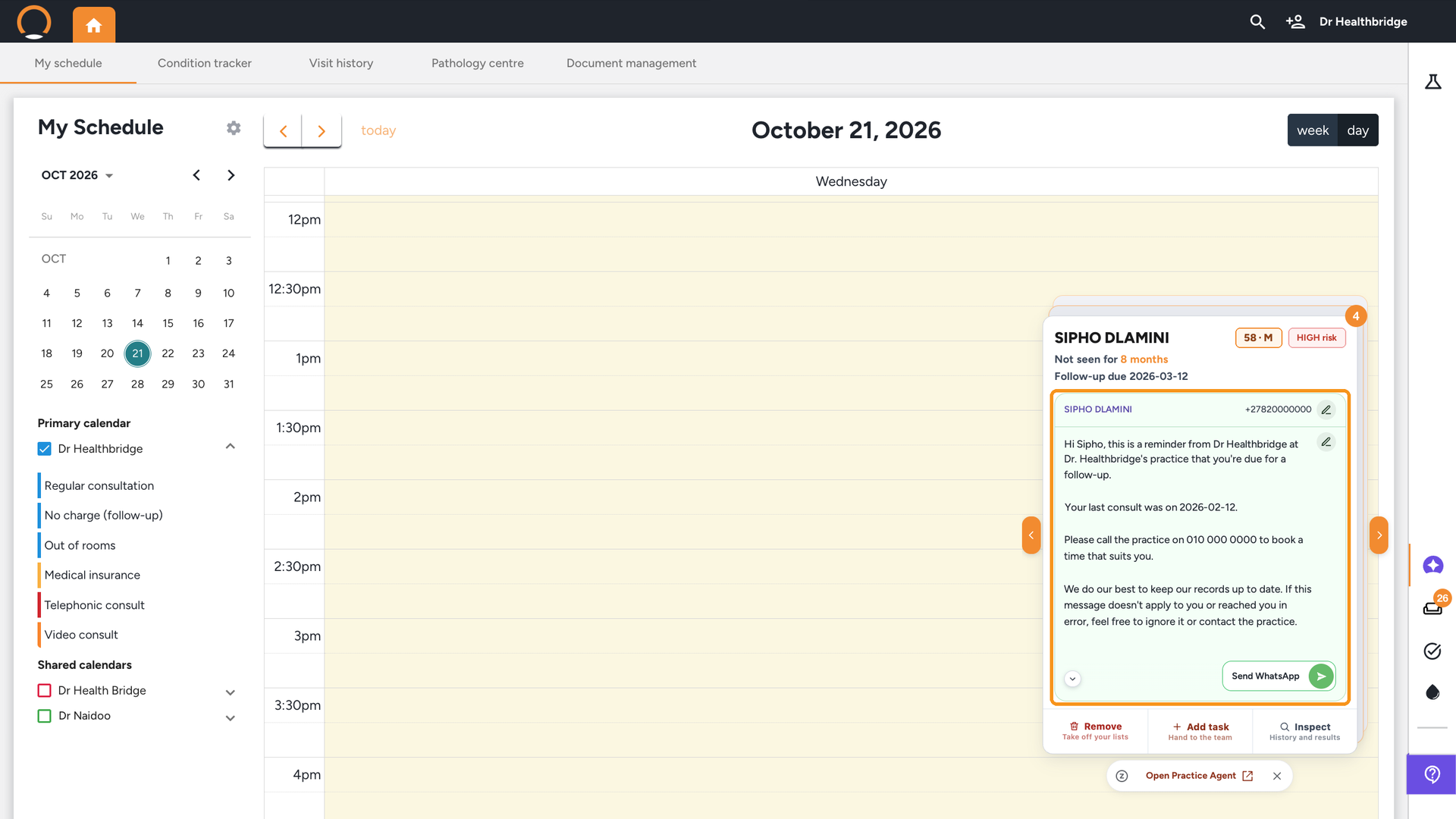
3. Check the WhatsApp message
Location: Home dashboard, My Schedule › Practice Agent card › WhatsApp message
The green panel holds the WhatsApp that will go to the patient, with their mobile number at the top. Read it through before you send.
- To use a different number for this message, click the 'pencil' beside the number.
- To change the wording for this patient only, click the 'pencil' beside the message.
Changes here apply to this one message. They don't change the patient's record or the messages for other patients.
4. Click 'Send WhatsApp'
Location: Home dashboard, My Schedule › Practice Agent card › Send WhatsApp
When you're happy with the message, click 'Send WhatsApp'. The message goes out straight away, and the next patient comes to the top of the stack.
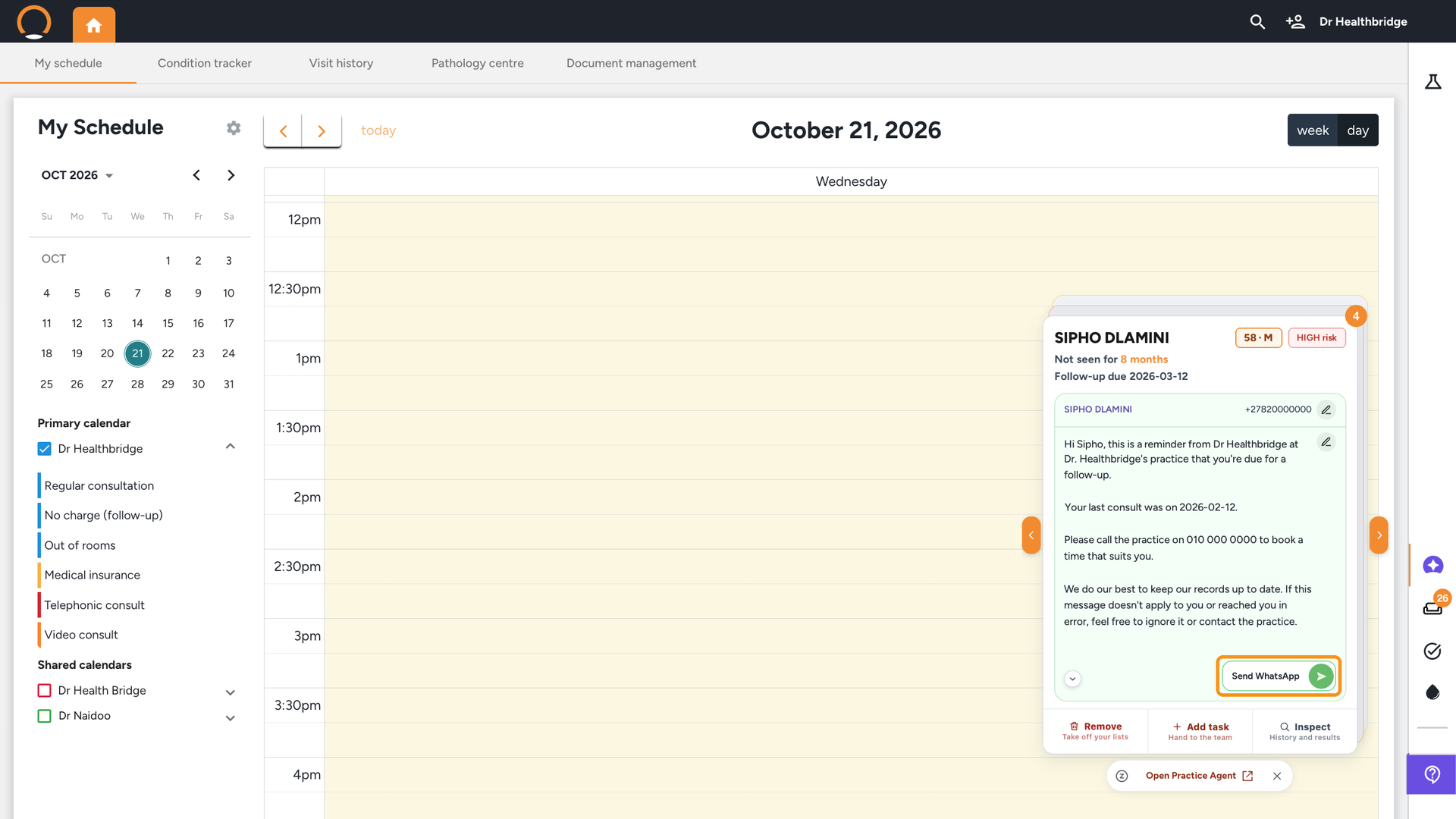
You should see: The card briefly shows 'WhatsApp sending...', then the next patient appears and the number on the stack goes down by one.
Nothing goes out until you say so: Practice Agent never sends a WhatsApp on its own. A message only goes when you click 'Send WhatsApp'.
5. Click the arrows to move between patients
Location: Home dashboard, My Schedule › Practice Agent cards › arrows
Not ready to message this patient yet? Click the orange 'arrow' on the right of the card to see the next patient, or the one on the left to go back. Moving between cards doesn't send anything.
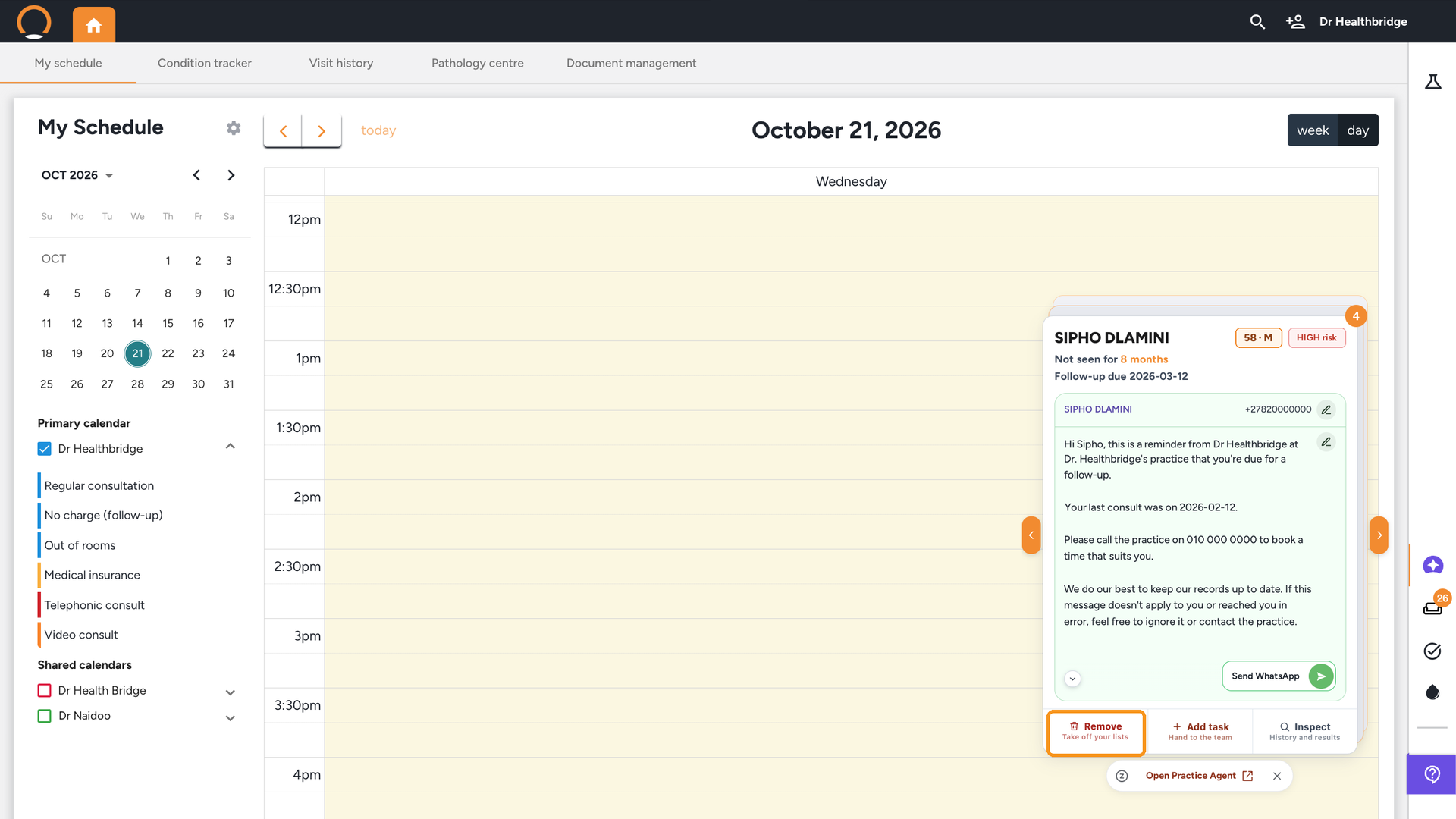
6. Click 'Remove' to take a patient off your lists
Location: Home dashboard, My Schedule › Practice Agent card › Remove
If a patient shouldn't be on your list, click 'Remove'. Choose a reason, for example that it's just not the right time, that you've already seen or contacted them, or that they've moved or passed away.
- For most reasons the patient is snoozed: choose for how long (1 week, 1 month, 3 months or 6 months), then click 'Snooze patient'. They come back on their own when the snooze ends.
- If the patient has passed away or left the practice, they're removed permanently: click 'Remove patient'.
You should see: A panel headed 'Take patient off your lists' with the reasons. Once you confirm, the card shows 'Patient snoozed' or 'Patient removed' and the next patient appears.
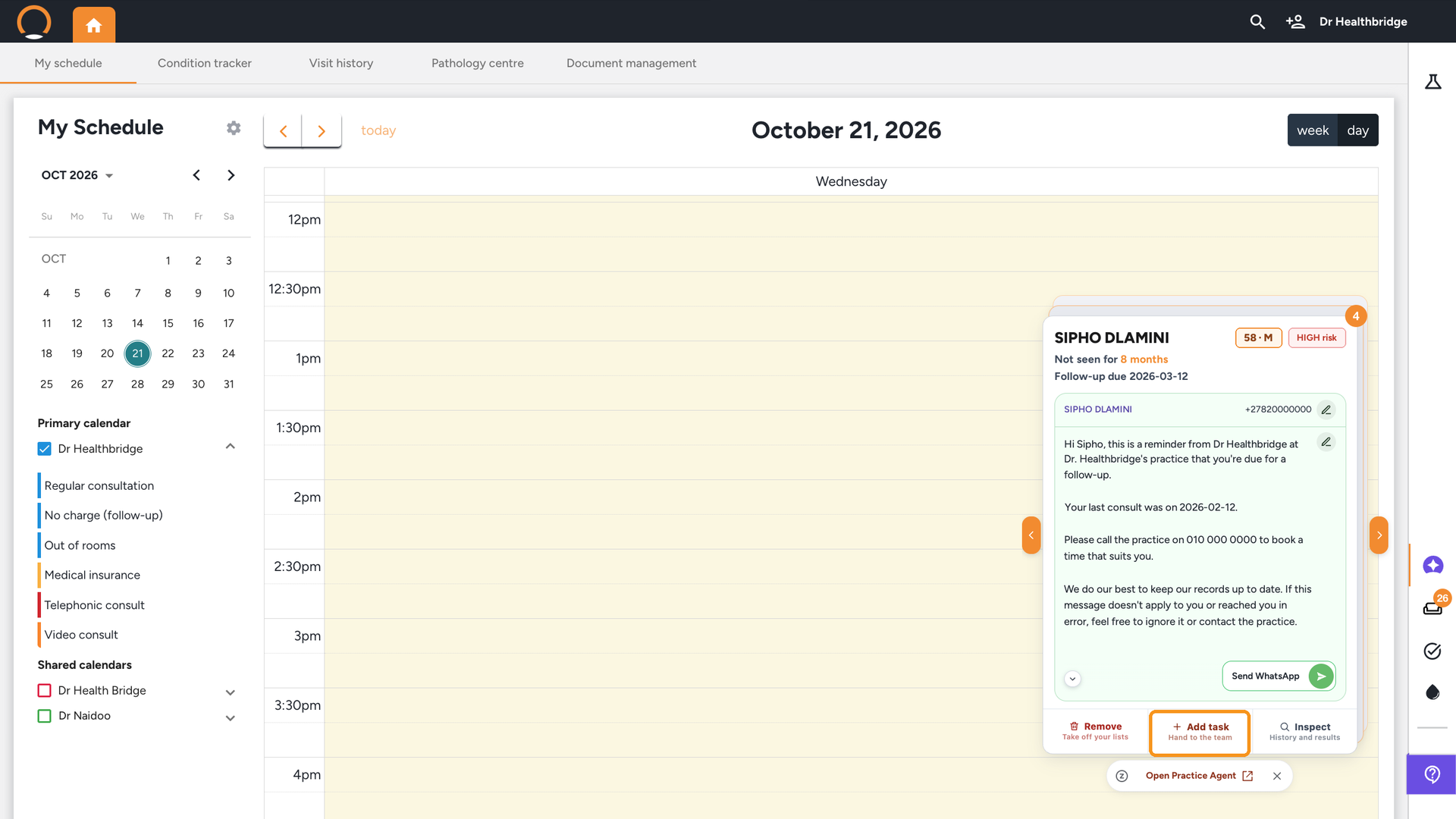
7. Click 'Add task' to hand a patient to the team
Location: Home dashboard, My Schedule › Practice Agent card › Add task
If someone in the practice should follow up instead, for example reception phoning the patient, click 'Add task'. The task form opens already filled in with the patient and the reason they're on the list.
Choose who the task is for under 'Assignee', adjust the title, type, date or priority if you need to, then click 'Create'.
The task is added to 'Tasks' in Practice Agent, separate from Healthbridge Clinical's own tasks. Your team can open it there by clicking 'Open Practice Agent'.
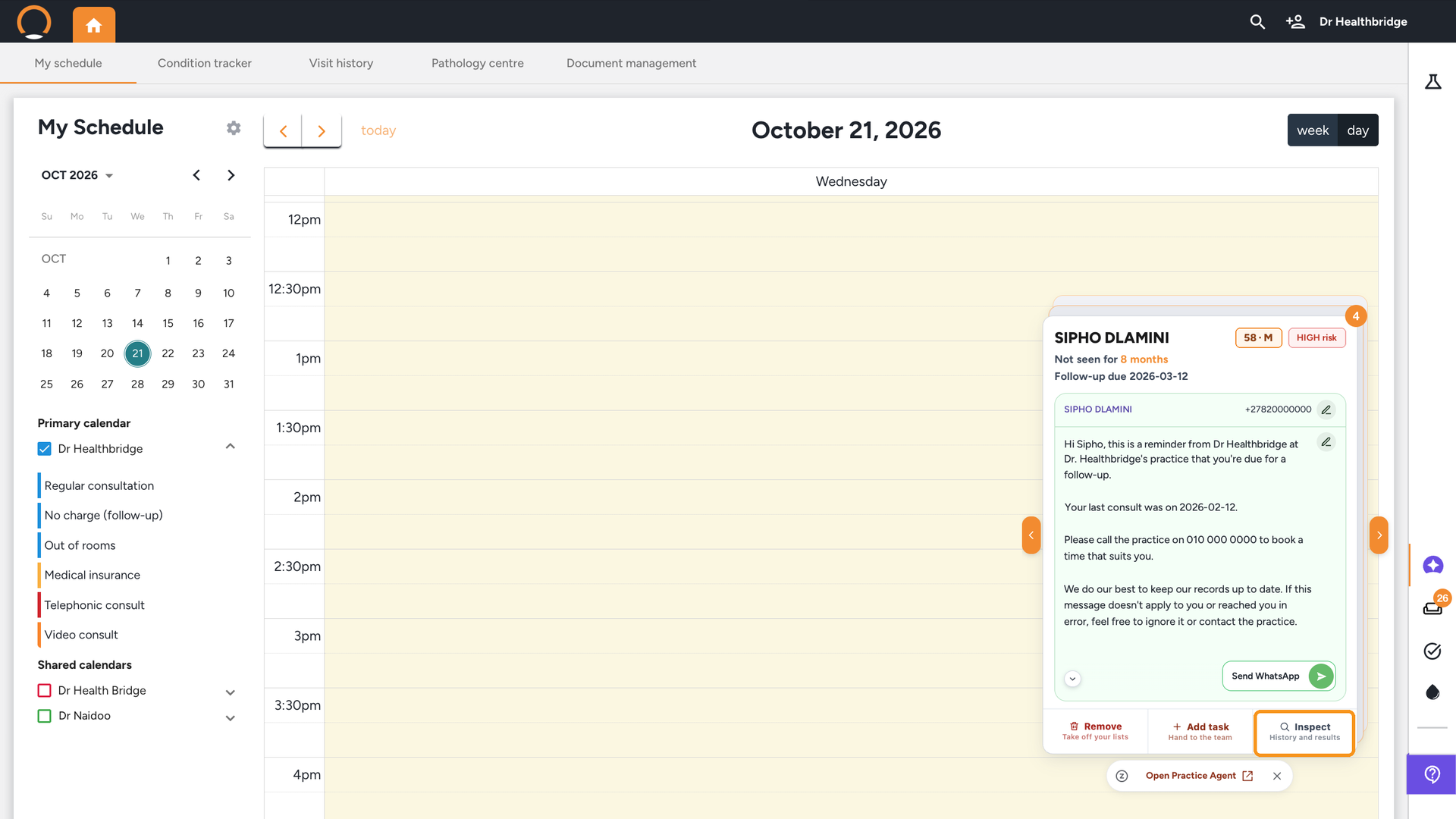
8. Click 'Inspect' to see the patient's history and results
Location: Home dashboard, My Schedule › Practice Agent card › Inspect
To remind yourself who the patient is before you send, click 'Inspect'. A larger panel opens with their reasons for follow-up, risk, latest vitals, last visit, results and clinical history on the left, and the full WhatsApp message on the right.
You should see: The patient's details on the left, and their WhatsApp message on the right with 'Add to task' and 'Remove from list' beneath it. Press Esc or click the 'X' to go back to the card.
9. Click 'Open Practice Agent' to see all your patients
Location: Home dashboard, My Schedule › Practice Agent cards › Open Practice Agent
The cards show a handful of patients each day. To see every patient who's due, click 'Open Practice Agent' under the cards. Practice Agent opens in its own window, with your full lists (Follow-ups, High risk and Screening), the WhatsApps you've sent, and 'Ask Practice Agent anything…', where you can ask questions about your practice in your own words.
Frequently asked
Q: How does Practice Agent choose the patients on my cards?
Each day it takes the patients most in need of a follow-up, based on things like their risk and how overdue they are, and picks up to 15 of them that you can WhatsApp. Patients you've removed, snoozed or WhatsApped recently aren't included. Your clinical data is refreshed each morning.
Q: Does Practice Agent send WhatsApps by itself?
No. A WhatsApp only goes out when you click 'Send WhatsApp', and it goes to the exact number and with the exact words you saw.
Q: What does the patient receive?
WhatsApp requires a short, approved first message, so the patient first gets: "Hi [patient], you have a message from [doctor] at [practice]. Click below to view it in this chat." When they tap it, your message appears exactly as you sent it.
Q: Why did a patient disappear after I sent their WhatsApp?
Once you've sent a patient a WhatsApp, they're kept off your lists for 30 days, so they don't get a second reminder too soon. You can see everyone you've messaged under 'WhatsApped patients' in Practice Agent.
Q: I removed or snoozed a patient by mistake. Can I undo it?
Yes. Click 'Open Practice Agent', choose the 'Removed & snoozed' list, and click 'Restore' next to the patient.
Q: Can I change the wording for all my messages?
Yes. Open 'WhatsApp settings' (from Inspect, or in Practice Agent) to set your practice name, your name and the contact number used in every message. Editing a single message on a card only changes that message.