
How to Create and Follow Up on Tasks
How to Create and Follow Up on Tasks in Healthbridge Clinical
What: The 'To do' panel, a personal task list with due dates, optionally linked to a patient and shown on your calendar.
Why: Keeps follow-ups (a pathology result to check, a prescription to renew) from getting lost once you move on to the next patient.
When: Any time something needs action later rather than right now, during or outside a consultation.
1. Open the To do panel
Location: Right-hand icon strip › Tasks icon
Click the Tasks icon in the right-hand icon strip, available from the home dashboard or inside a patient file. The 'To do' panel slides in from the right.
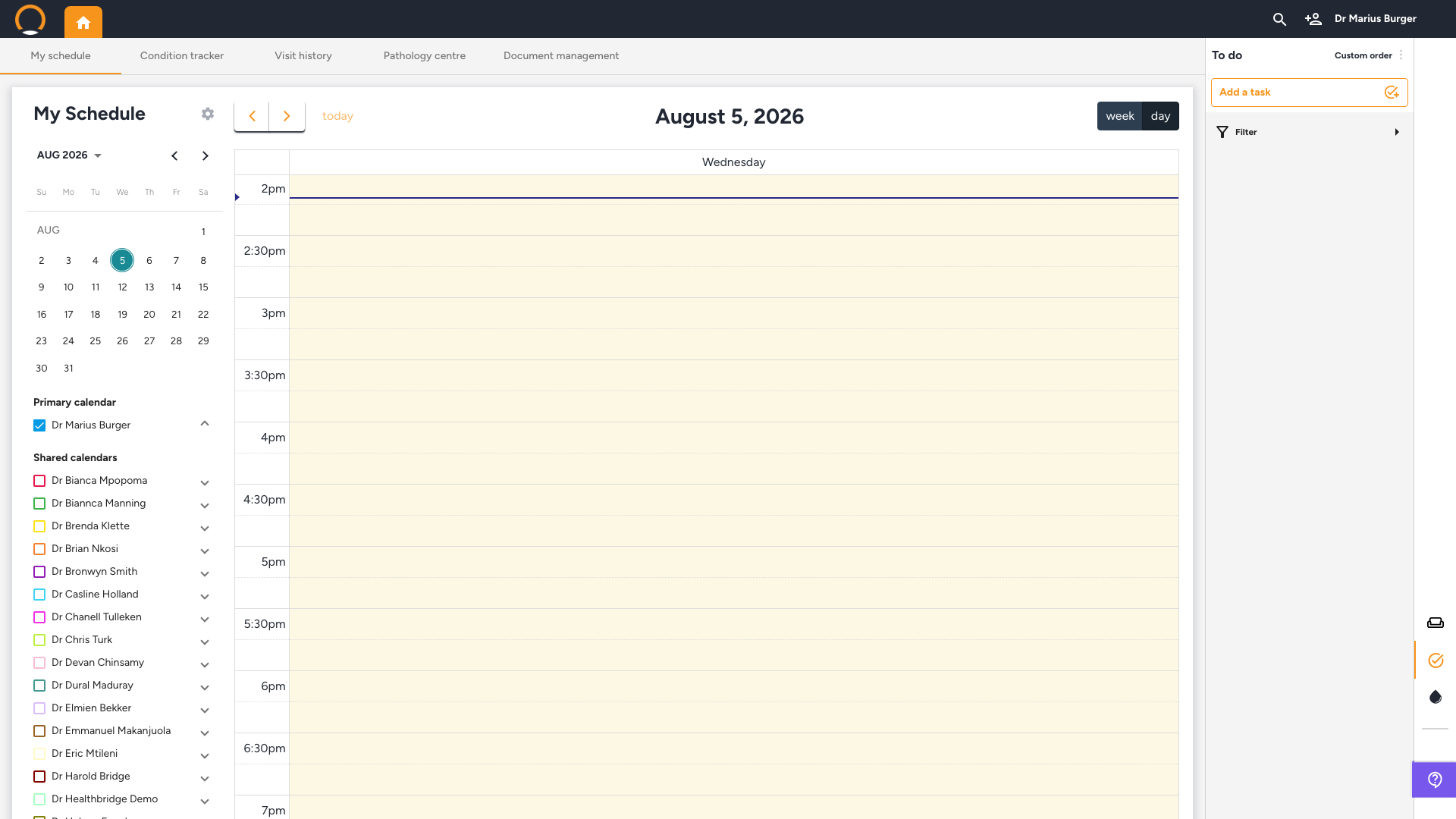
2. Create a task
Location: To do › Add a task
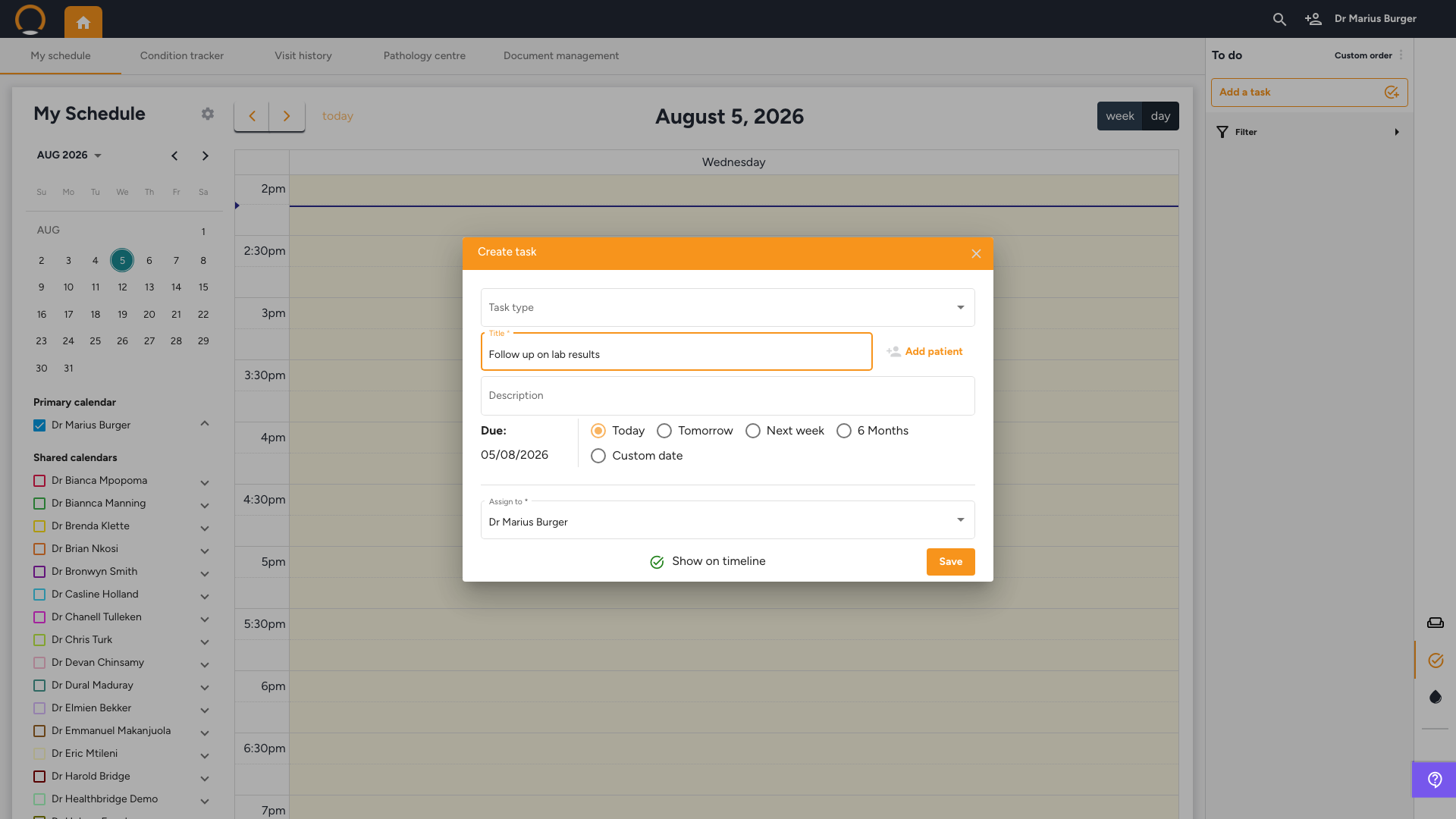
Click 'Add a task' to open the 'Create task' dialog and fill in:
- Task type, a category dropdown (e.g. Follow-up visit, Pathology result, Prescription renewal, Radiology, Admit to hospital).
- Title (required) and an optional Description.
- Due, Today, Tomorrow, Next week, 6 Months, or a Custom date.
- Assign to (required), defaults to you, but any provider can be assigned.
- Show on timeline, toggle on to also display the task on your calendar for its due date.
Click 'Save'.
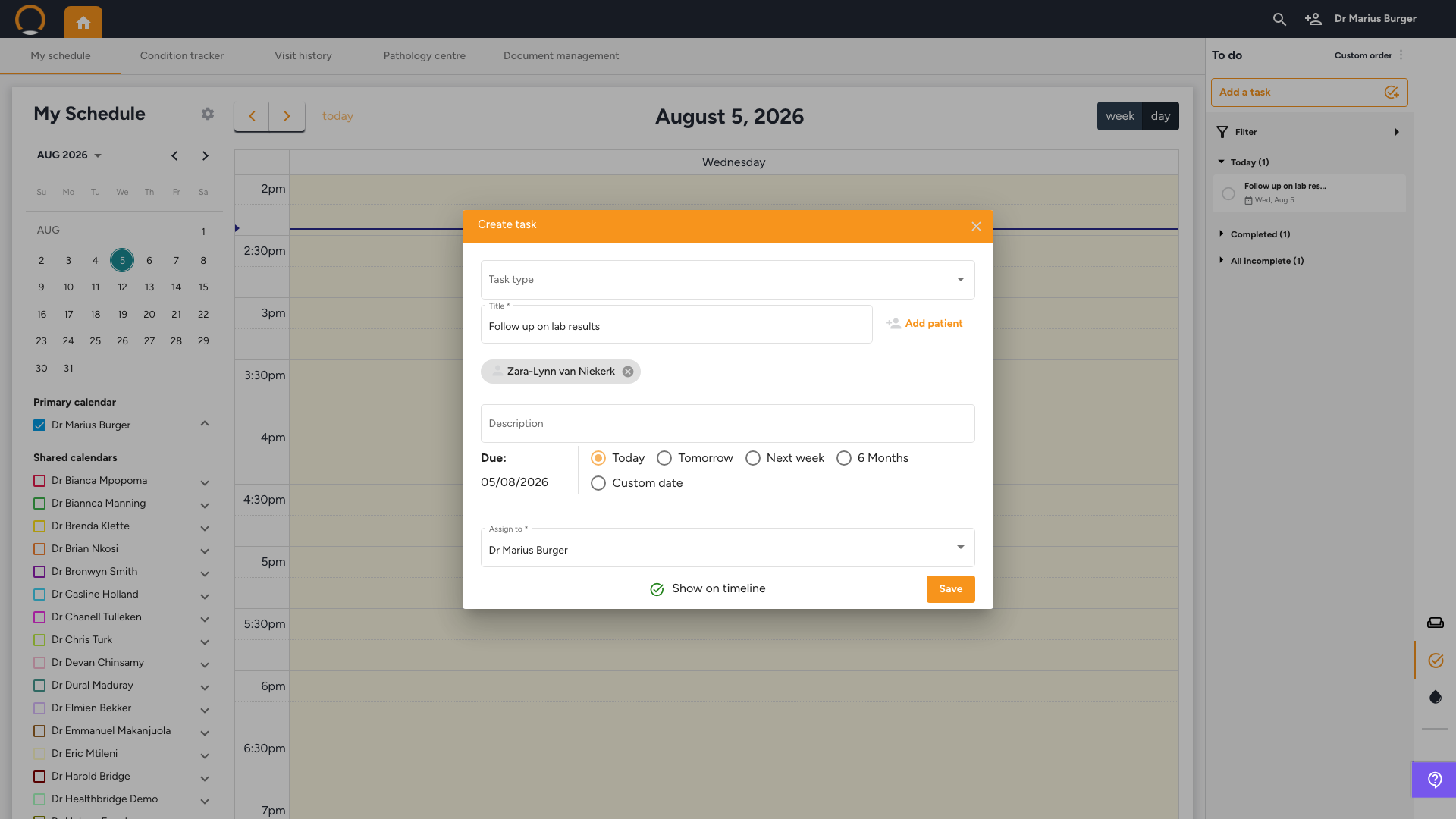
3. Link the task to a patient (optional)
Location: Create task › Add patient
Click 'Add patient' next to the Title field. A 'Search patient' field appears, type a name and select the matching result. The patient appears as a removable pill above Description.
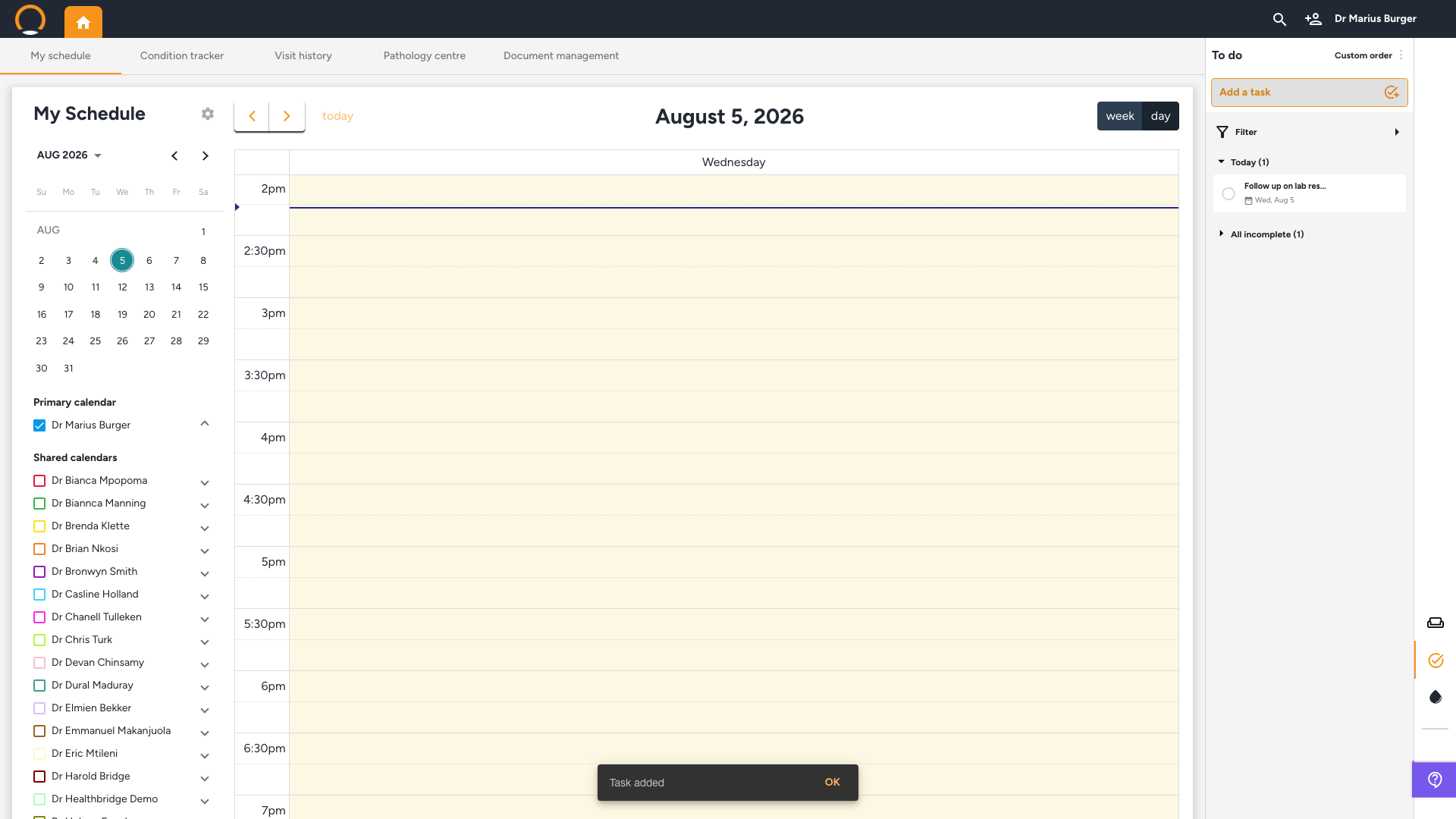
4. Follow up on tasks
Location: To do panel
Tasks are grouped by due date (e.g. 'Today'), with 'Completed' and 'All incomplete' sections below. Click the circle next to a task to mark it complete, or click the task itself to reopen the edit dialog and change any detail.
Frequently asked
Q: Can I assign a task to someone other than myself?
Yes, the 'Assign to' field defaults to you but can be changed to any other provider in the practice.
Q: Does a task show up anywhere besides the To do panel?
Only if 'Show on timeline' was toggled on when creating it, that also places the task on your calendar for its due date.
Q: Does linking a patient to a task add it to their file?
No, the link is for your own reference in the To do panel only. It doesn't appear in that patient's own file or timeline.