
Linking Undelivered Pathology Results to a Patient
Linking Undelivered Pathology Results to a Patient
What: Results land on the Pathology Centre's Undelivered tab when the patient details on the lab report don't match any account in Healthbridge Clinical. From there you either link the result to the correct existing account, or add a new patient.
Why: Almost every undelivered result belongs to a patient already on the system, a spelling difference, a maiden name, or a mistyped ID number is usually all it takes for the automatic match to fail. Linking keeps that patient's whole clinical history in one file instead of splitting it across two.
When: Any time a result sits on the Undelivered tab, ideally worked through regularly rather than left to build into a backlog.
Why results end up here
Labs send results with the patient details they captured at the point of collection. Healthbridge Clinical tries to match those details to an existing patient account. When something doesn't line up, a surname spelt differently, initials instead of a full first name, a missing or mistyped ID number, a maiden name, or a newborn sent through as "Baby of…", the match fails and the result is parked on the Undelivered tab instead of being filed.
The rule: link, don't create: Almost every undelivered result belongs to a patient who is already on the system. Creating a new account gives that patient a second, half-empty file, their history, chronic scripts, and previous results end up split across two records. Always search first, and only add a new account when you're certain the patient has never been seen at the practice.
Steps
Steps 4 and 6 are the ones that matter most, that's where you confirm you have the right person.
1. Open the Pathology centre
Location: Top navigation bar
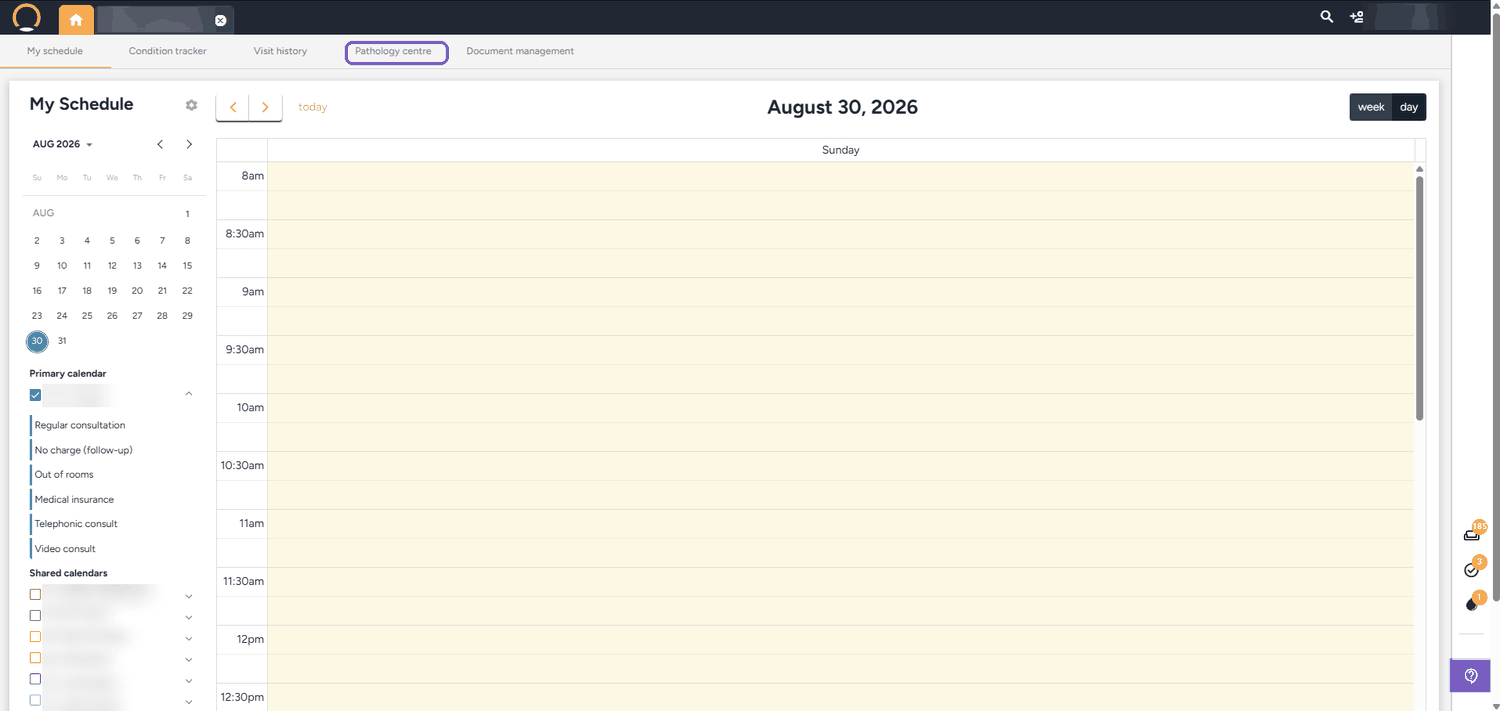
Click 'Pathology centre' in the row of tabs across the top of the screen. It sits between 'Visit history' and 'Document management'.
2. Switch to the Undelivered tab
Location: Pathology centre
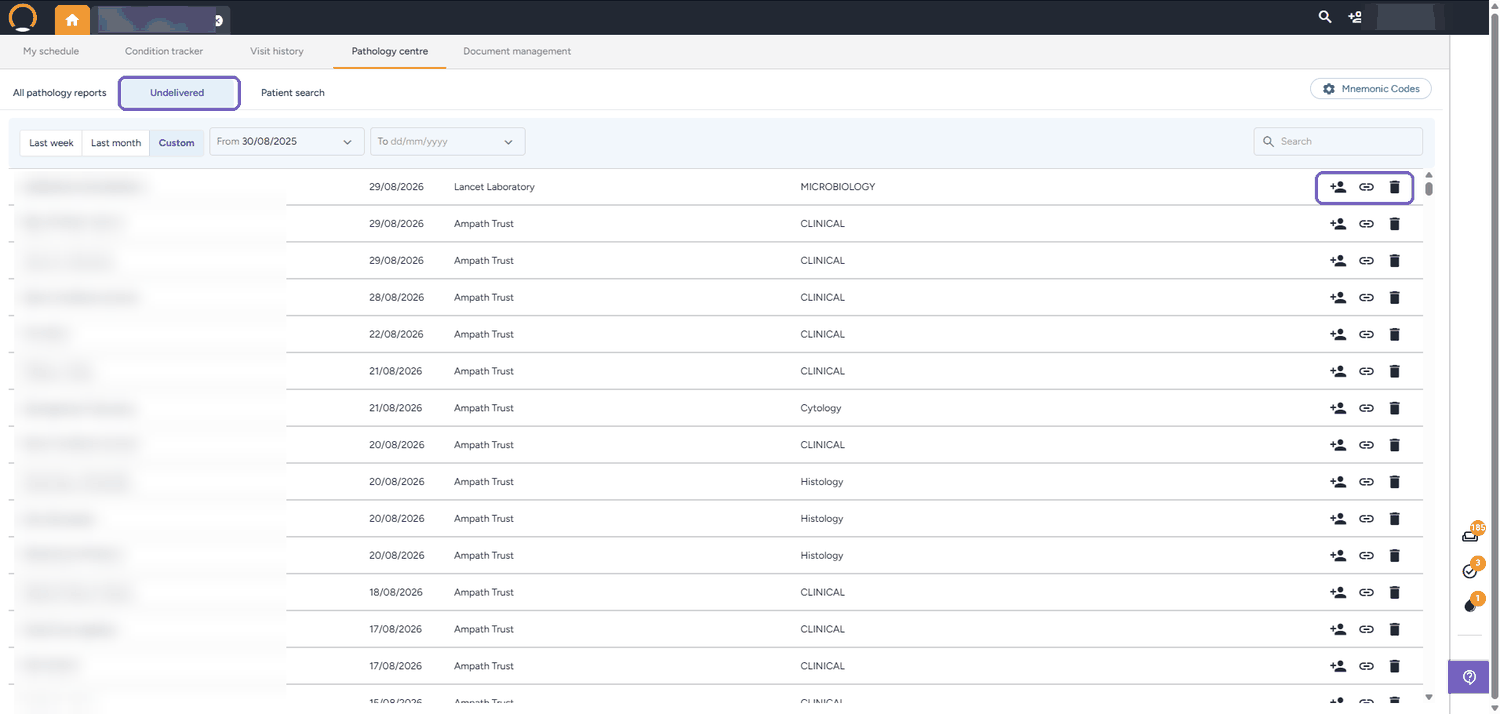
The Pathology centre opens on 'All pathology reports'. Click 'Undelivered' to see only the results that failed to match an account. Widen the date range if the list looks short, use 'Custom' and set a 'From' date far enough back to catch older results that were never resolved. Work down the list one result at a time.
Each row gives you three actions on the right:
- Add new account (person icon), creates a brand-new patient file. Use sparingly.
- Link to patient (chain icon), attaches the result to an existing account. This is the one you want.
- Delete (bin icon), removes the result. Permanent.
3. Open the result and read the patient details
Location: Result view
Click the row itself to open the lab report. This is your source of truth for who the result belongs to, note the full name and surname, date of birth, ID number, and the medical scheme and membership number before you go looking for the account. The same three actions appear in the top-right corner while the report is open, so you can link without going back.
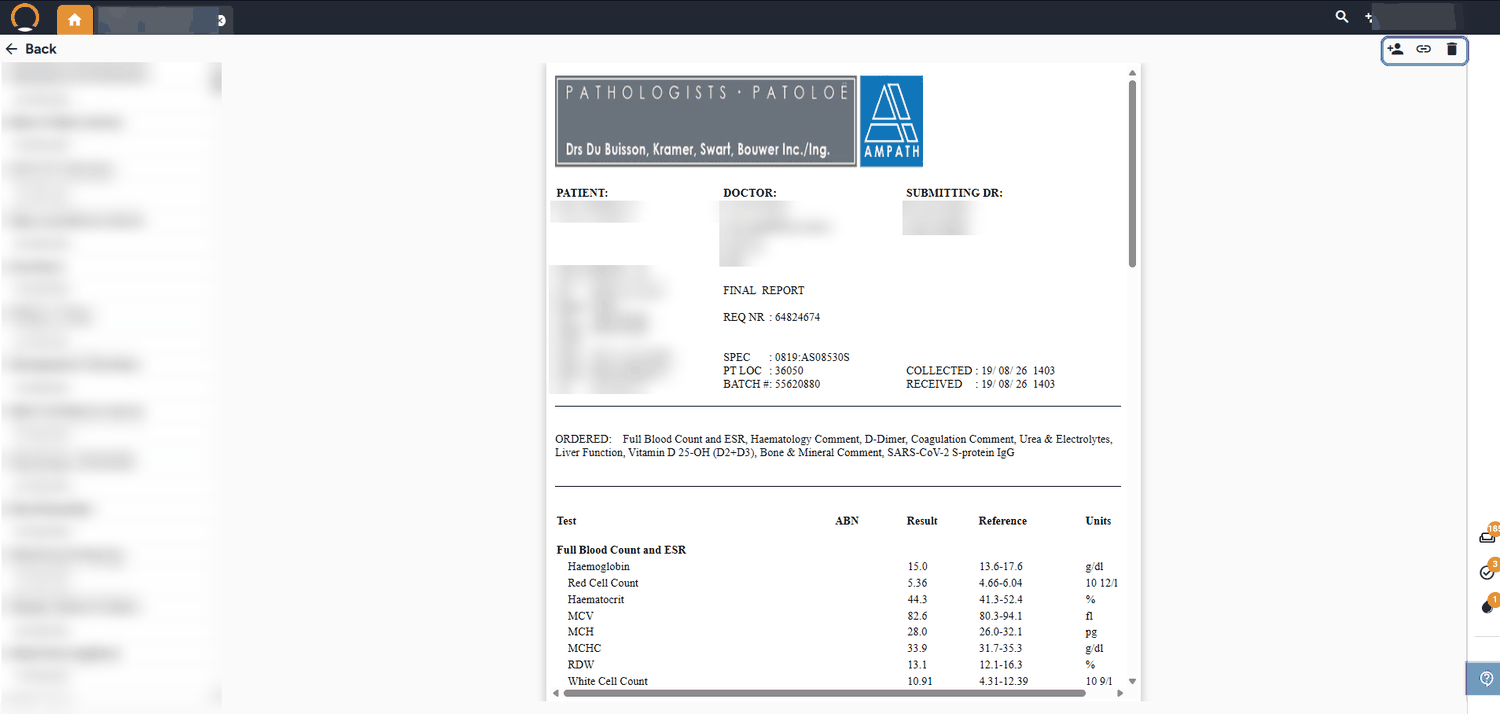
Reading the header: South African lab reports usually print the date of birth in the demographics line as Sex / YYYYMMDD / age, and the first six digits of an SA ID number are the date of birth in YYMMDD form. Those two should agree with each other, and with the account you're about to link to.
4. Click 'Link to patient'
Location: Chain icon
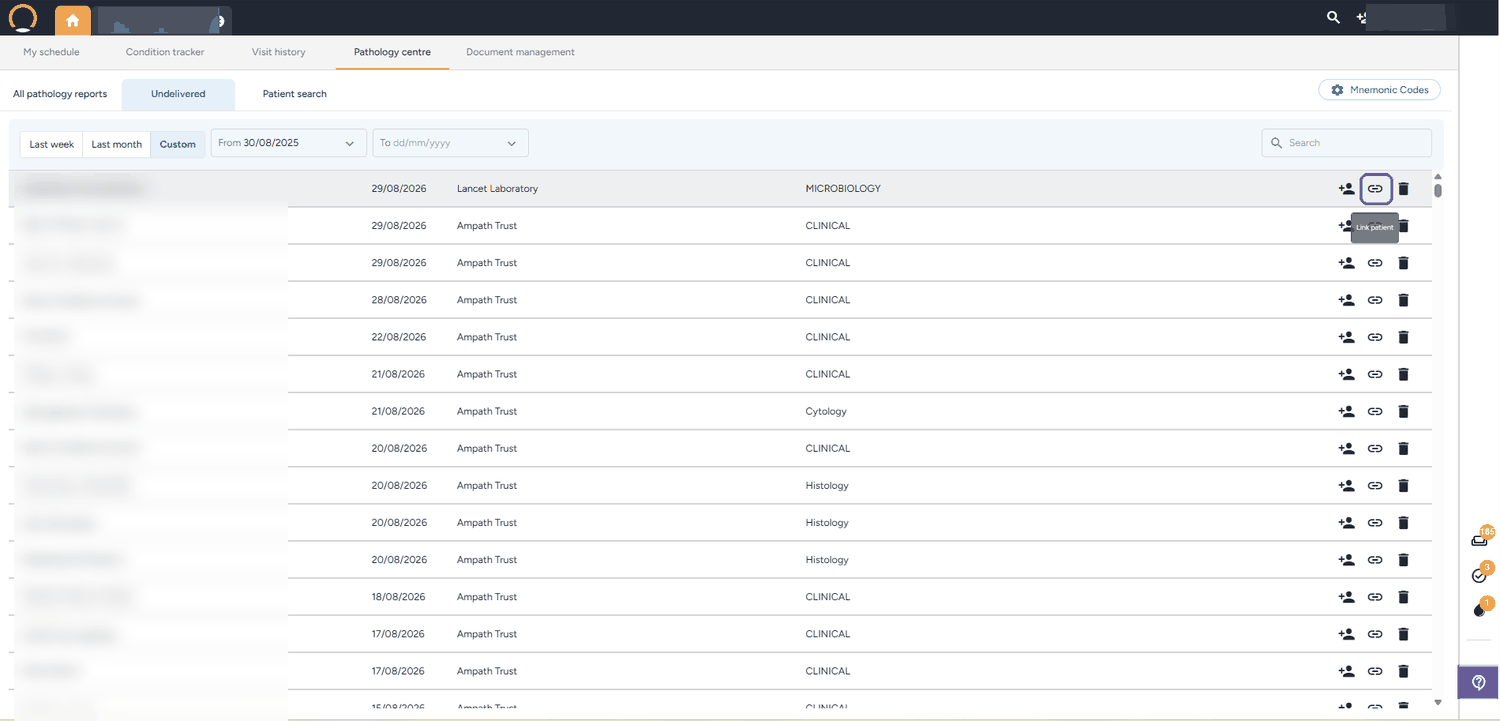
Hover over the middle icon to confirm it reads 'Link patient', then click it. Take care not to click the bin next to it, the chain icon is Link patient; the person icon on its left creates a new account, which is the one that causes duplicates.
5. Search for the patient and check carefully
Location: Link to patient window
The 'Link to patient' window opens. Type the patient's name or surname and search. Results are listed with a date of birth next to each one, which is usually what separates two people with the same name. If nothing comes back, try the other half of the name, a shorter fragment, a maiden name, or a common alternative spelling before you conclude the patient isn't on the system.
Name alone is never enough, confirm the report and the account agree on at least two of these:
- Date of birth, the strongest quick check. Families often share a first name and surname across generations.
- ID number, compare digit for digit. The first six digits should match the date of birth.
- Medical scheme & membership, scheme name plus membership number, and check who the main member is.
- Referring practitioner, the submitting doctor should be someone the patient actually consults at your practice.
- Contact number, useful as a tie-breaker, but note that families often share one number.
- A matching visit, look for a consultation around the collection date on the patient's timeline.
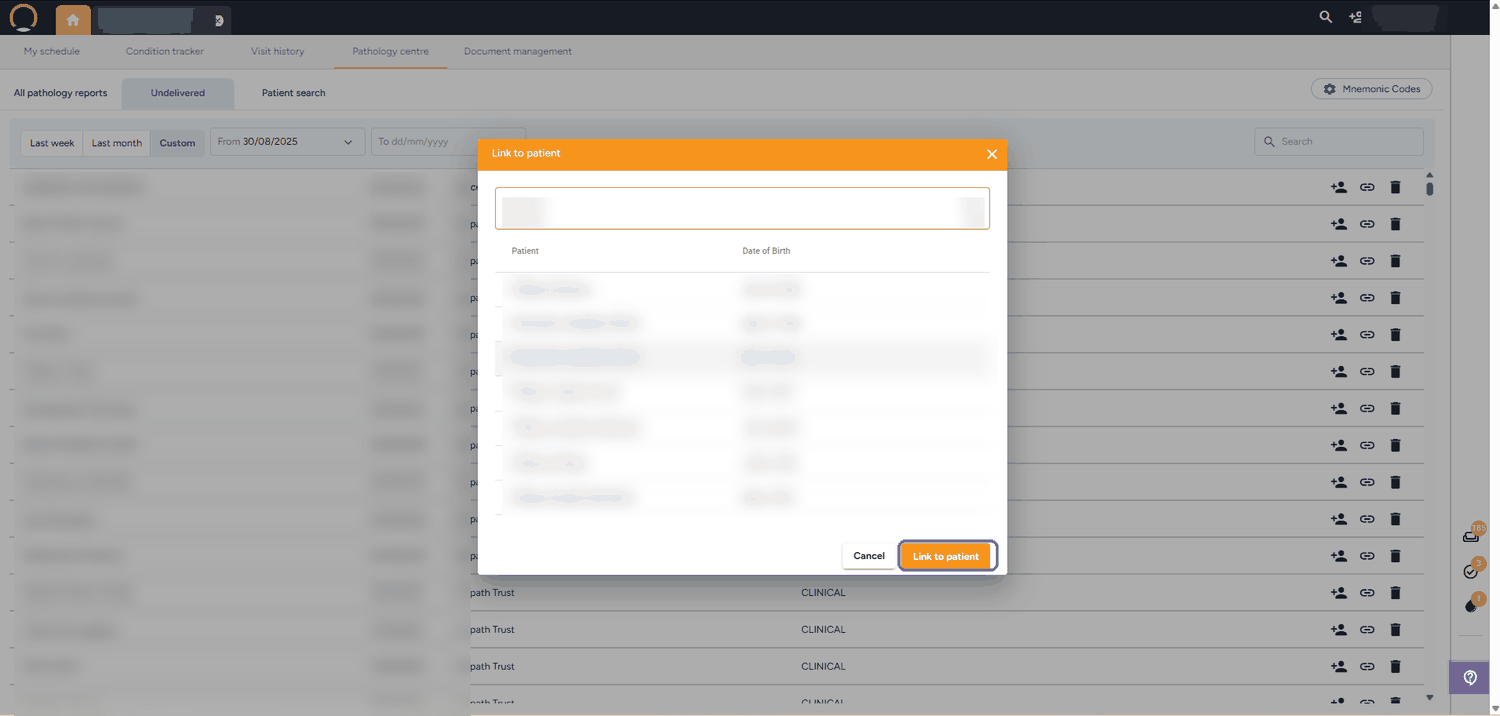
Slow down before you choose: Linking a result to the wrong patient puts one person's clinical information into another person's file. That's both a patient-safety risk and a POPIA breach, and it isn't something you can quietly undo. If two candidates look equally plausible, stop and check with the practitioner rather than guessing.
6. Select the patient, then click 'Link to patient'
Location: Link to patient window
Click the correct row. The patient's name appears next to the buttons at the bottom of the window, check that name one last time, then click 'Link to patient' to confirm. The result is filed to that patient's timeline and disappears from the Undelivered list. Move on to the next row.
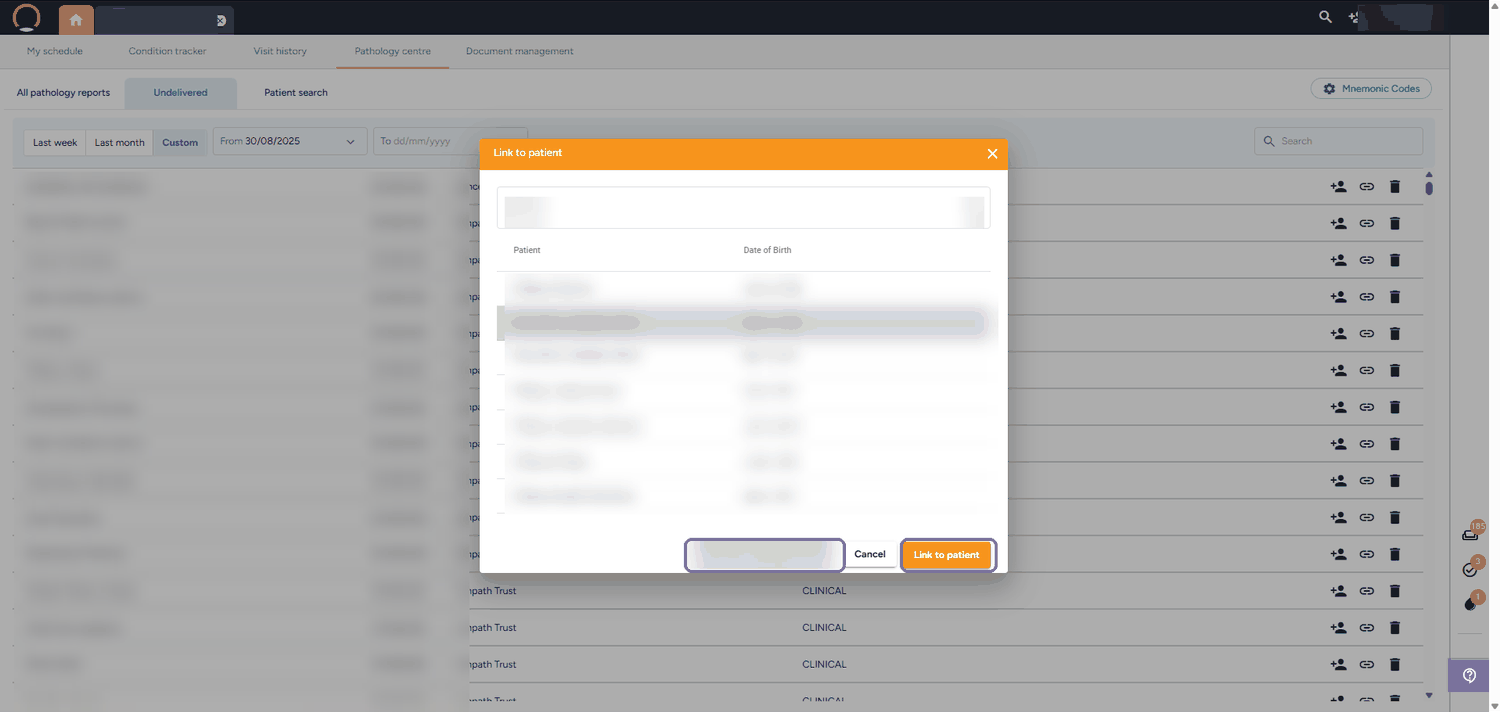
Confirm it landed: Spot-check your work, especially while you're getting used to the flow:
>
- Use the search icon in the top-right corner to look up the patient and open their file.
- Check the timeline, the result should appear against the collection date, with the lab and discipline shown.
- Confirm the result is gone from the Undelivered tab. If it's still there, the link didn't save, try again.
Working through a backlog?: Clear the oldest results first, those are the ones most likely to be holding up a follow-up consultation or a chronic script.
Which action, and when
Link is the default. The other two actions have narrow, specific uses.
Situation | Action | Why |
|---|---|---|
Patient is on the system with different details on the lab report | Link to patient | Keeps the whole clinical history in one file. This covers the large majority of undelivered results. |
Genuinely new patient, never seen at the practice | Add new account | Only after you've searched properly, full name, surname, and at least one alternative spelling. Capture their details in full so the next result matches automatically. |
Newborn reported as "Baby of <mother>" | Check first | The result belongs to the baby, not the mother. Link it to the infant's own account, or create one if the baby has never been registered. |
Result isn't for this practice, or is a confirmed duplicate | Delete | Deletion is permanent. Confirm with the practitioner before removing anything clinical. |
You can't tell which patient it is | Leave it | Leave the result on the Undelivered tab and escalate to the practitioner or the lab. An unlinked result is a nuisance; a wrongly linked one is an incident. |
Frequently asked
Q: The search returns nothing, is the patient definitely new?
Not necessarily. Try the surname on its own, then the first name on its own. Then try the obvious variants: a maiden name, a hyphenated surname split in two, a shortened first name, or a spelling with or without a double letter. Labs also frequently swap the first name and surname around. Only once all of that comes back empty should you create a new account.
Q: Two patients have exactly the same name. How do I choose?
Use the date of birth shown next to each result in the search list, and check it against the report. A parent and child sharing a name is common, and their dates of birth will be decades apart. If the dates of birth are close together, or you still can't separate them, check the ID number and medical scheme membership on the report, and if you're still unsure, ask the practitioner.
Q: Do I have to open the report before linking?
Strictly, no, you can link straight from the list. In practice, open it. The list shows only a name, a date, and the lab; the report is where the date of birth, ID number, and scheme details are. Those are what make the match safe.