
Pathology Centre
Pathology Centre
Who uses this: Doctors and reception staff. Doctors review and action results; reception can send follow-up SMS reminders and manage the task list.
Pathology Centre
1. Opening Pathology Centre
Location: Navigation bar › Pathology centre tab
Click Pathology centre in the top navigation bar from any screen. The view shows all incoming results for the practice, grouped by patient.
Each result row shows:
Column | What it shows |
|---|---|
Date | Date the result was received in HBC |
Lab | The laboratory that processed the sample (e.g. Ampath Trust, Lancet) |
Type | Result category, typically CLINICAL |
Doctor | The referring doctor on the request |
Status | FINAL (complete) or PRELIMINARY (partial, more results pending) |
On the right side of each row, action icons let you notify the patient or manage the result:
Icon | Action |
|---|---|
WhatsApp (green) | Open the Pathology Messenger to send an AI-generated result notification via WhatsApp |
Checkmark + | Add to task list, flags the result for follow-up |
Chat bubble | Send a follow-up SMS (set appointment, notify, or custom message) |
Arrow | Forward the result to another provider |
Envelope | Email the result to the patient or a referring doctor |
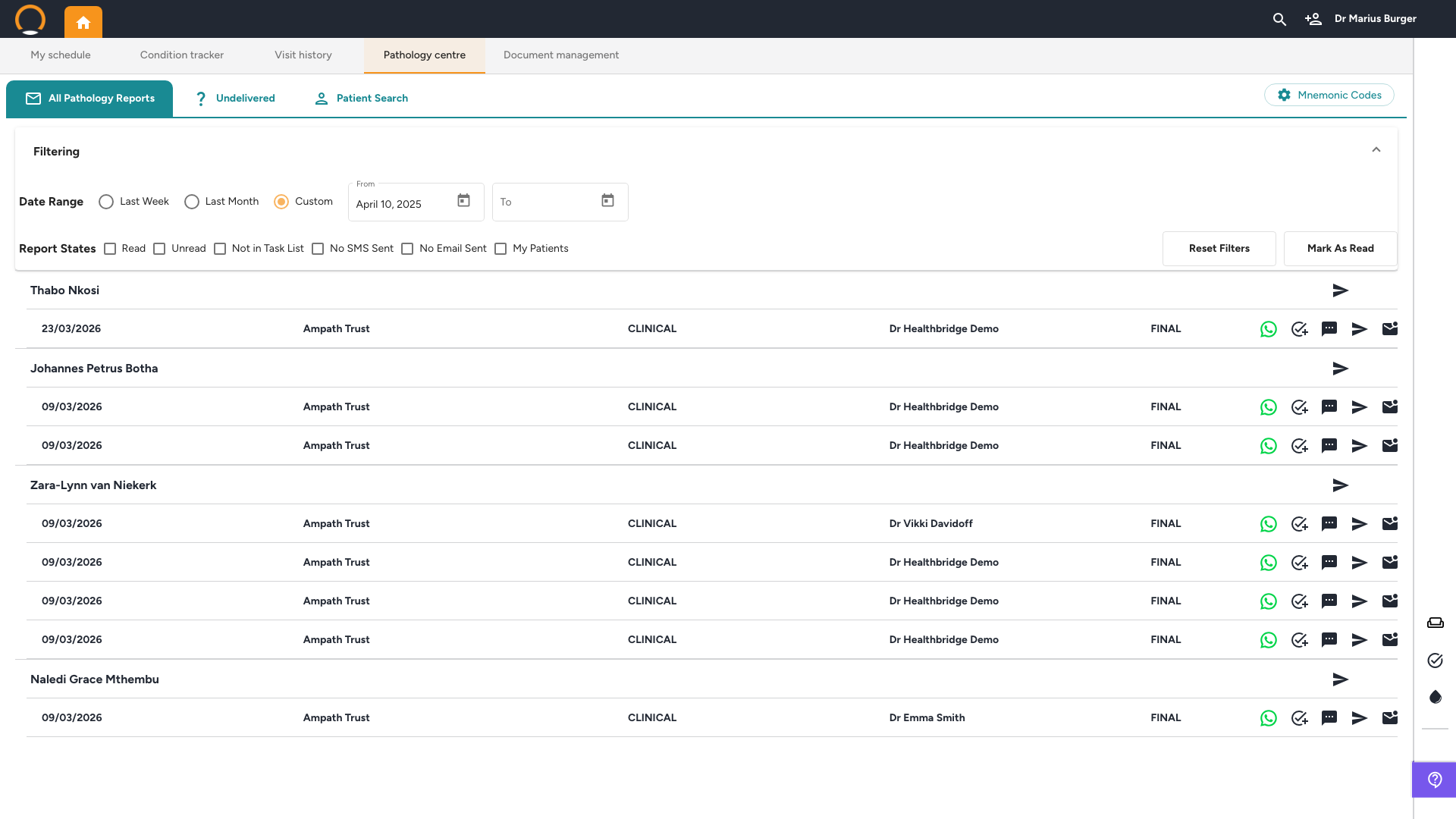
You should see: Every result from every linked lab lands here automatically, no need to open individual patient files to check for new results.
2. Filtering Results
Location: Pathology Centre › Filtering section (top of page)
Use the Filtering bar to narrow down which results are displayed.
- Date Range, choose Last Week, Last Month, or Custom. For Custom, click the calendar icon next to the From field to select a start date, then set a To date if needed. Leave To blank to show all results up to today.
- Report States, tick one or more filters to show only specific result types:
Unread, results not yet opened by any user (useful for morning review)
Not in Task List, results no one has flagged for follow-up yet
No SMS Sent, results where no SMS follow-up has been sent
No Email Sent, results where no email has been sent
My Patients, limits the view to results for the logged-in doctor's patients only
- Reset Filters, clears all active filters and returns to the default view.
- Mark As Read, marks all currently visible results as read in one click.
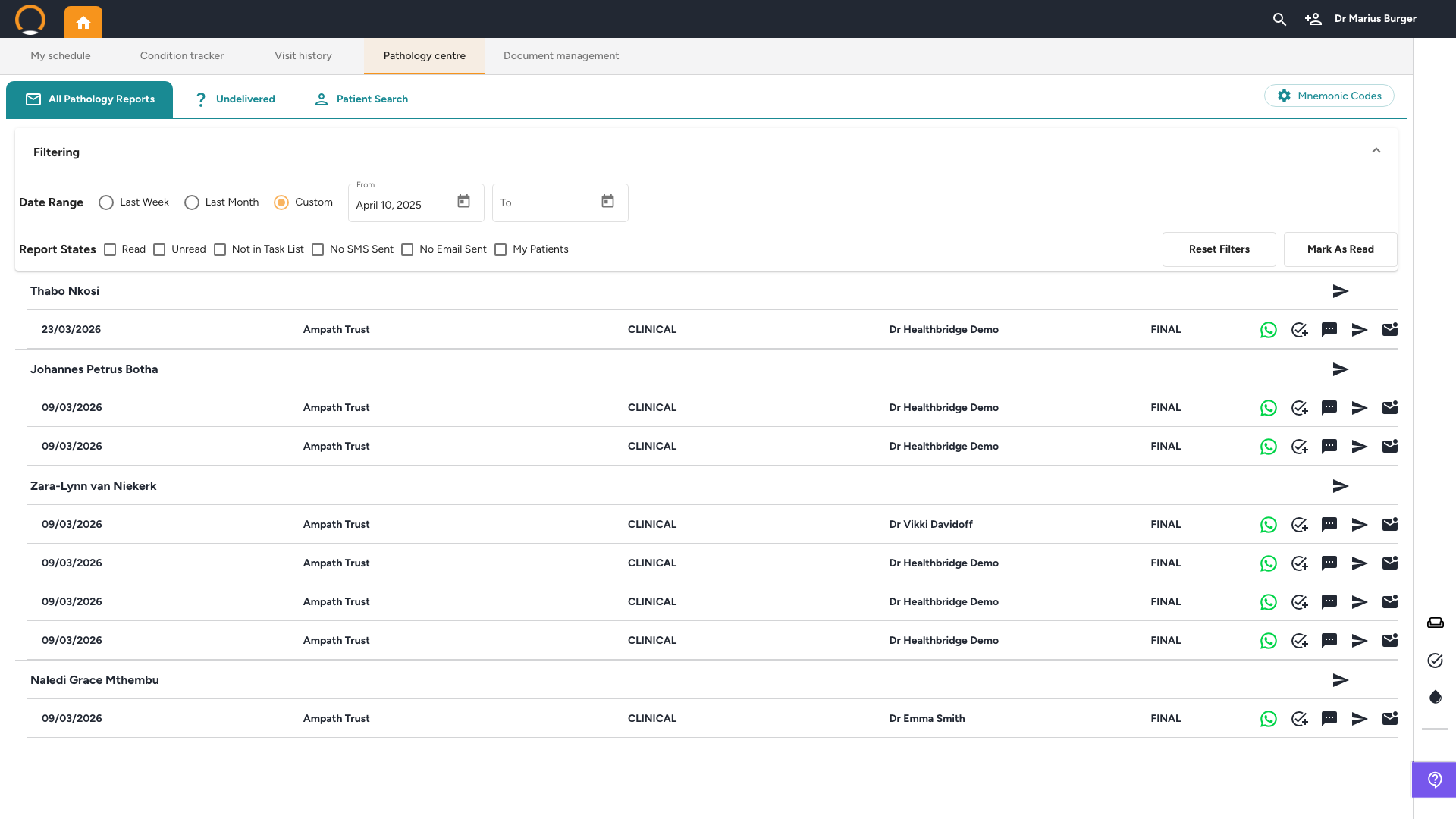
You should see: The Unread filter is the fastest way to start each day, it surfaces only results that haven't been reviewed yet, so nothing slips through.
3. Pathology Messenger, AI WhatsApp Notification
Location: Result row › WhatsApp icon (green)
The Pathology Messenger is an AI tool that turns a lab report into a clear, patient-friendly WhatsApp message. Instead of the doctor typing a custom message for each result, the AI generates a draft based on the patient's results and their full medical history.
Advanced AI feature: The green WhatsApp icon only appears when the Advanced AI subscription is enabled on your account. If you don't see it on any result row, that's most likely why, your practice's Business Consultant can activate it.
- Click the green WhatsApp icon on a result row.
- The Pathology Messenger [Beta] dialog opens with a two-panel layout.
- Left panel, Cumulative Metrics: the AI's clinical analysis. It compares the new results against the patient's previous labs, chronic conditions, and full clinical timeline, not just the current result in isolation. Key metrics are shown with reference ranges and trend indicators.
- Right panel, Patient message: a plain-language WhatsApp message explaining what the results mean for this specific patient. The message includes context, what to watch for, and reassurance where appropriate, it reads as doctor-reviewed, not bot-generated.
- Review the message. Use the Message Update field to add any additional context (e.g. "Please contact the practice to schedule a follow-up").
- Click Copy to copy the message to clipboard, or Send to dispatch directly via HBC's WhatsApp system.
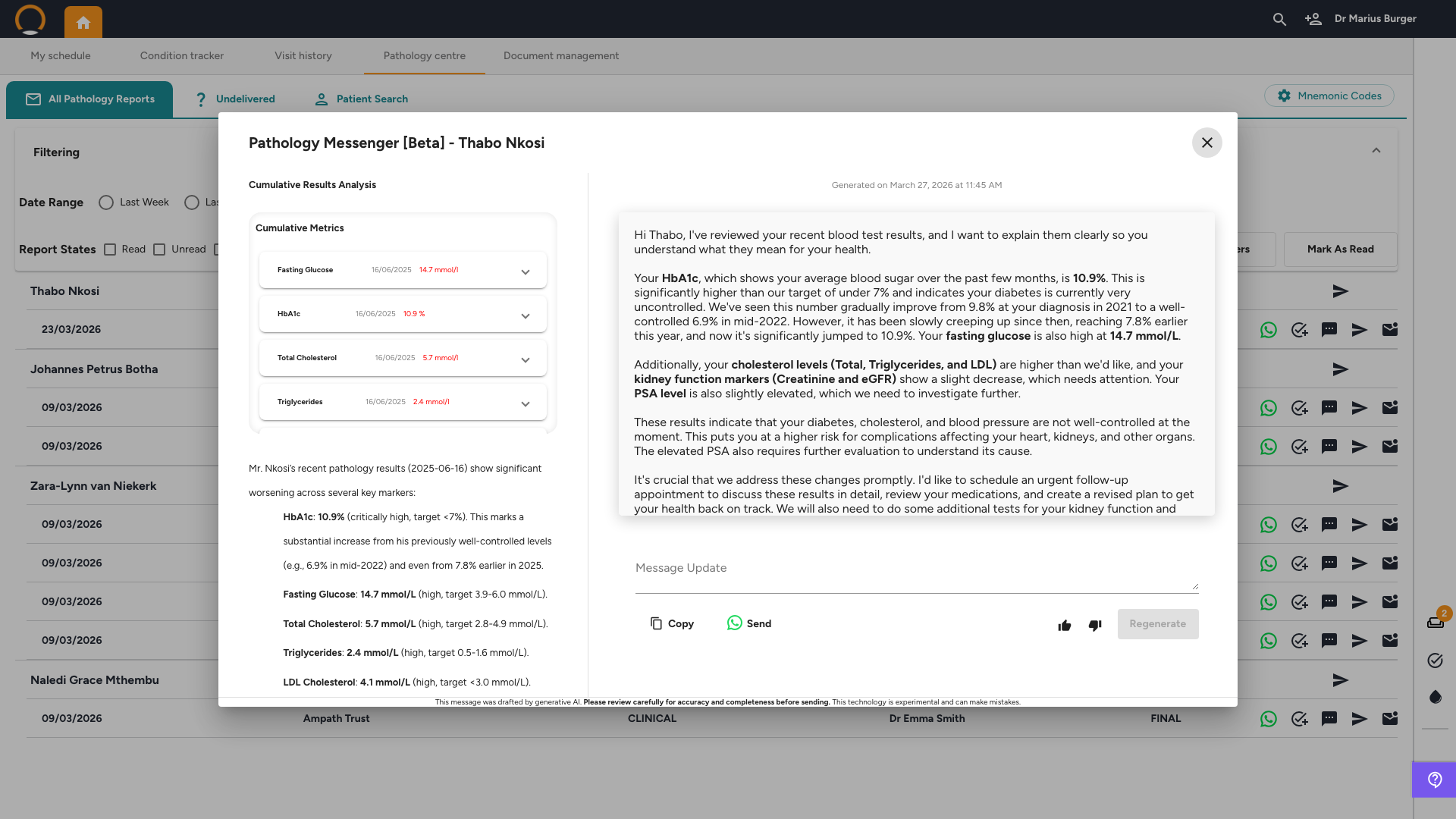
You should see: The message is generated from the patient's entire history, not just today's result. A patient with previously well-controlled HbA1c getting a high reading will receive a different, more contextualised message than a new patient with the same value.
Warning: One-way communication: messages sent via the Pathology Messenger are delivered from HBC's system, patients cannot reply back into Healthbridge Clinical. Two-way communication is on the product roadmap. Before sending, verify that the contact number on file is correct, especially for dependent patients (e.g. a child's result going to the parent's number).
4. SMS Follow-up
Location: Result row › Chat bubble icon
For a simpler notification, or when the patient doesn't have WhatsApp, use the SMS option.
- Click the chat bubble icon on the result row.
- Choose the SMS type:
Set up appointment, sends a message prompting the patient to call in and book
Notify as normal, sends a standard result notification
Custom, type a free-form message in the Compose SMS field
- The patient's phone number is pre-filled from their profile. Verify it before sending.
- Click Send.
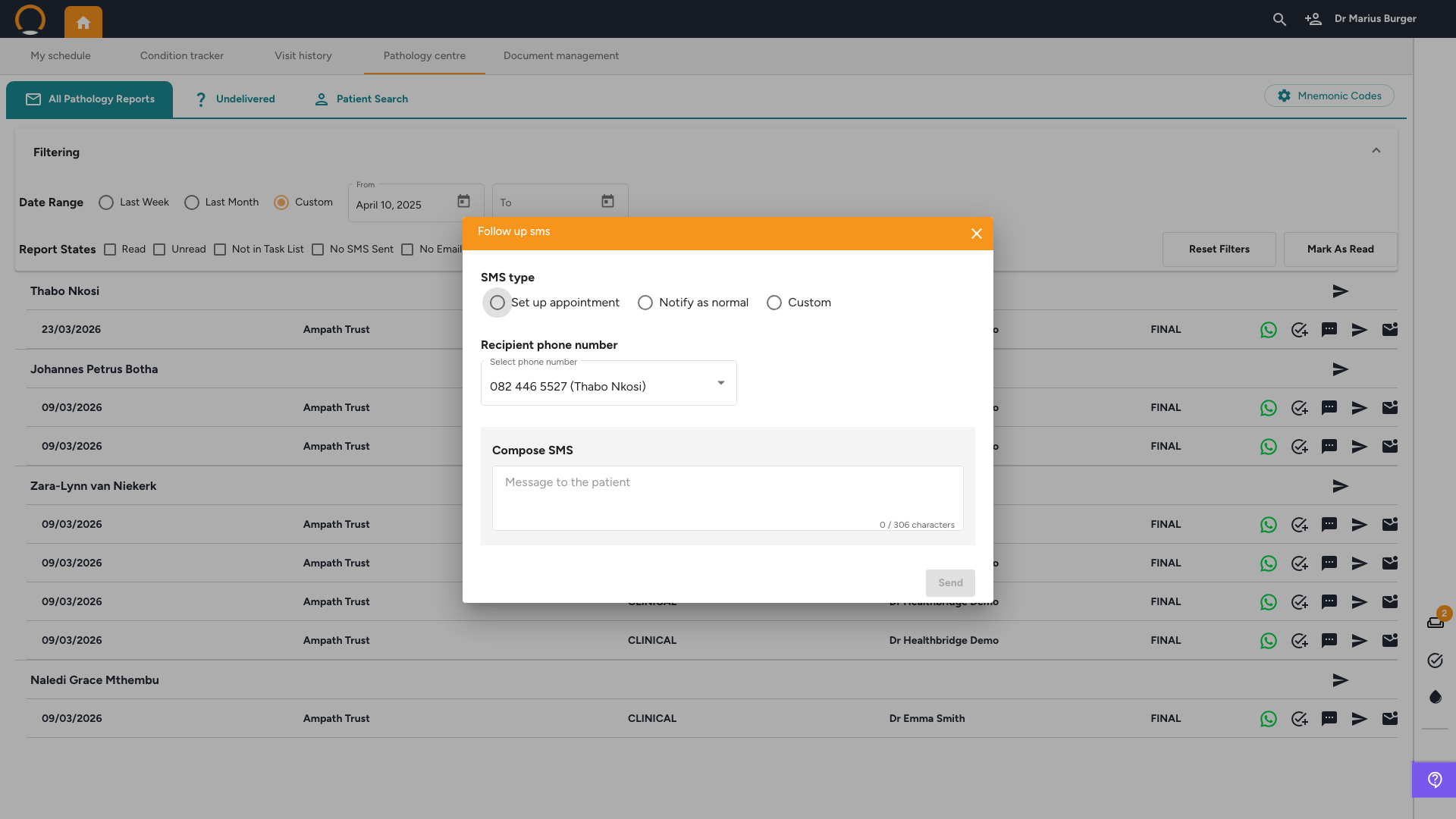
You should see: The SMS option is useful for routine results where a full AI-generated WhatsApp message isn't needed, for example, a normal full blood count where the practice just needs to let the patient know results are in.
5. Undelivered Tab
Location: Pathology Centre › Undelivered tab
The Undelivered tab shows results that arrived from a lab but could not be automatically matched to a patient record in HBC. This typically happens when the name or ID on the lab request doesn't exactly match the patient's record in the system.
- Use the date range and search filters to find specific undelivered results.
- Review each result and manually link it to the correct patient file.
- Undelivered results will not appear in any patient's file until they are matched and resolved here.
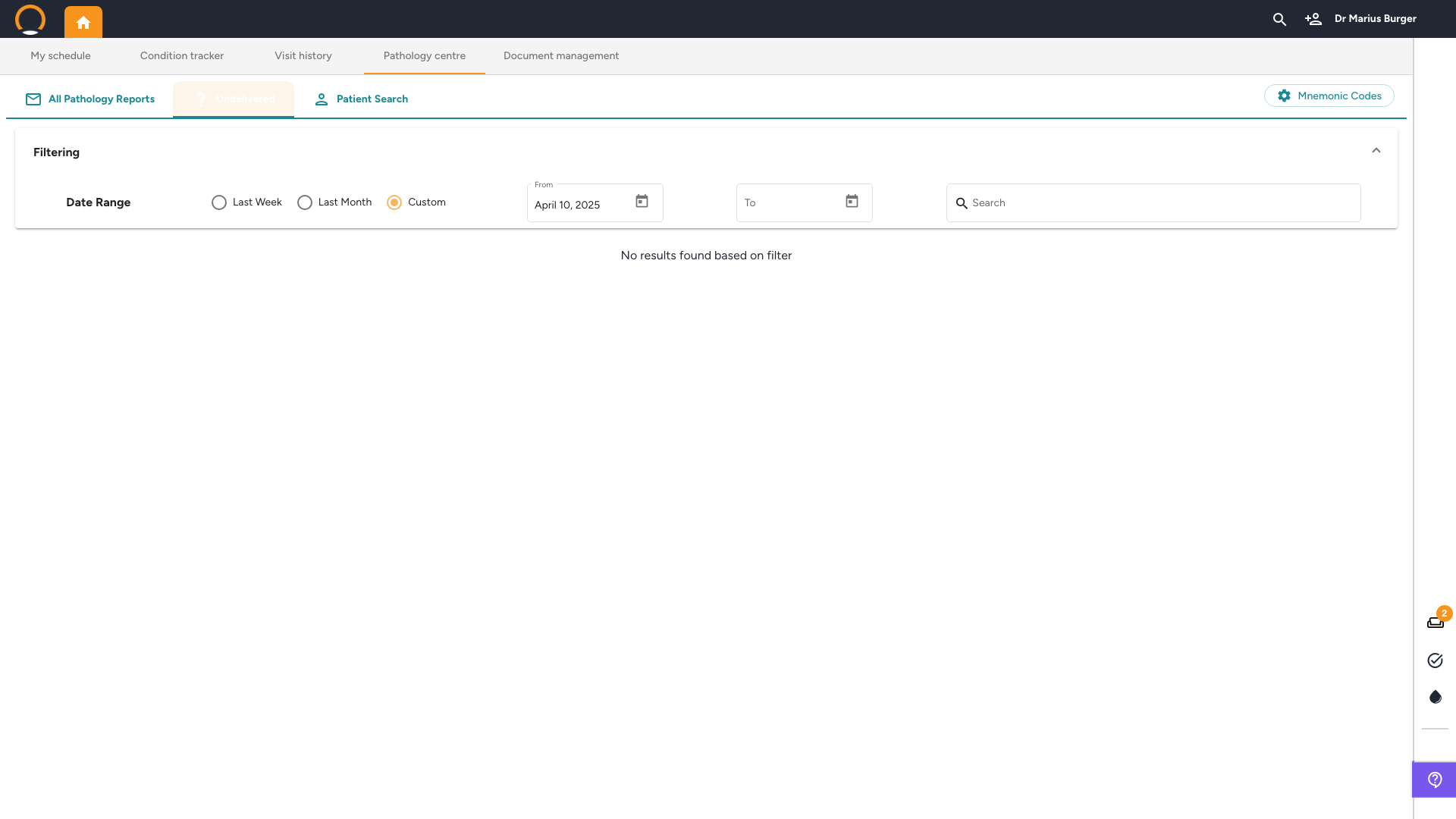
You should see: Check the Undelivered tab if a patient calls to say their results haven't arrived, it's the most common reason a result is missing from their file.
Go deeper: See Linking Undelivered Pathology Results to a Patient for the full workflow, how to read the report, match on the right identifiers, and avoid creating a duplicate patient record.
6. Patient Search
Location: Pathology Centre › Patient Search tab
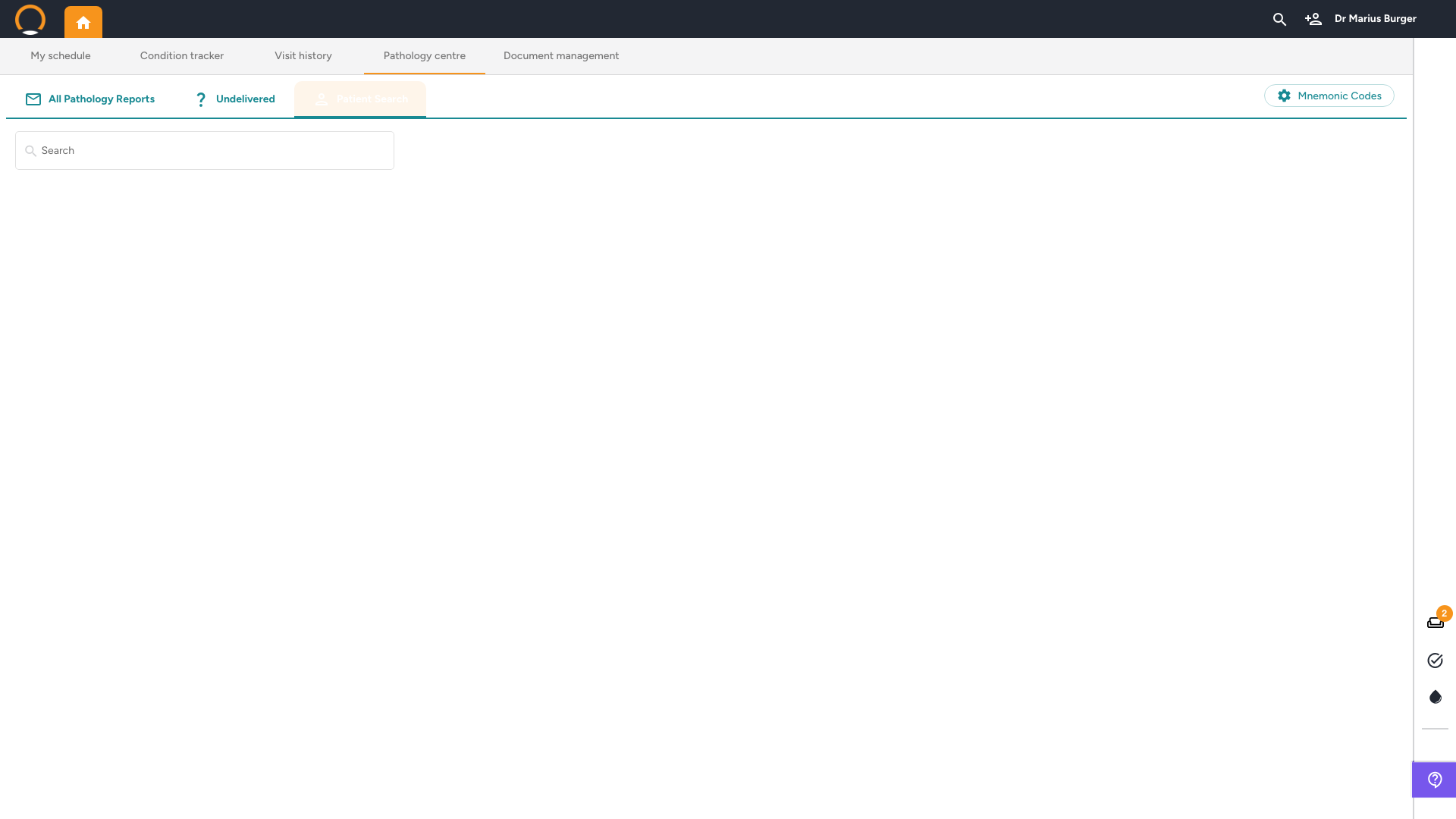
Use Patient Search to find all pathology results for a specific patient, useful for reviewing a patient's full result history without opening their patient file, or when preparing for a follow-up consultation.
- Click the Patient Search tab.
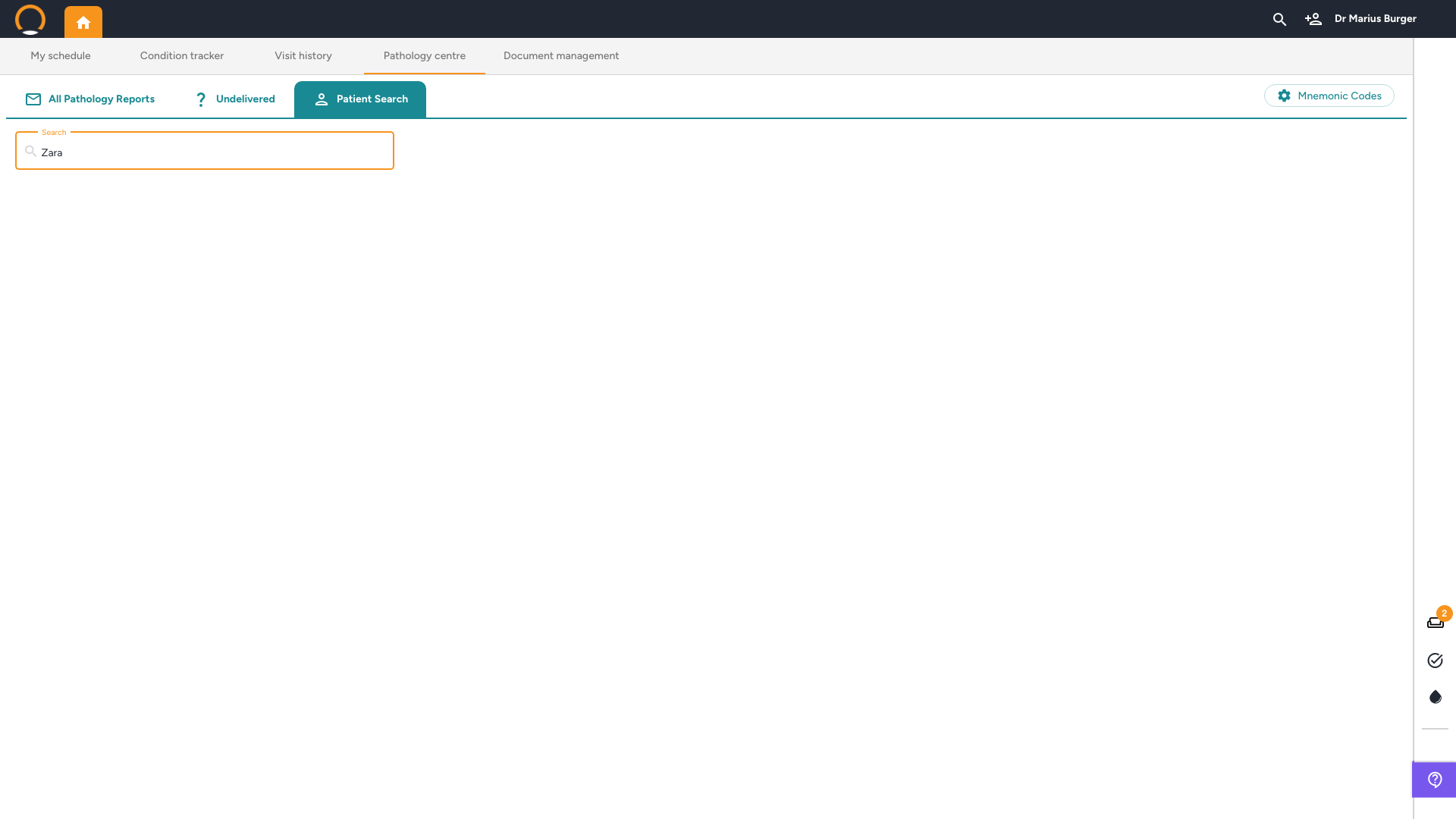
- Type the patient's name or ID number in the search field.
- All results for that patient are displayed, across all labs and dates.
7. Adding Labs, Mnemonic Codes
Location: Pathology Centre › Mnemonic Codes (top right)
For results to arrive automatically from a lab, HBC needs the practice's unique mnemonic code for that lab. Ampath is typically configured at setup. To add Lancet, PathCare, or any other lab:
- Click Mnemonic Codes in the top-right corner of the Pathology Centre.
- Find the lab in the list, all labs HBC supports are listed here.
- Click the + button next to the lab and enter the practice's mnemonic code for that lab.
- Contact your HBC Business Consultant or support, the HBC team activates the connection from the backend once the code is added.
Where to find your mnemonic code: it is printed at the top of the lab's result forms or on the practice's account statement from that lab. If you can't locate it, contact the lab's accounts team, they can provide it immediately.
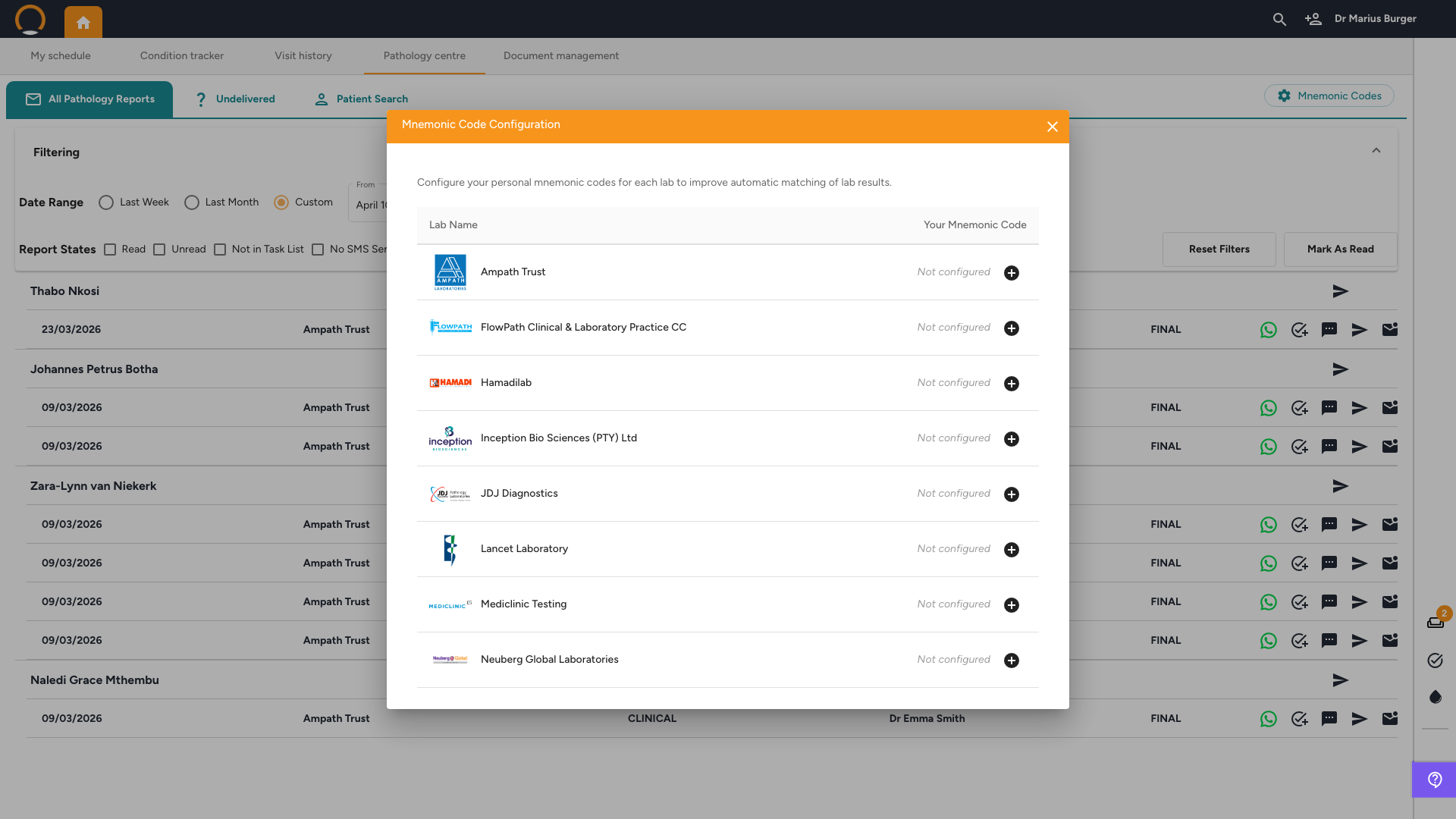
You should see: Once a mnemonic code is added and activated, results from that lab will start populating in the Pathology Centre automatically, no manual importing required.