
Patient Overview & Executive Summary Panel
Patient Overview & Executive Summary Panel
What: The Patient Overview page brings together a patient's talking points, family, lifestyle, surgical history, conditions, and medications in one screen, and the Executive Summary panel on the right keeps the essentials (allergies, conditions, medication, lifestyle) visible at all times, including inside an open consultation.
Why: So you can check a patient's background the moment you open their file, and keep checking it mid-consultation, without switching tabs or losing your place.
When: Every time you open a patient, and at any point during their consultation when you need a quick reminder of an allergy, a chronic condition, or their current medication.
Steps
1. Open a patient to land on their Patient Overview
Location: Patient search, My Schedule, or the Waiting Room › Patient Overview
Search for a patient or click their appointment, and you land on Patient Overview by default. This one screen is designed to answer "what do I need to know about this patient" before you even click 'Start consult'.
2. Read the Patient Overview's three columns
Location: Patient Overview › main content area
The main area is laid out in three columns:
- Left, Talking points and Lifestyle & Family Hx. Talking Points is a free-text box for your own notes on this patient (click the pencil to add one). Lifestyle & Family Hx covers smoking/alcohol and family history.
- Centre, Family members and Surgical & Hospital Hx. Family members lists linked family accounts with their ages. Surgical & Hospital Hx covers past procedures and admissions.
- Right, Conditions & Medications. Every recorded condition, its medication, any condition notes, other medicine, discontinued items, and previous conditions.
Two rows change shape depending on the patient. For a younger patient, Vaccination Schedule and Developmental Screening appear in place of an adult's Vitals & metrics row, flagging anything overdue in red.
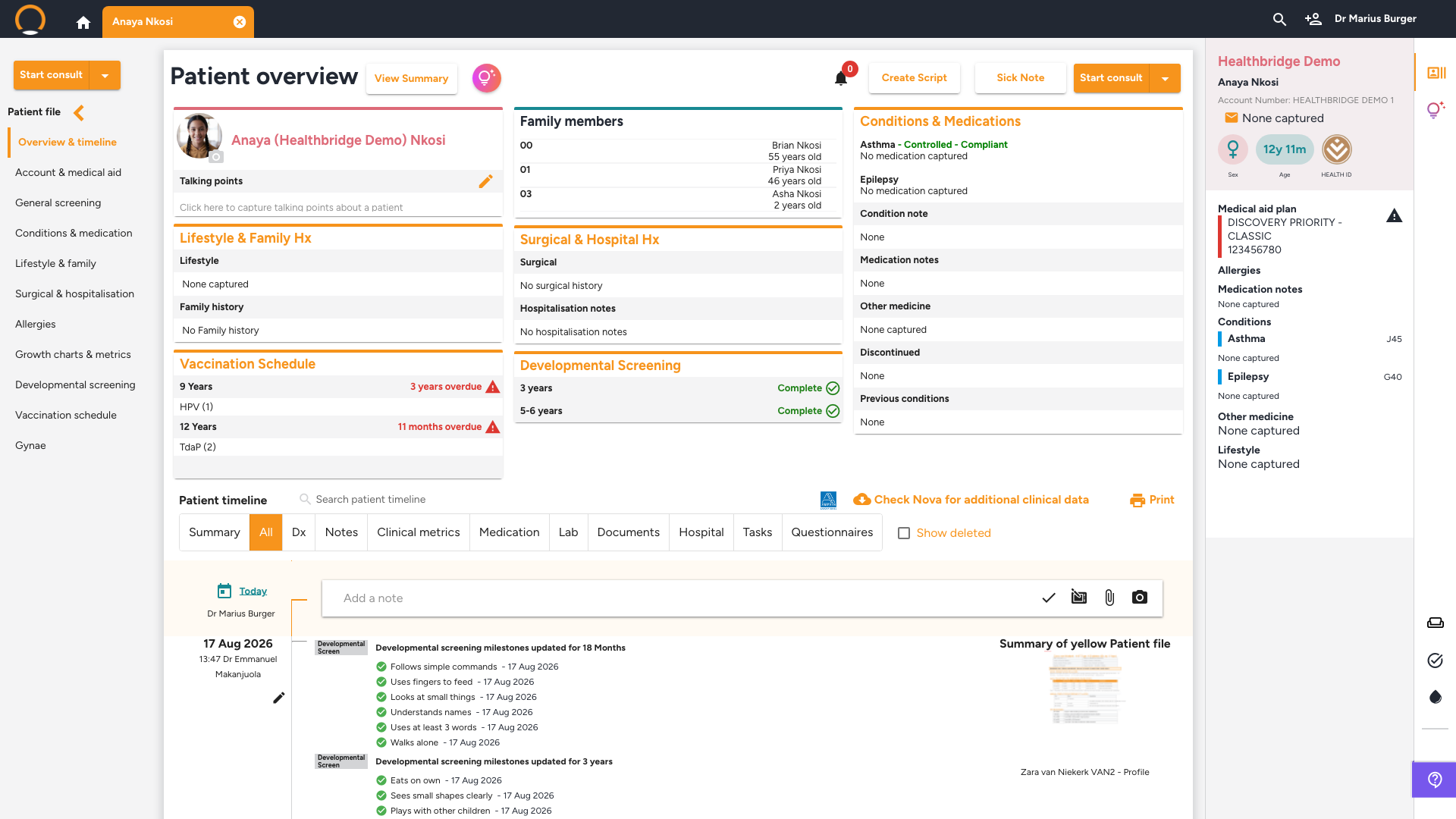
You should see: every section populated with whatever has been captured so far, or a plain "None captured" placeholder where nothing has, so you always know whether information is missing rather than just absent from view.
3. Toggle the Executive Summary panel on the right
Location: Patient Overview › right-hand icon strip › top icon
Alongside the main columns, a narrower panel on the far right, the Executive Summary panel, shows a live snapshot: Medical aid plan, Allergies, Medication notes, Conditions (with ICD-10 codes), Other medicine, and Lifestyle, alongside sex, age, and Health ID badges. This isn't a separate report, it's a live view of the same record, so it's never out of date.
Click the top icon in the right-hand icon strip, hover it and it's labelled 'Executive summary', to collapse this panel and give the main content more room, or click it again to bring it back. Nothing is lost either way, it's purely a view preference.
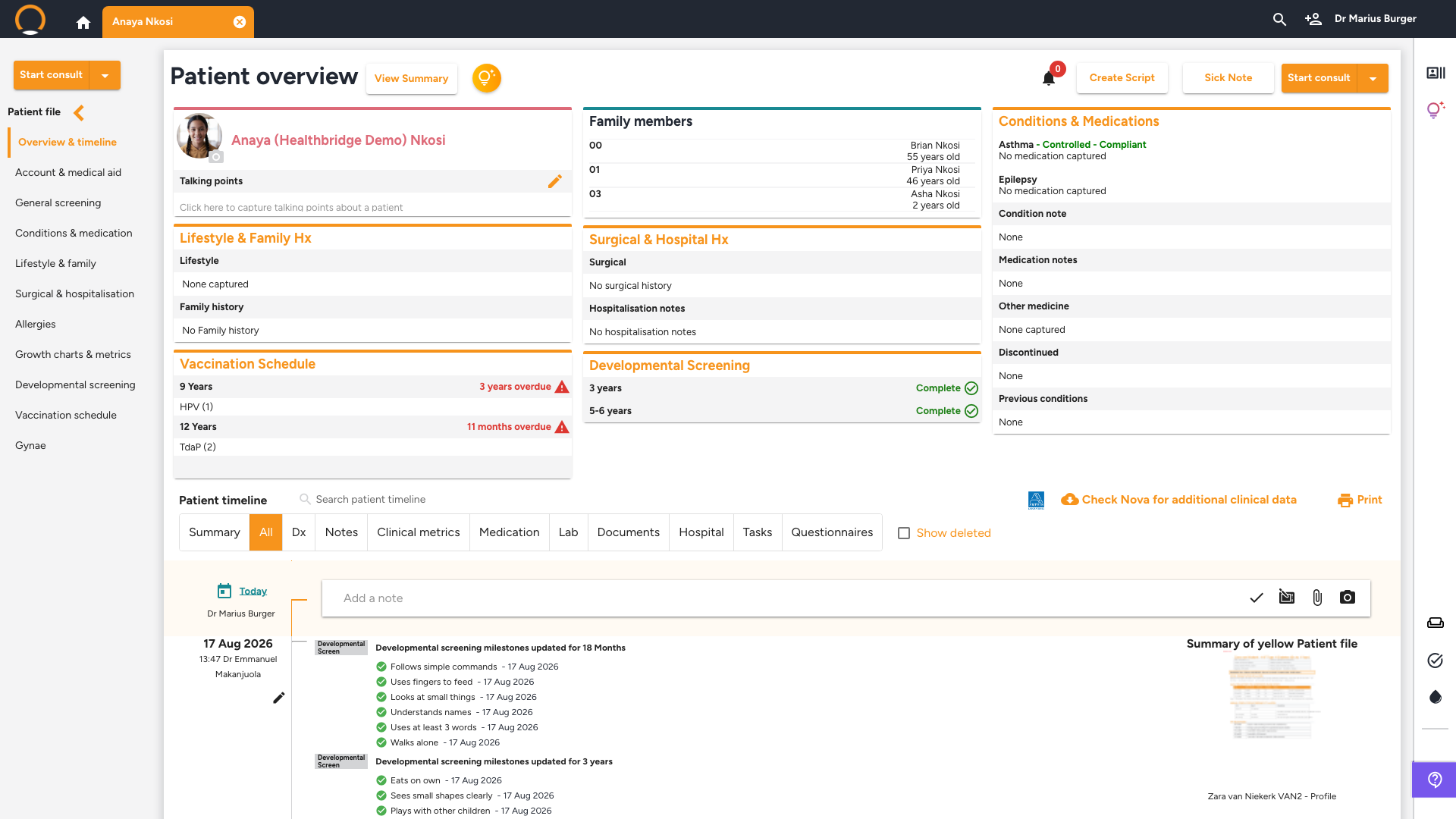
Worth keeping current: These are the same allergies, conditions, medications, and lifestyle fields the Clinical Assistant draws on when it drafts a referral letter, a motivation, or answers a Clinical Insights question. Keeping them accurate pays off twice: a cleaner Executive Summary panel to glance at, and better, more relevant AI-generated output every time you use it. It also means less time digging through tabs to find the details, and more of your attention on the patient in front of you.
4. Keep it open during the consultation itself
Location: Consultation › any tab › right-hand icon strip
The same panel, and the same toggle, are available once you're inside a consultation, on every tab. You can be on Clinical Notes, Symptoms, or Diagnose & prescribe and still see the patient's allergies and chronic conditions without leaving the tab you're working in.
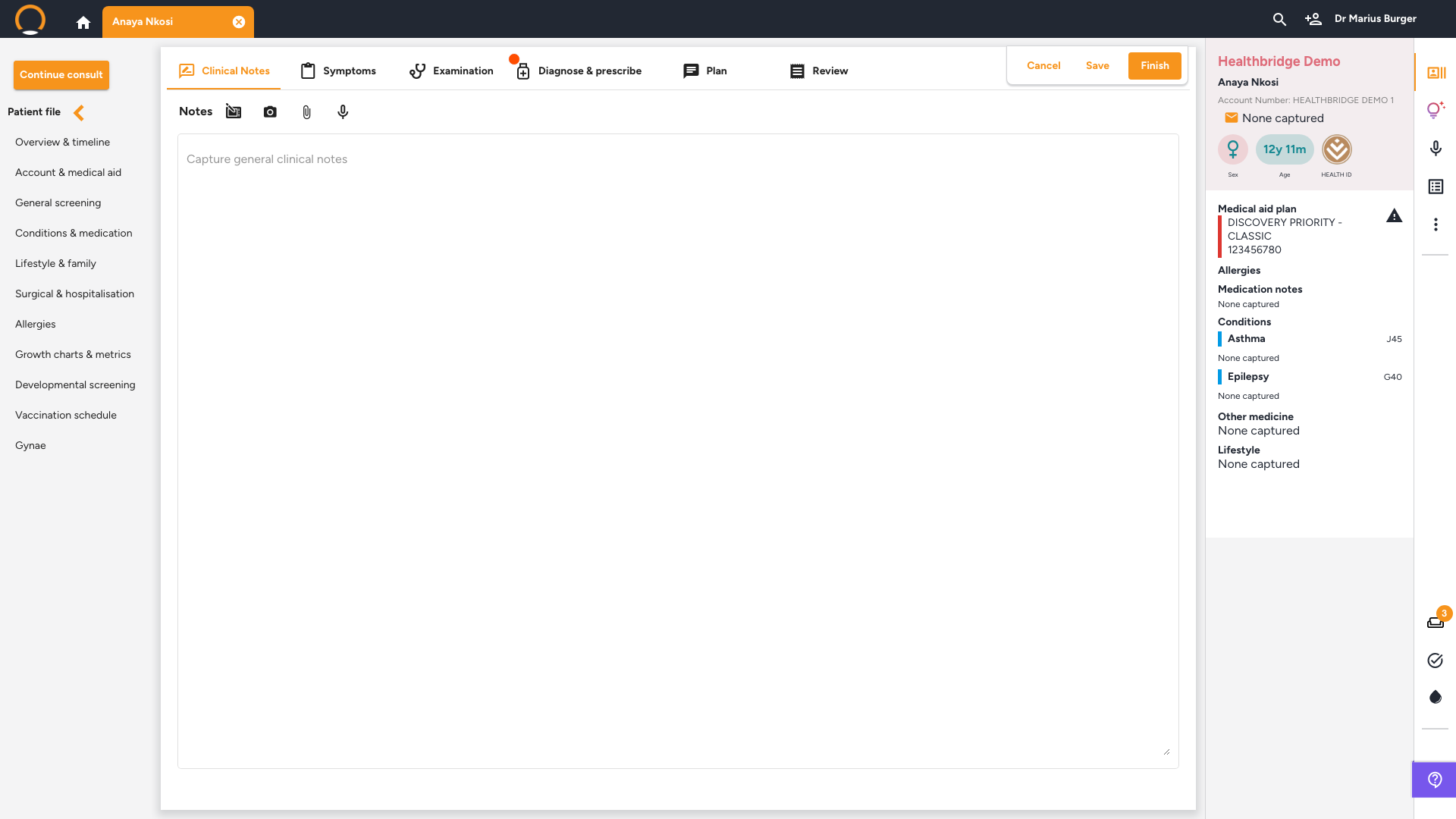
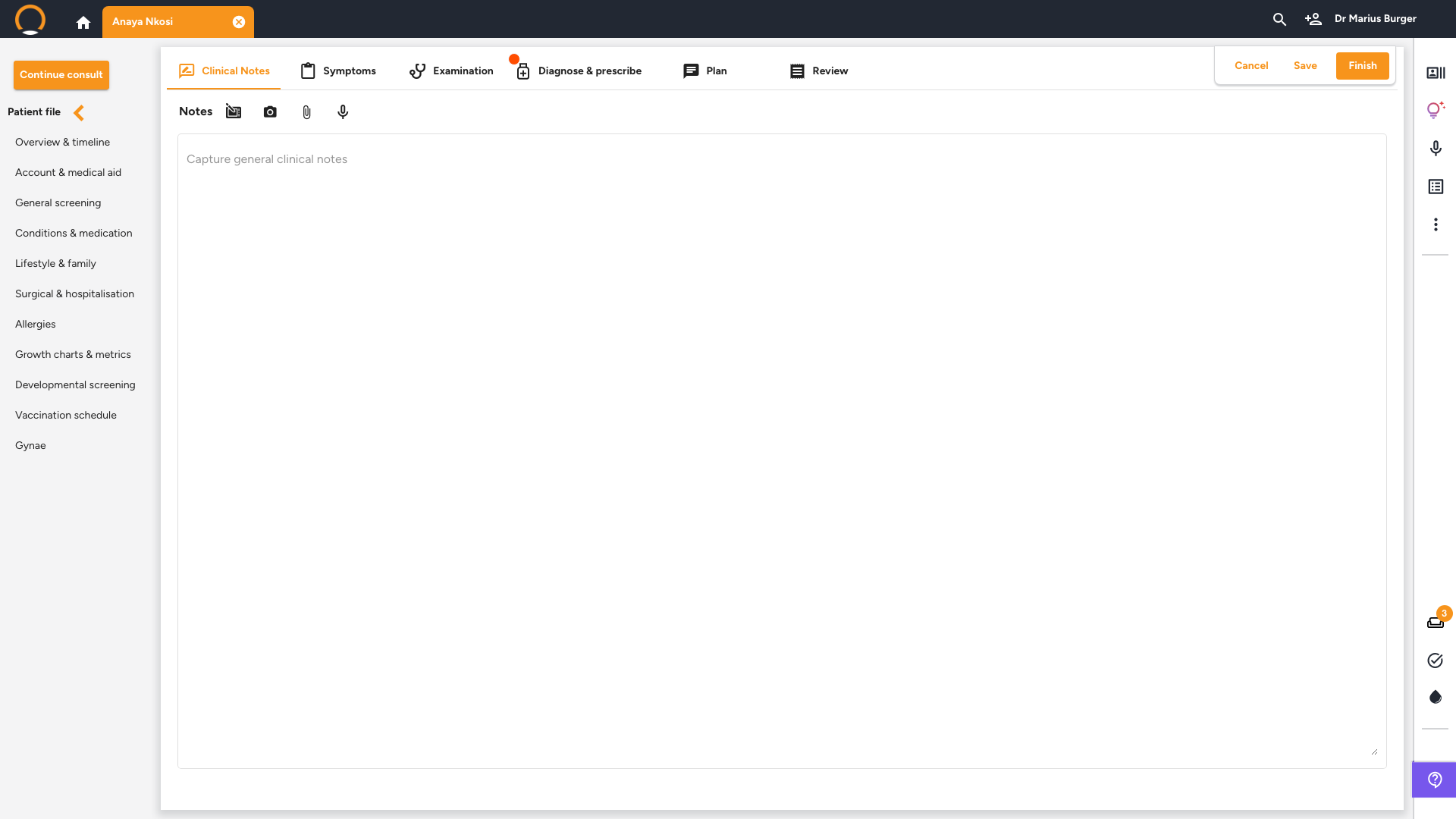
You should see: the exact same panel, in the exact same place, whether you're on the Patient Overview or three tabs deep into a consultation. Toggle it open when you need the reminder, and closed when you need the screen space back.
Frequently asked
Q: Is the Executive Summary panel the same as clicking View Summary?
No, even though the name overlaps. Clicking 'View Summary' opens a separate pop-up with its own AI-generated write-up, which includes a section it also calls "Executive Summary," covering chronic conditions, care gaps, and screening opportunities. The Executive Summary panel on the right is different: it's always visible without clicking anything, and shows structured fields (allergies, conditions, medication, lifestyle) taken directly from the record rather than an AI-written summary of them.
Q: Does collapsing the panel delete or hide any data from the patient's record?
No. Collapsing it only changes what's on your screen. Every field is still recorded and still visible in the main Patient Overview columns or the patient file's left-menu sections, toggling the panel is purely about how much of it you want visible at once.
Q: Why do some Patient Overview sections look different from one patient to the next?
A handful of rows are age and sex conditional. Younger patients get Vaccination Schedule and Developmental Screening in place of an adult's Vitals & metrics row, and female patients also get a Gynae section further down their file. Nothing is missing, it's just tailored to that patient.