
Finding a Patient
Finding a Patient in Healthbridge Clinical
What: The three ways to open an existing patient's file: My Schedule, the Waiting Room, or patient search.
Why: Every consultation, document, or check starts with opening the right patient's file first.
When: Any time you need to open a patient who's already in the system, whether for a booked appointment, a walk-in, or a quick look-up.
Steps
1. Open the patient file from My Schedule, the Waiting Room, or search
Location: Top navigation bar › patient search bar, Waiting Room icon, or home dashboard › My Schedule
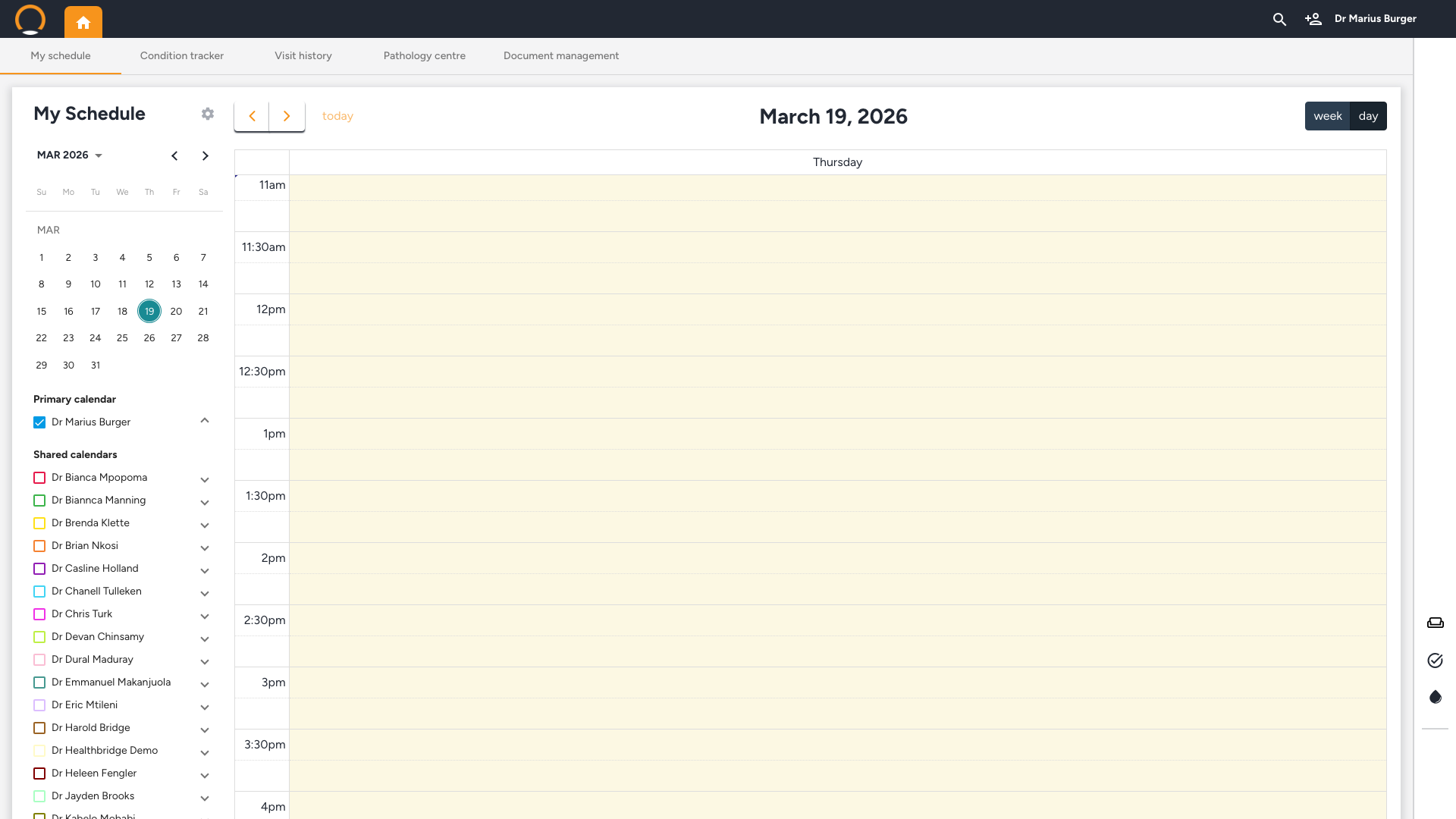
From the home dashboard, you can open a patient file three ways:
- From My Schedule: Click on the patient's appointment block in the calendar to open their file directly.
- From the Waiting Room: Click the Couch icon in the navigation bar to see patients who have checked in and are ready to be seen. Click a patient's name to open their file.
- From patient search: Click the magnifying glass icon in the top navigation bar, type the patient's name, and select them from the results that appear.
You should see: the Patient Overview opens, showing the patient's history, conditions, medications, and patient timeline.
Note: Any patient file you have open stays visible as a tab next to the Home button, so you can jump back to it without searching again. If the patient isn't in the system yet, use the person-with-plus icon next to search to register them instead.