
Medical Certificates and Sick Notes
Medical Certificates and Sick Notes
What: A structured, downloadable certificate confirming a patient was unfit for work or school, issued from the same consultation as their diagnosis.
Why: Employers and schools need a formal, verifiable document, not just a diagnosis note, to approve sick leave or absence.
When: Any time a patient needs proof of unfitness for a specific date range, with or without their diagnosis disclosed.
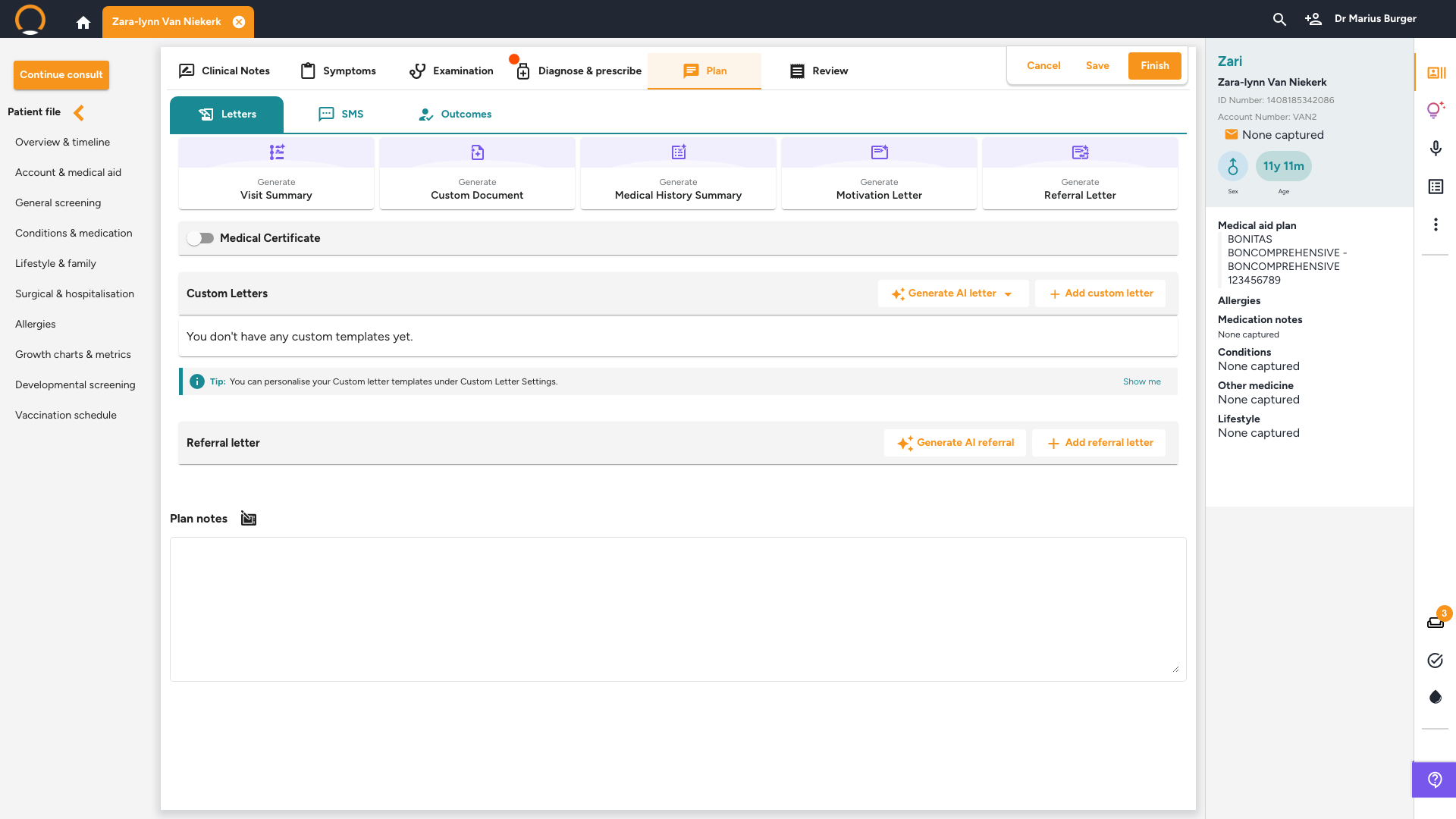
1. Open the Medical Certificate toggle
Location: Consultation › Plan tab › Letters
During a consultation, click the 'Plan' tab, then switch on 'Medical Certificate', it sits just below the five Clinical Assistant generator cards on the 'Letters' sub-tab.
2. Fill in the certificate details
Location: Plan › Medical Certificate (expanded)
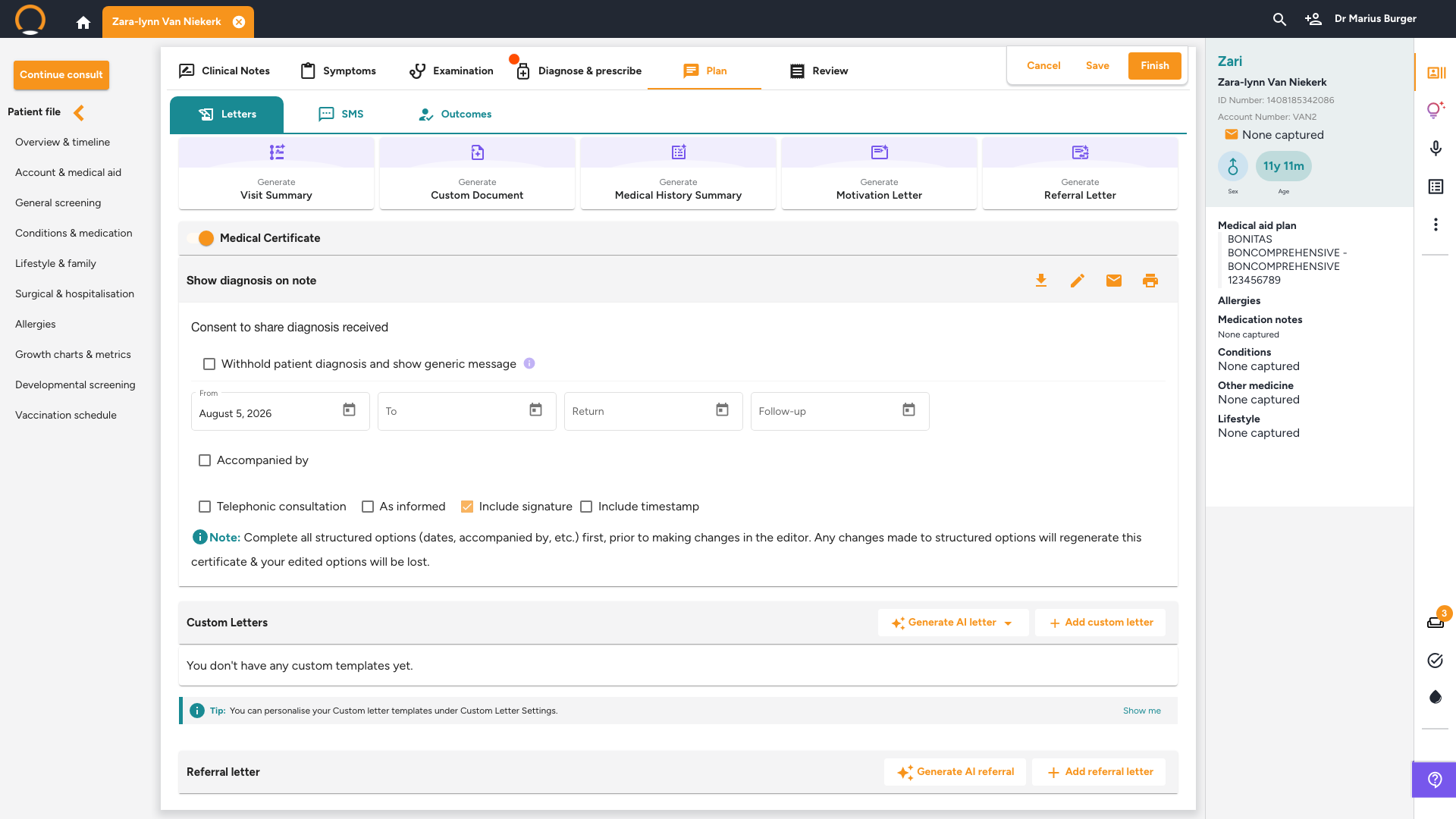
Once switched on, the certificate expands with:
- Withhold patient diagnosis and show generic message, tick this to keep the diagnosis confidential; the certificate shows a generic unfitness statement instead.
- From, To, Return, and Follow-up dates.
- Accompanied by, Telephonic consultation, and As informed checkboxes, for the circumstances that apply.
- Include signature (on by default) and Include timestamp.
Fill in the structured fields first, editing the generated text directly and then changing a structured option afterwards will regenerate the certificate and discard your text edits.
3. Distribute the certificate
Location: Medical Certificate › icon row
Four icons sit above the certificate text: download, edit, email, and print. Clicking email checks that your From and To dates are filled in first, fix any flagged field and click email again to send it directly to the patient.
Branding and security: Your practice logo and an authentication QR code are added automatically to every clinical PDF, including this certificate, with no setup needed. A watermark can also be applied to Medical Certificates specifically, see Add or Remove Watermarks on Documents to turn it on.
Frequently asked
Q: Can I issue a certificate without disclosing the diagnosis?
Yes, tick 'Withhold patient diagnosis and show generic message' before generating the certificate. The patient's diagnosis stays in their clinical record either way; only what appears on the certificate itself changes.
Q: Do I need to turn on the QR code for the certificate to be secure?
No, the authentication QR code is embedded on every clinical PDF automatically. There's nothing to enable.
Q: Can I find a certificate again after the consultation is finished?
Yes, open the patient's file and check the 'Documents' filter tab on their Patient timeline, where every issued letter and certificate is saved.