
Use SmartMeds
Use SmartMeds
What: SmartMeds is an AI-powered feature in the Medicine tab that pre-populates the brands, forms, and dosages you prescribe most often, shows pricing and available generics, and checks each item against the patient's medical aid formulary.
Why: It cuts down the clicks needed to prescribe by surfacing your (and other doctors') most frequently used options first, so you spend less time hunting through medicine lists.
When: Every time you prescribe or dispense medicine during a consultation, from the Medicine sub-tab under Diagnose & prescribe.
Steps
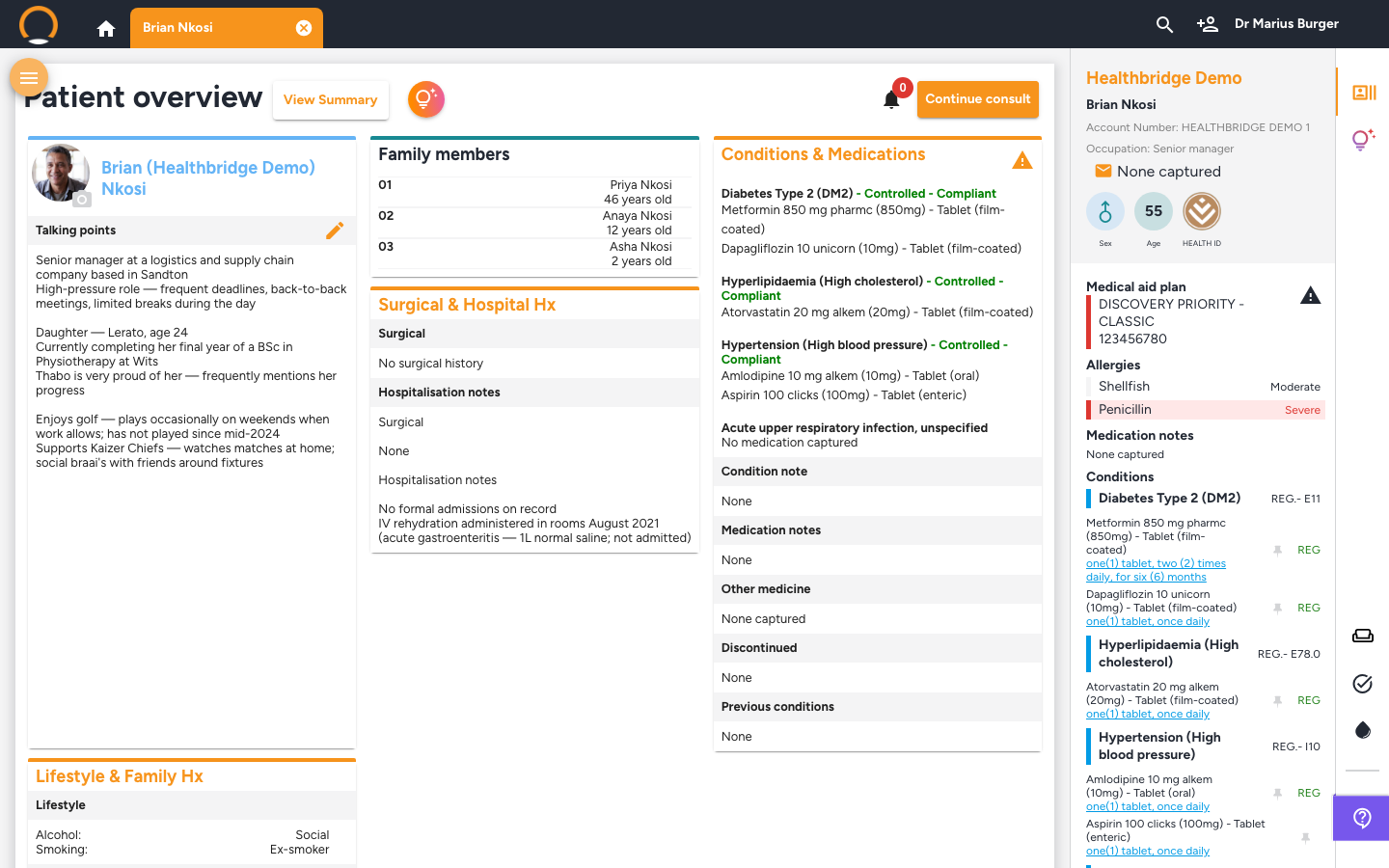
1. Open the patient file and click 'Start consult'
Location: Patient file › Patient overview header block
Open the patient's file from your schedule or via search, then click the orange 'Start consult' button in the top-right of the Patient overview.
2. Open the Medicine sub-tab
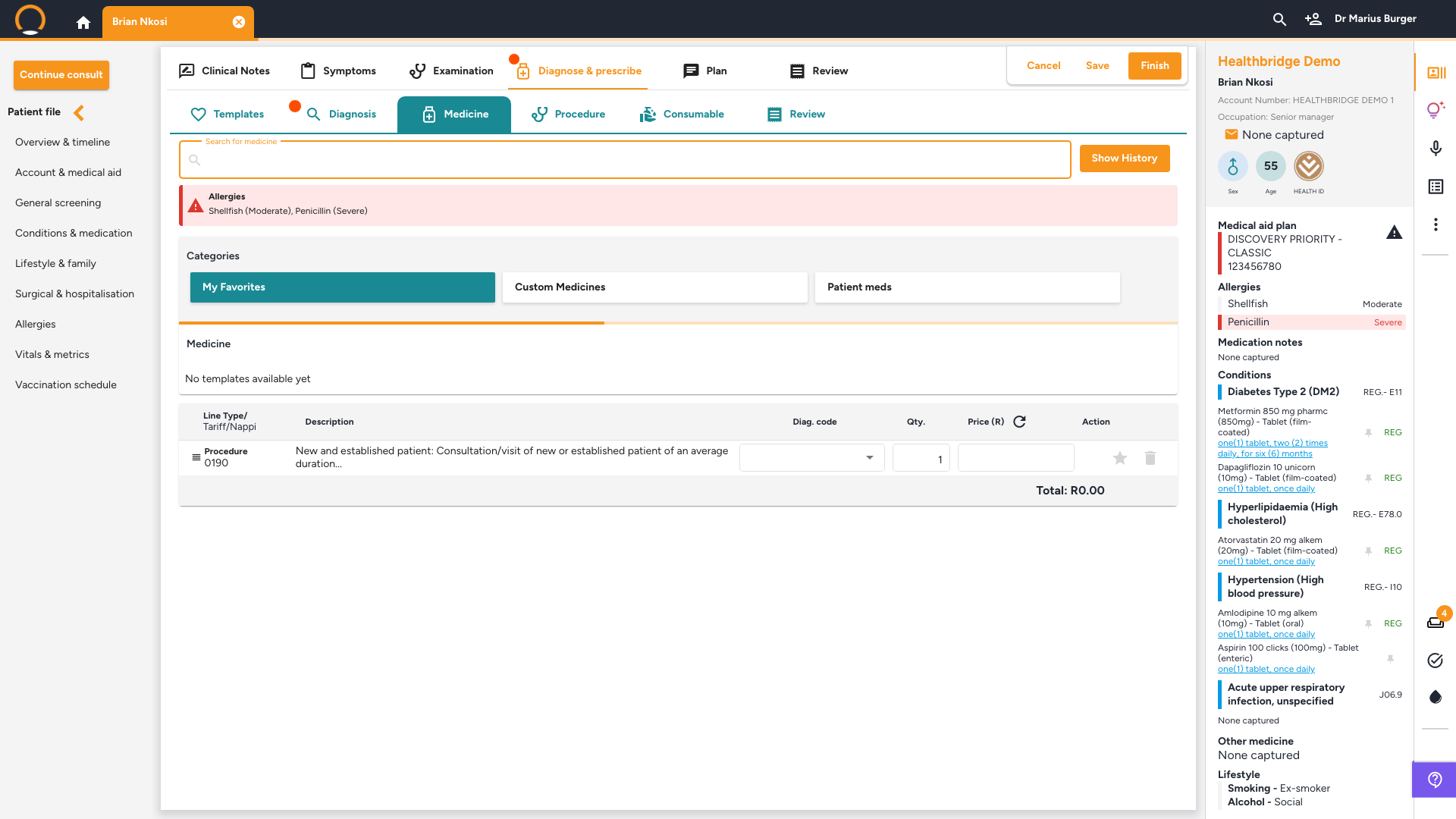
Location: Consultation › Diagnose & prescribe tab › Medicine
Click the 'Diagnose & prescribe' tab, then click 'Medicine'. If the patient has any recorded allergies, a red 'Allergies' banner appears at the top of the tab, check it before prescribing. Below the search bar, 'My Favorites', 'Custom Medicines', and 'Patient meds' give you quick access to medicines you use often.
3. Search for a medicine
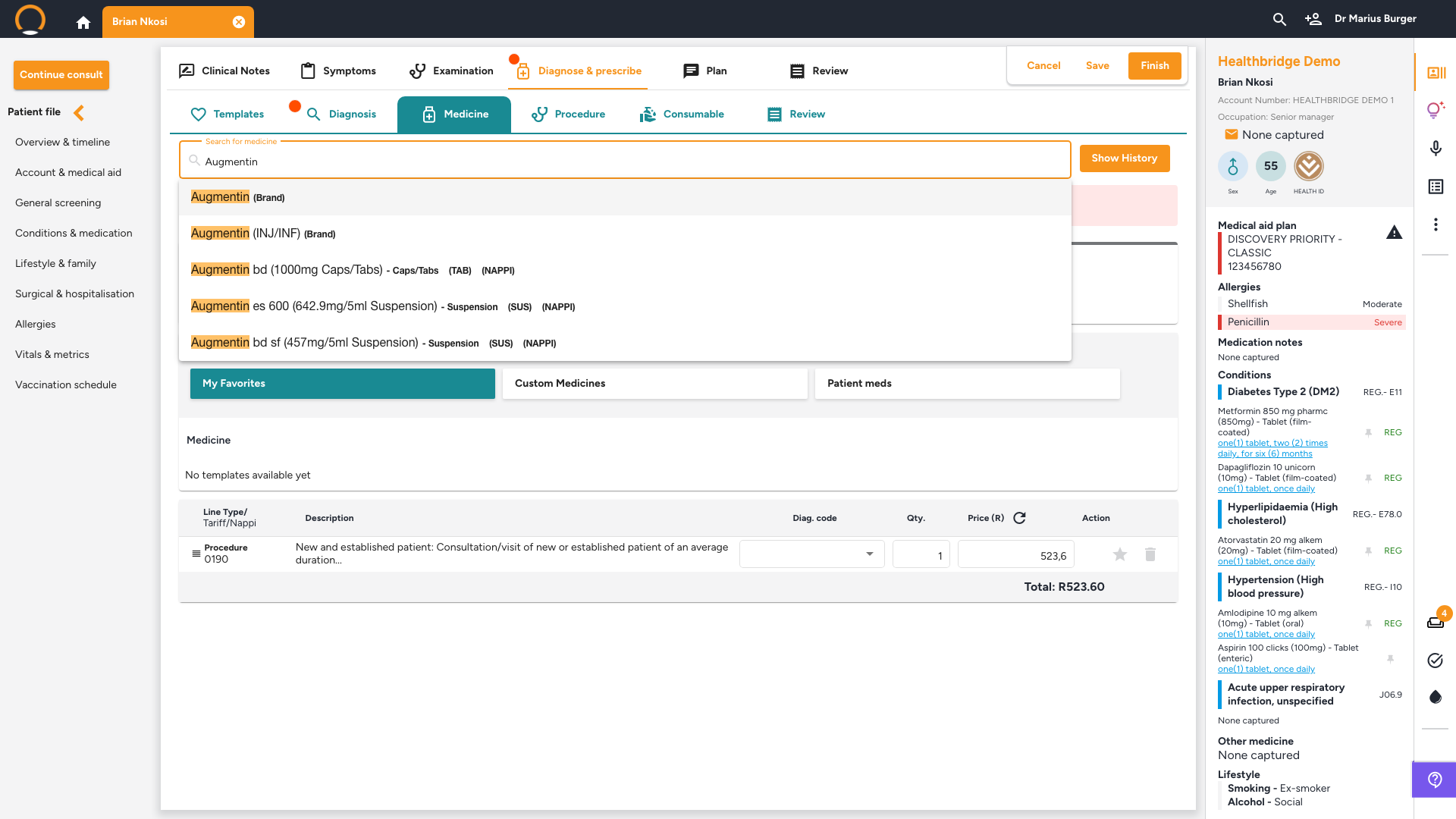
Location: Medicine sub-tab › Search for medicine
Click 'Search for medicine' and start typing a brand or item name. Matching brands and specific formulations appear as you type, each labelled with its form (e.g. TAB, SUS).
4. Select a brand, medicine, and dosage
Location: Medicine Options dialog
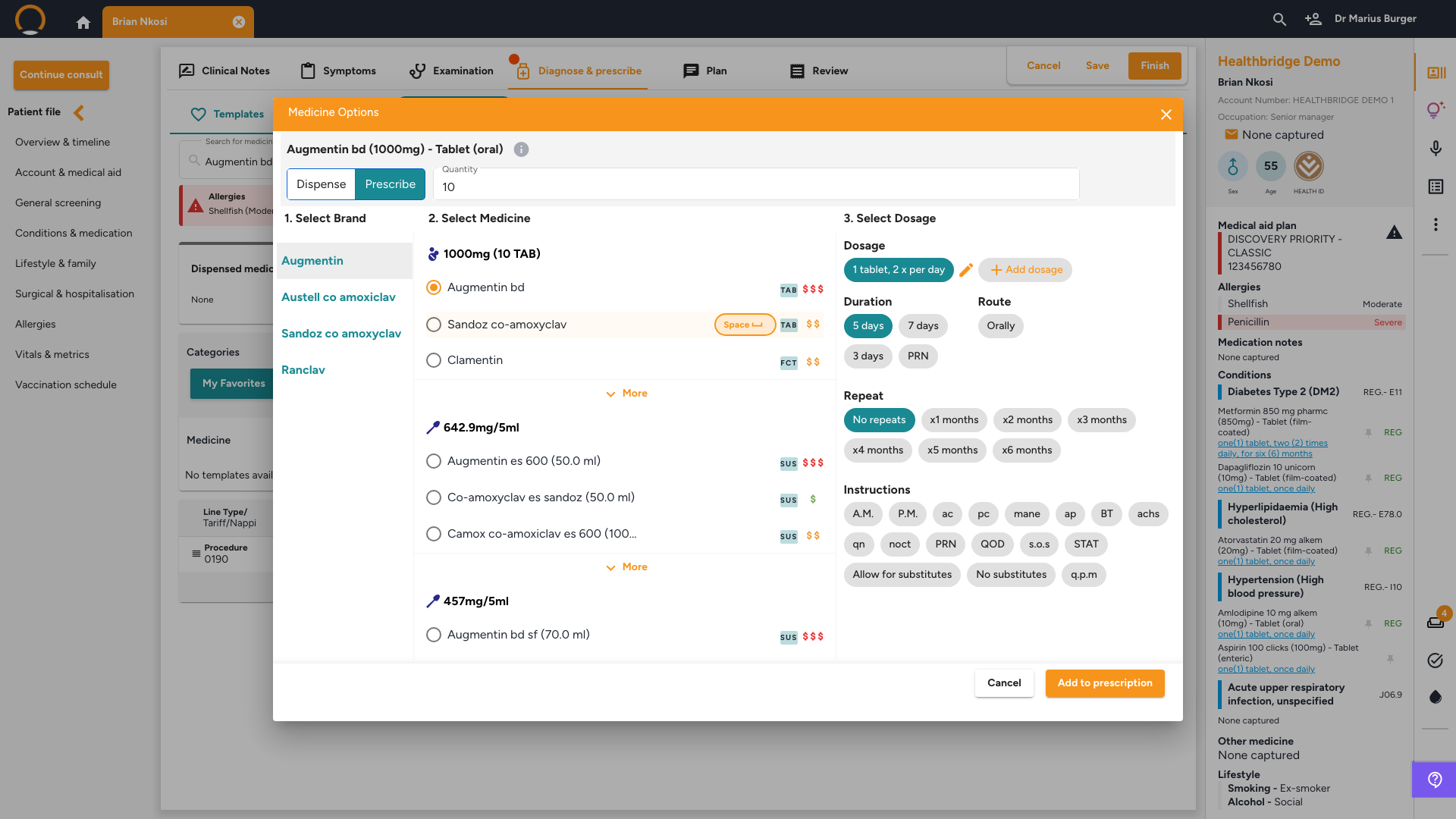
Click a search result to open 'Medicine Options'. Work through the three columns:
- Select Brand, the brands you and other doctors like you prescribe most often are listed first.
- Select Medicine, pick the exact strength and form. Each option shows a price-tier indicator (one to three dollar signs). Click the info icon (ⓘ) next to the dialog title for more detail on the currently selected item.
- Select Dosage, SmartMeds pre-fills the most commonly used Dosage, Duration, Route, and Repeat for this item. Adjust any of the pill buttons, or add free-text Instructions, if this patient needs something different.
5. Click 'Add to prescription'
Location: Medicine Options dialog
Once the brand, medicine, and dosage are set, click 'Add to prescription'. A 'Prescription' card appears on the Medicine tab, with options to include the date, add your digital signature, or transfer it, and icons to download, preview, email, or print it.
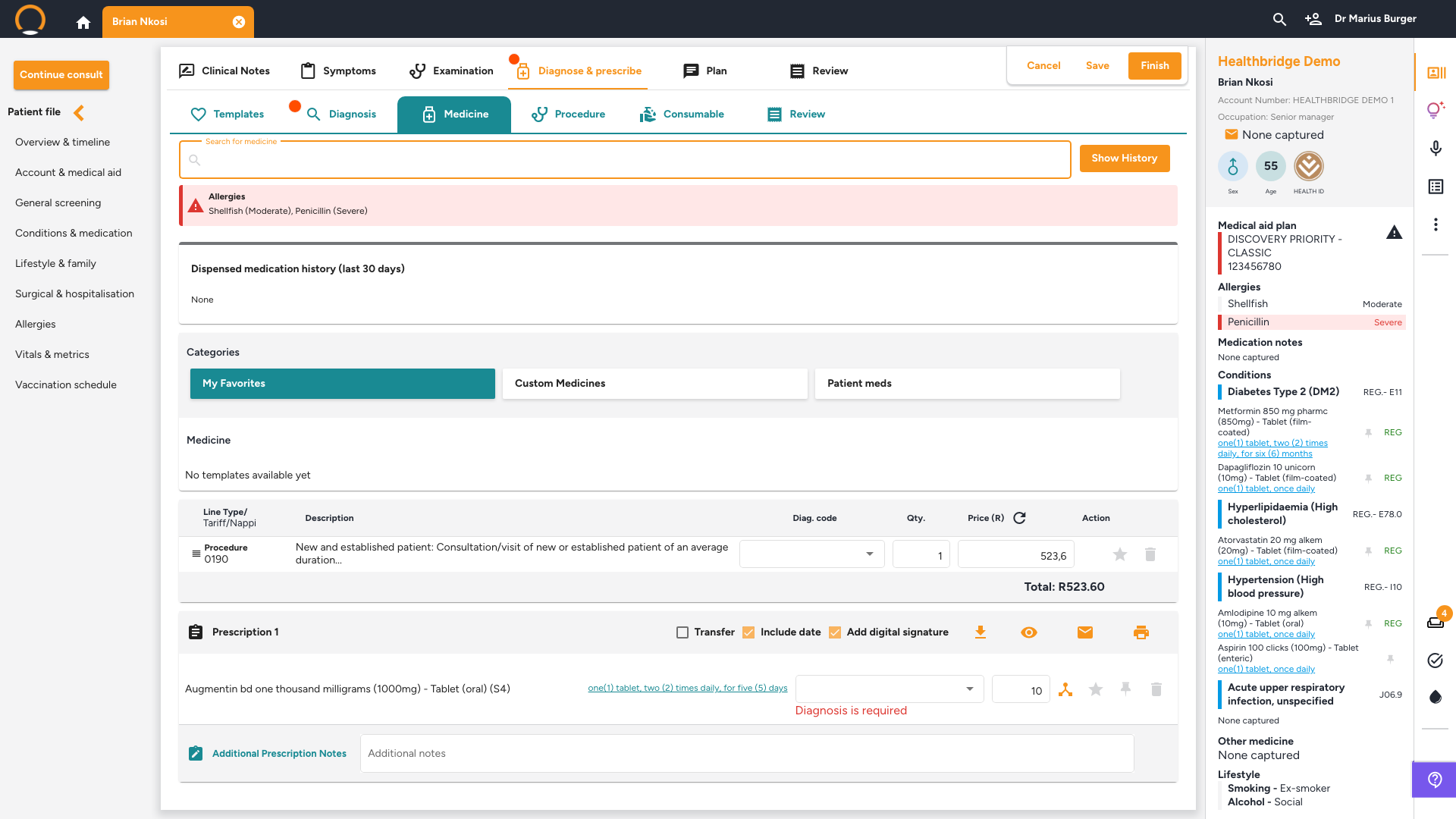
You should see: a new Prescription card added below the billing line items. Repeat steps 3–5 to add further medicines to the same prescription.
6. Preview the prescription before you finish
Location: Prescription card
Click the Eye icon on the Prescription card to preview the document exactly as the patient or pharmacy will see it, practice details, treating provider, patient and medical aid details, and any recorded allergies are shown automatically above the medicine list. From here you can 'Print', 'Download', or 'Email' it directly.
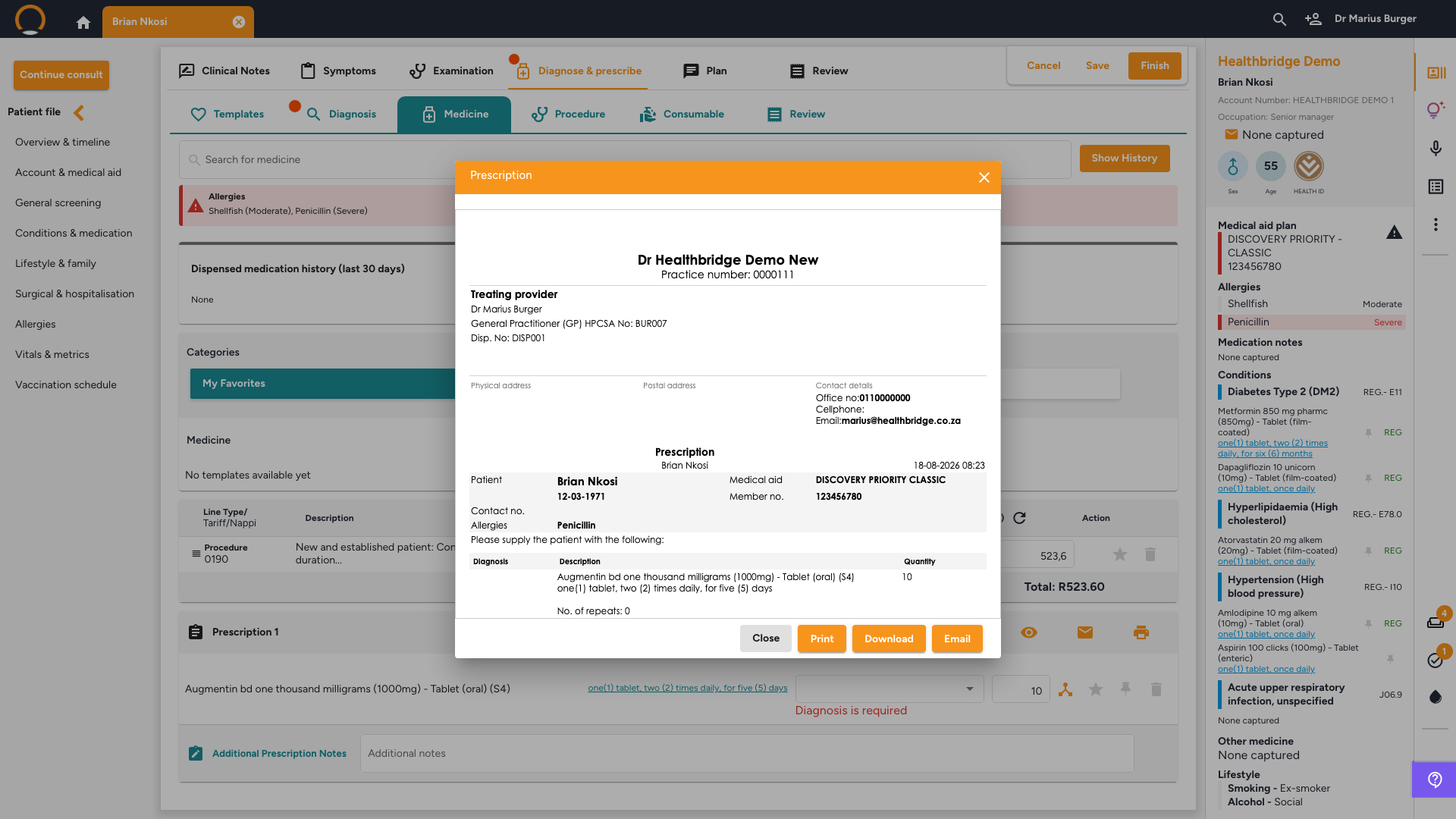
Always check allergies: SmartMeds surfaces the patient's recorded allergies on both the Medicine tab and the printed prescription, but it's your responsibility to review them before prescribing, especially with drug classes that overlap with a listed allergy.
Frequently asked
Q: What does the 'F' badge next to a medicine mean?
It marks the item as being on the patient's medical scheme formulary, a list of medicines the scheme has agreed to cover in full for specific conditions. Formulary items may still require registration on a chronic medicine programme or pre-authorisation, so check any notes shown alongside the badge.
Q: Why are some brands listed before others?
SmartMeds orders brands and dosages by how frequently you, and doctors with a similar prescribing pattern, use them, so your most likely choice is usually at the top.
Q: Can I dispense a medicine instead of prescribing it?
Yes. At the top of the Medicine Options dialog, toggle between 'Dispense' and 'Prescribe' before selecting the brand, medicine, and dosage.
Q: Does SmartMeds check for drug interactions automatically?
SmartMeds displays the patient's recorded allergies on the Medicine tab and on the printed prescription itself, but it does not block you from prescribing a conflicting item, always review the allergy banner and the patient's medication history before confirming.
Q: Why does SmartMeds show generic alternatives that look very similar?
Generics are grouped and displayed according to the ATC (Anatomical Therapeutic Chemical) classification system, which keeps genuinely distinct alternatives separated even when their brand names look alike.