
Completing the Symptoms Tab
Completing the Symptoms Tab
What: The consultation tab where you select the patient's complaint and visit type.
Why: Choosing the right complaint and visit type tells Healthbridge Clinical which examination questions to surface next, instead of a generic checklist.
When: Early in a consultation, right after reviewing the Patient Overview and before moving to the Examination tab.
Steps
1. Select the complaint and visit type
Location: Consultation › Symptoms tab
Click the 'Symptoms' tab. If your practice has set any up, *'Custom Templates'* appear at the top, click one to apply it. Under 'Complaint', click the relevant symptom buttons (such as 'Fever', 'Headache', or 'Cough'). Under 'Visit Type', click the type of consultation (such as 'General checkup' or 'Chronic follow up - Diabetes'). Selecting a complaint or visit type prompts Healthbridge Clinical to generate customised examination questions.
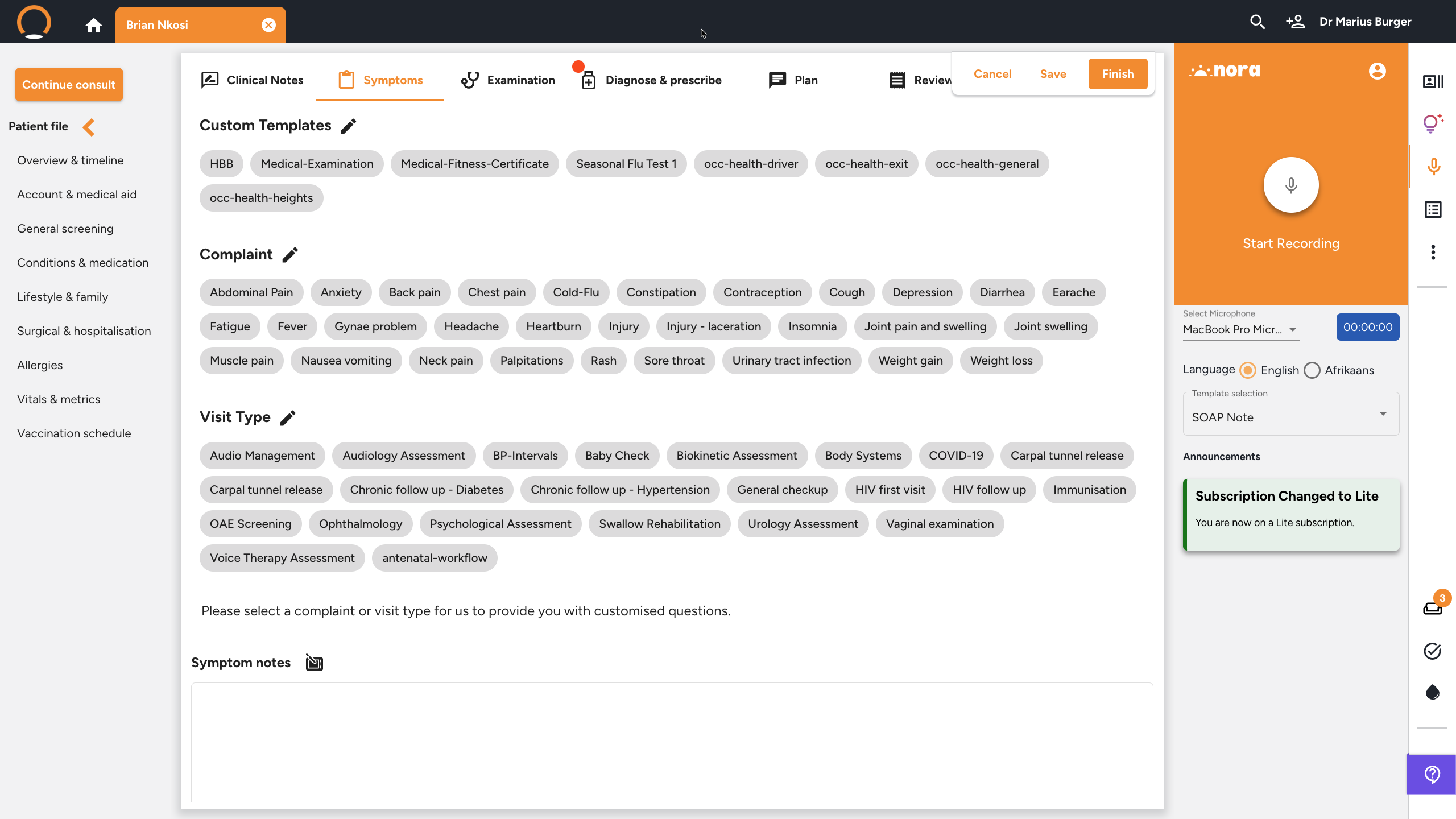
You should see: the selected complaint or visit type is highlighted, and customised examination prompts may appear on the Examination tab.
Tip: Filling in Complaint and Visit Type manually every time? Set up a Custom Visit Template for the visit types you see often, it surfaces the exact fields you need on the Symptoms and Examination tabs in one click, instead of picking each one by hand.