
Accessing Body Charts through the Stylus Option
Accessing Body Charts through the Stylus Option
What: HB Draw, a drawing canvas built into Clinical Notes, Symptoms, and Examination, with ready-made body diagram templates.
Why: Lets you mark an injury, rash, or finding directly on a body diagram instead of describing its location in words alone.
When: Any time a visual record of exactly where something is on the body would be clearer than a text note, sprains, wounds, skin conditions, physio assessments.
1. Open the drawing canvas
Location: Consultation › Clinical Notes, Symptoms, or Examination, notes toolbar
The first icon in the notes toolbar (next to 'Notes', 'Symptom notes', or 'Examination notes') opens HB Draw. It's present on all three of these tabs, and also on the Patient Timeline's 'Add a note' toolbar outside of a consultation.
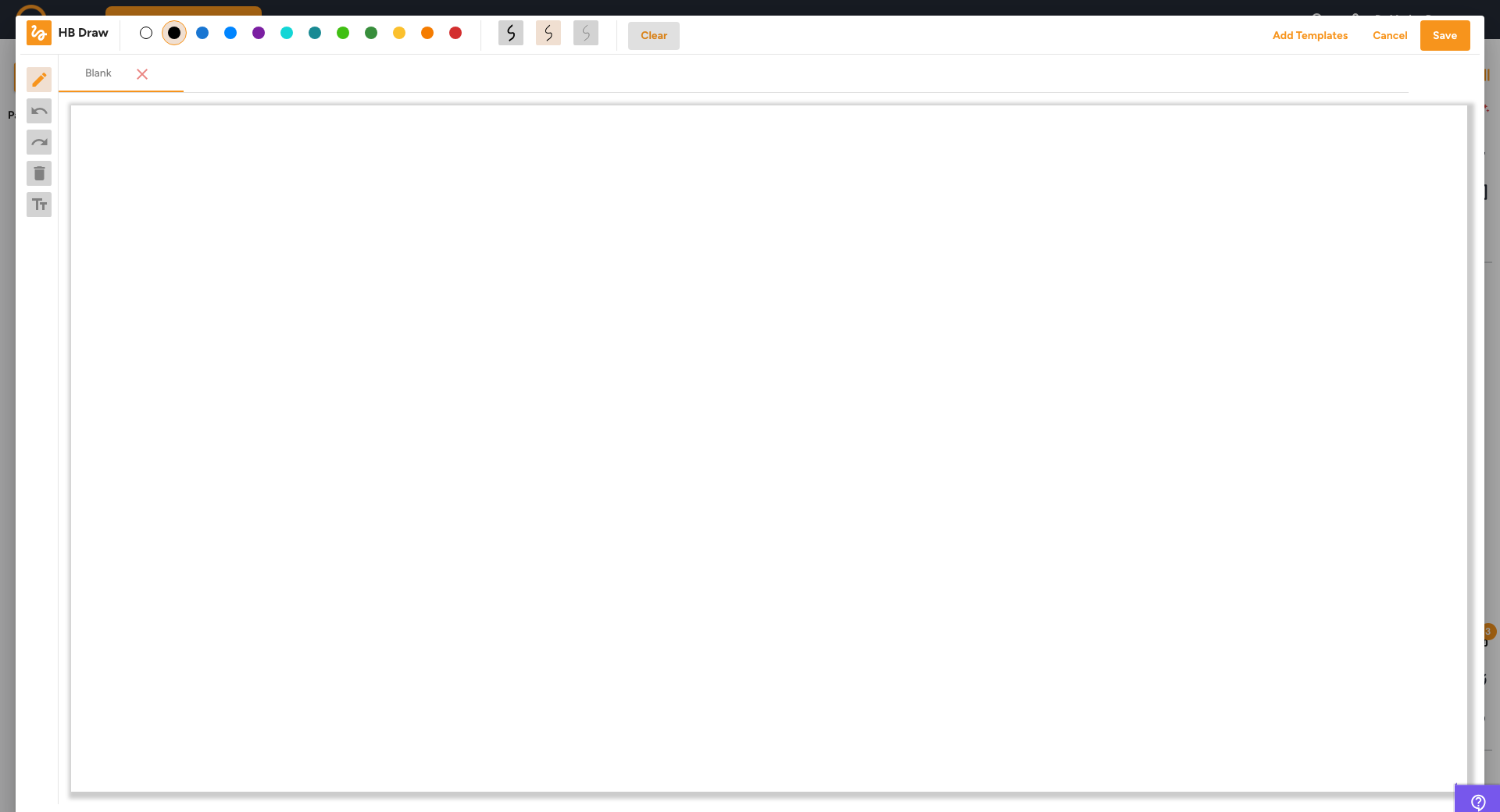
2. Add a body chart template
Location: HB Draw › Add Templates
Click 'Add Templates' (top right) to open the template picker. Available diagrams include Body Charts (a 3-figure overview), Body Front/Back, Body Side, Foot, Hand, and further templates below (including a lab-specific one). Click any thumbnail to load it onto the canvas as a new tab, alongside 'Blank'.
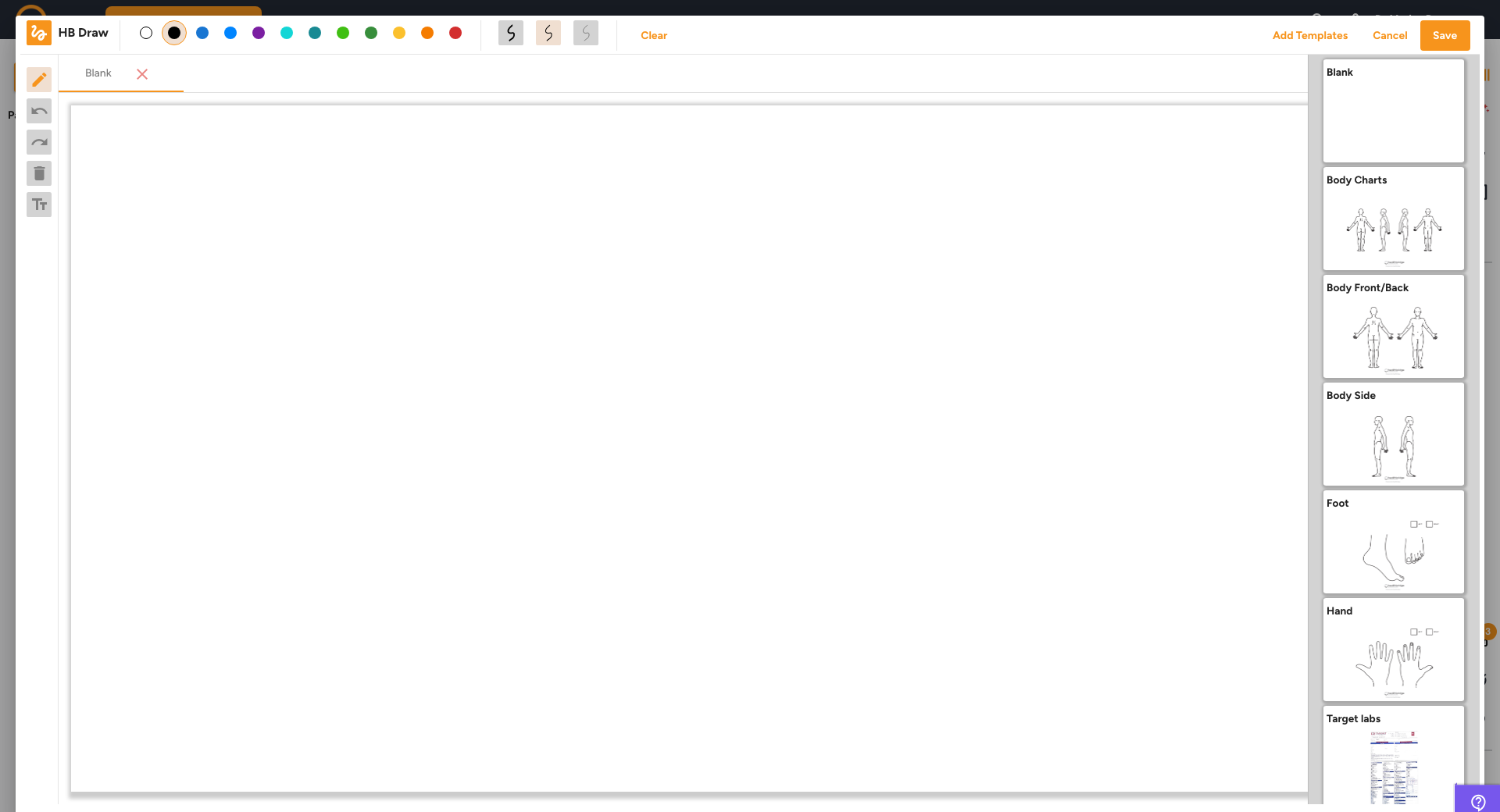
3. Draw, annotate, and save
Location: HB Draw canvas
On a touchscreen or with a stylus, draw directly on the diagram using the pen tool and colour palette on the left. On a PC without a stylus, click the text tool (T icon) to place typed notes next to specific areas instead. Undo, redo, and delete are available in the same left-hand toolbar.
Click 'Save' to attach the chart to this note, or 'Cancel' to discard it.
You should see: The saved chart appears as an image attached to the note it was created from, Clinical Notes, Symptom notes, Examination notes, or the Patient Timeline entry.
Frequently asked
Q: Do I need an actual stylus or touchscreen to use this?
No, it's more comfortable with one, but PC users without a stylus can still use the text tool to add typed notes to specific points on the diagram instead of freehand drawing.
Q: Can I reuse a chart across multiple notes in the same consultation?
Each chart is created fresh from the toolbar you opened it from and saves to that specific note. Open HB Draw again from a different tab to start a new chart there.