Consultation Flow
This guide maps the full flow of a consultation in Healthbridge Clinical, from opening the patient file to clicking Finish.
For the full guide click here.
Every consultation moves left to right across six tabs:
Clinical Notes › Symptoms › Examination › Diagnose & prescribe › Plan › Review
The consultation flow
● Before the patient enters
-
Open the patient file
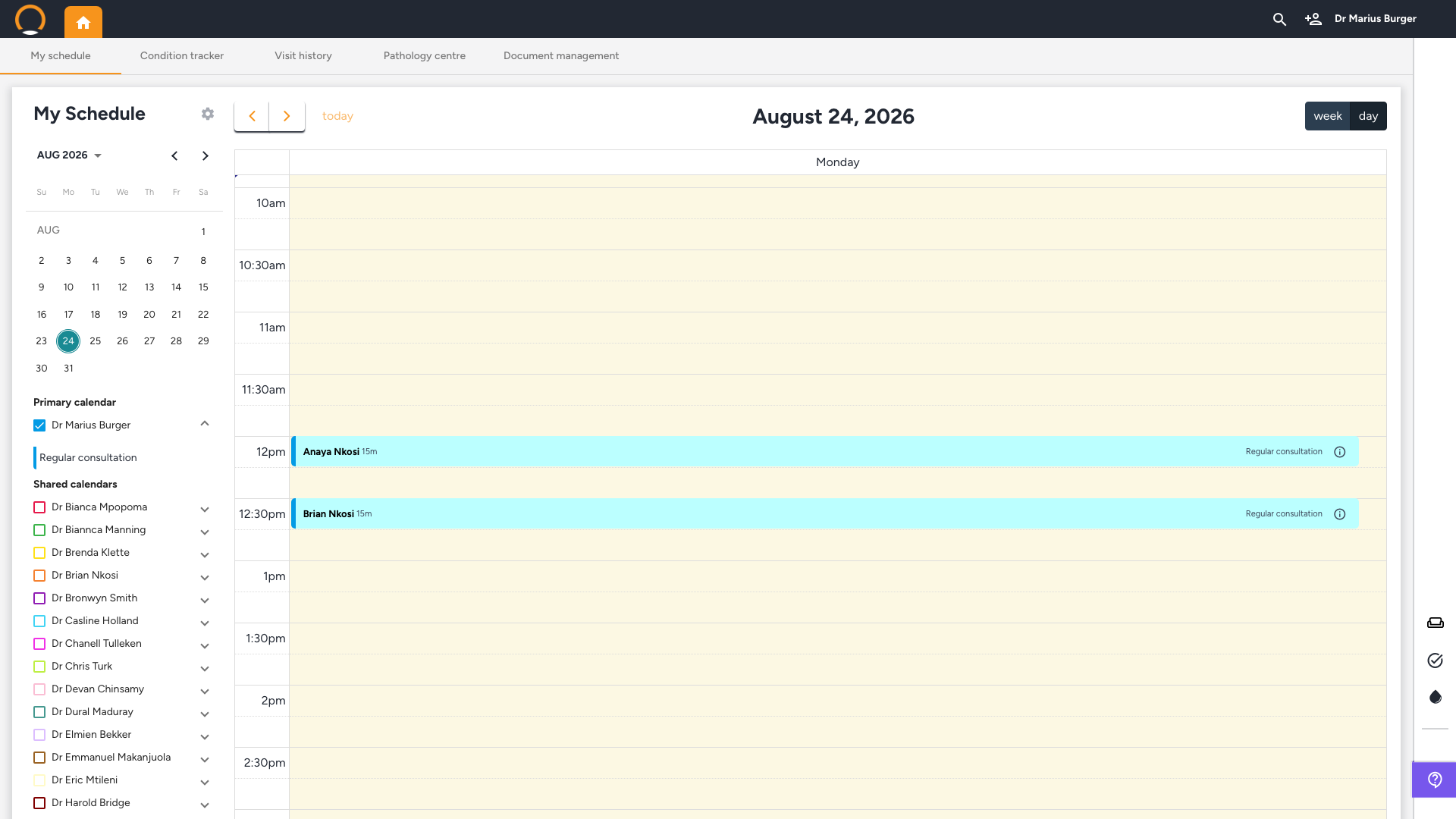
Home dashboard - My Schedule, Waiting Room, or patient search
Three ways to reach a patient:- My Schedule, click the appointment block in the calendar to open their file directly.
- Waiting Room, click the couch icon in the top navigation bar. Patients who have checked in via Nova appear here. Click a name to open their file.
- Patient search, click the magnifying glass icon, type the patient's name, and select from results.
-
Review the patient overview
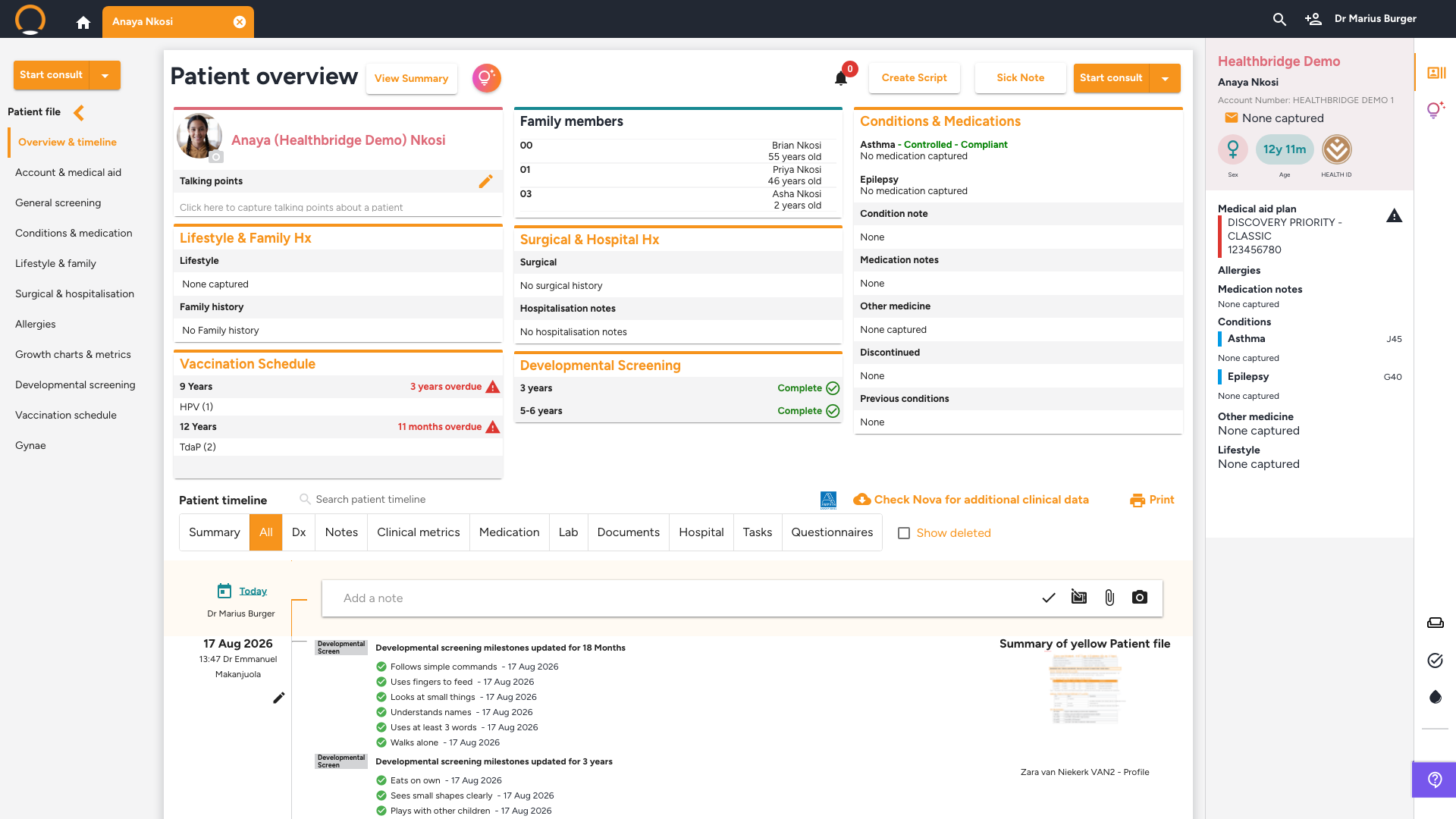
Patient file - Patient overview
Before starting the consultation, orient yourself to the patient. Four tools on the overview help you prepare:- View Summary, an AI-generated briefing covering chronic conditions, care gaps, and upcoming screening opportunities. One click, ready before the patient walks in.
- Talking Points, a curated list of personalised conversation starters for this specific patient, shown in the left column.
- Clinical Insights (💡), click the lightbulb icon to open the AI assistant. Ask any question about the patient's history in plain language before the consult begins.
- Lab history (●), the blood drop icon in the right panel shows a quick view of recent pathology results.
-
Click Start consult
Patient file - orange 'Start consult' button
Click the orange 'Start consult' button. The consultation opens on the Clinical Notes tab and the six-tab navigation appears across the top. The Cancel, Save, and Finish buttons appear in the top right.
Already mid-way? If you saved a consultation earlier, the button shows 'Continue consult', which resumes exactly where you left off.
● During the consultation
-
Capture clinical notes
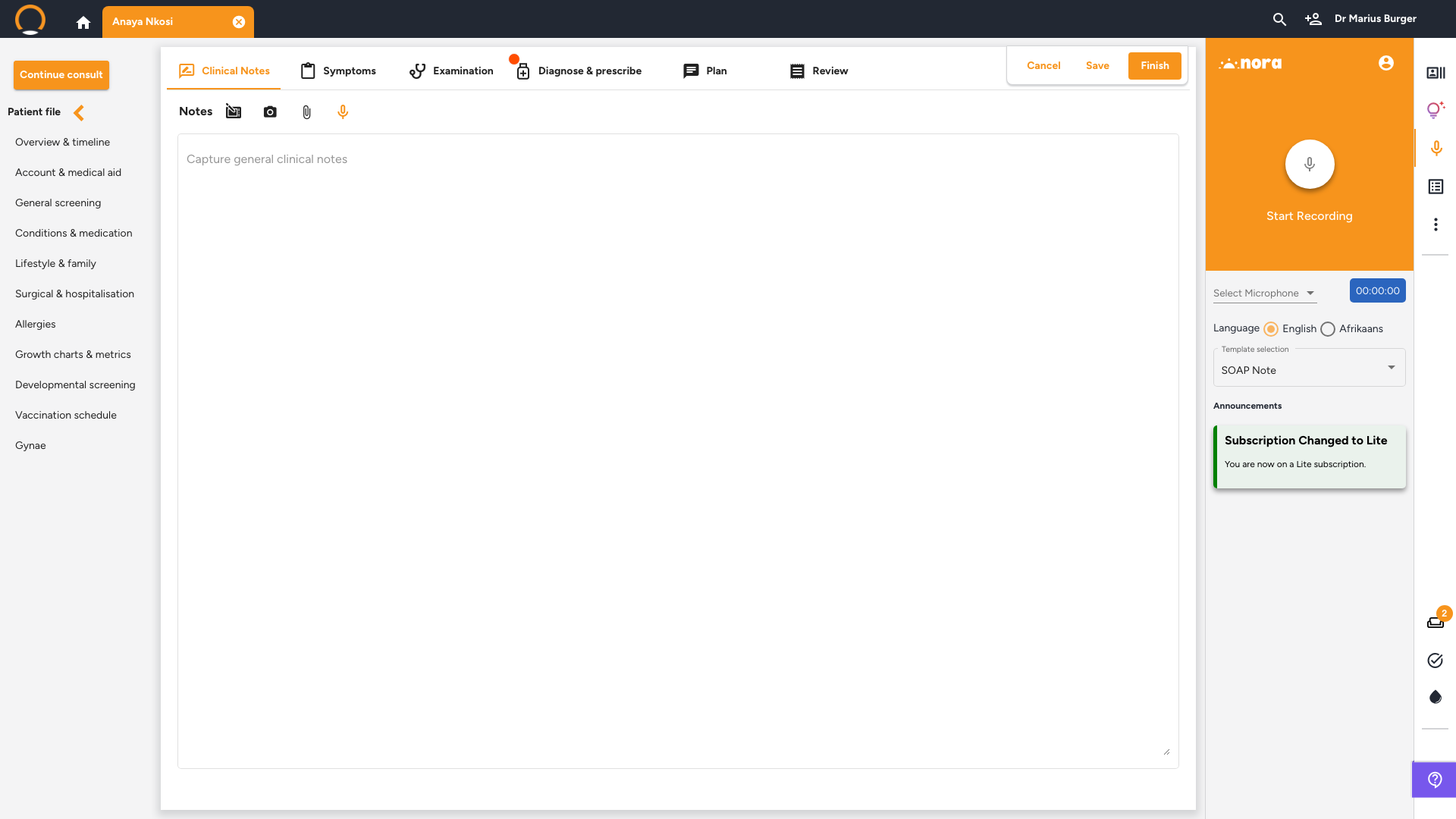
Consultation - Clinical Notes tab
The consultation opens here by default. Two ways to capture notes:- Type manually, free text in the notes field, or insert a pre-saved template using the toolbar icon.
- Nora - Speech to Clinical Notes (🎤), click the microphone icon in the right sidebar. Choose Consultation Mode (records the whole conversation in the background while you see the patient) or Dictation Mode (you recap aloud after the patient leaves, up to 3 minutes). Nora runs in the background as you move through all the consultation tabs, so you don't need to return to this tab to stop it.
-
Select the complaint and visit type
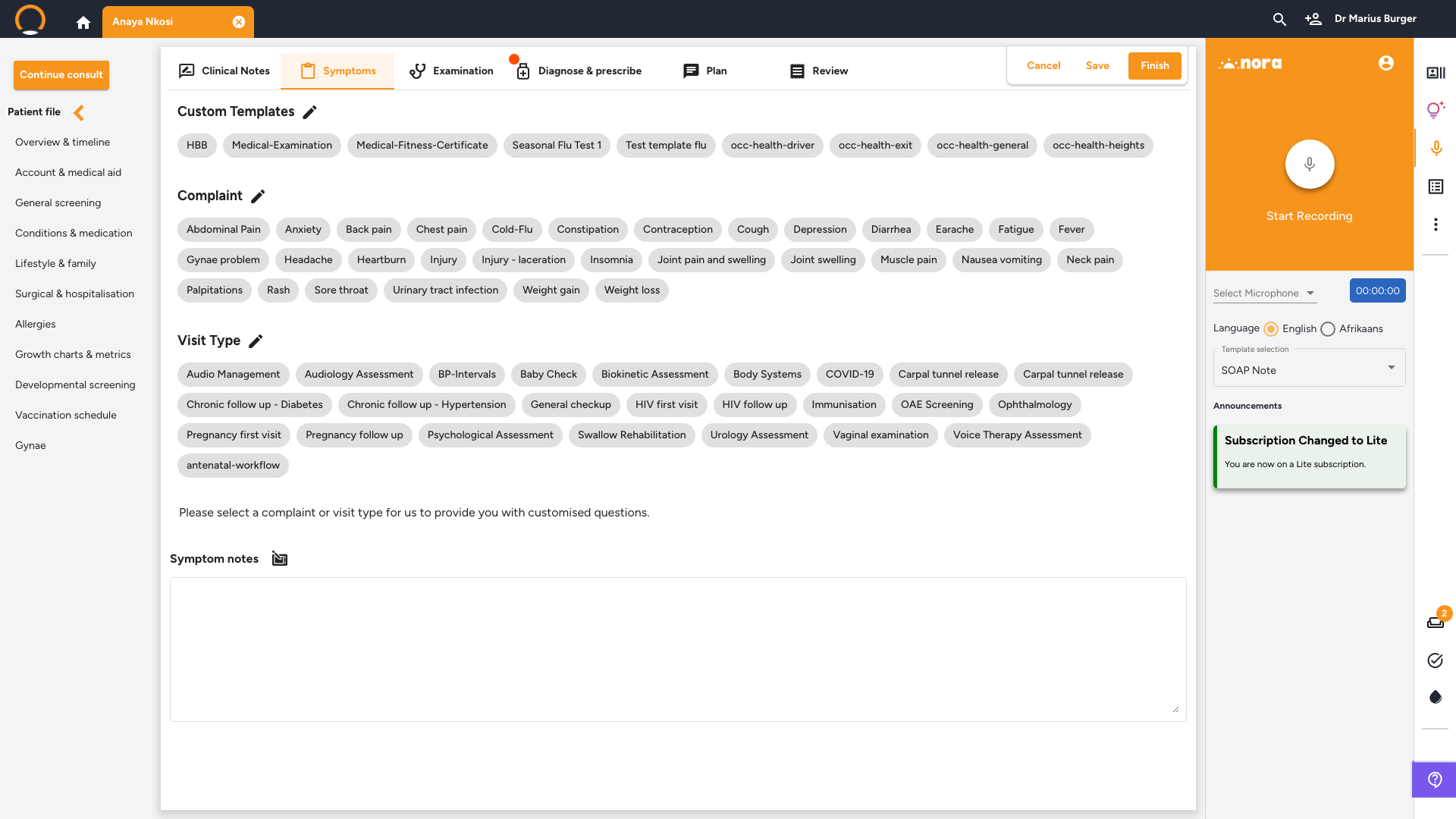
Consultation - Symptoms tab
Click the 'Symptoms' tab. Select the chief complaint (e.g. Fever, Cough, Back pain) and the visit type (e.g. General checkup, Chronic follow-up). Selecting a visit type prompts customised examination questions to appear on the Examination tab. -
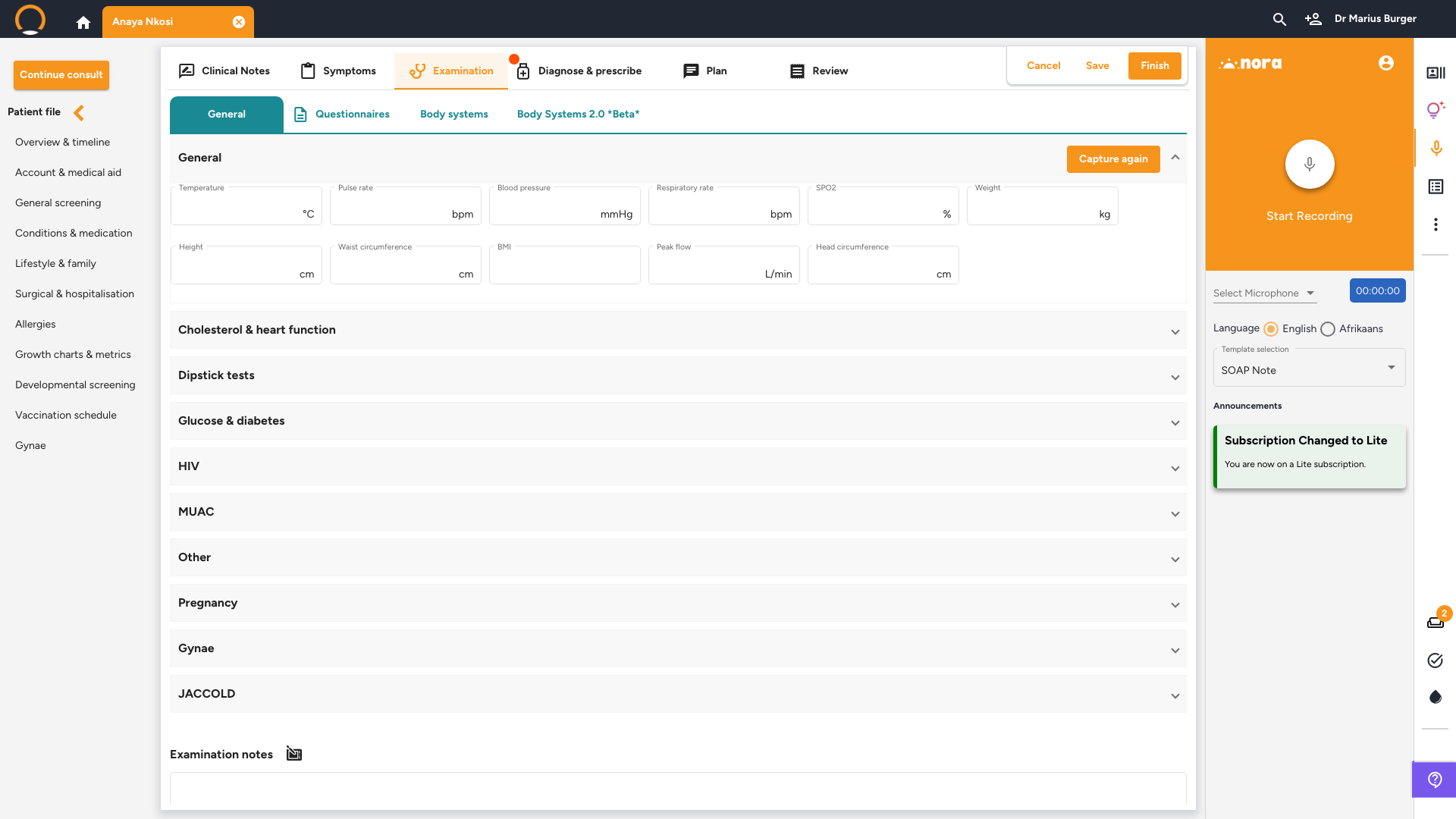
Record examination findings
Consultation - Examination tab
Enter vitals on the General sub-tab: temperature, pulse rate, blood pressure, respiratory rate, O2 saturation, weight, height, waist circumference, BMI (auto-calculated), peak flow, and head circumference.- Questionnaires sub-tab, run structured clinical screenings (GAD-7, ASRS, EPDS, and others) without leaving the examination screen.
- Body systems sub-tab, tick-box templates for system-by-system examination findings.
- Body Charts (✏️), draw or annotate directly on body diagrams (full body, foot, hand), useful for documenting wounds, rashes, or pain locations.
-
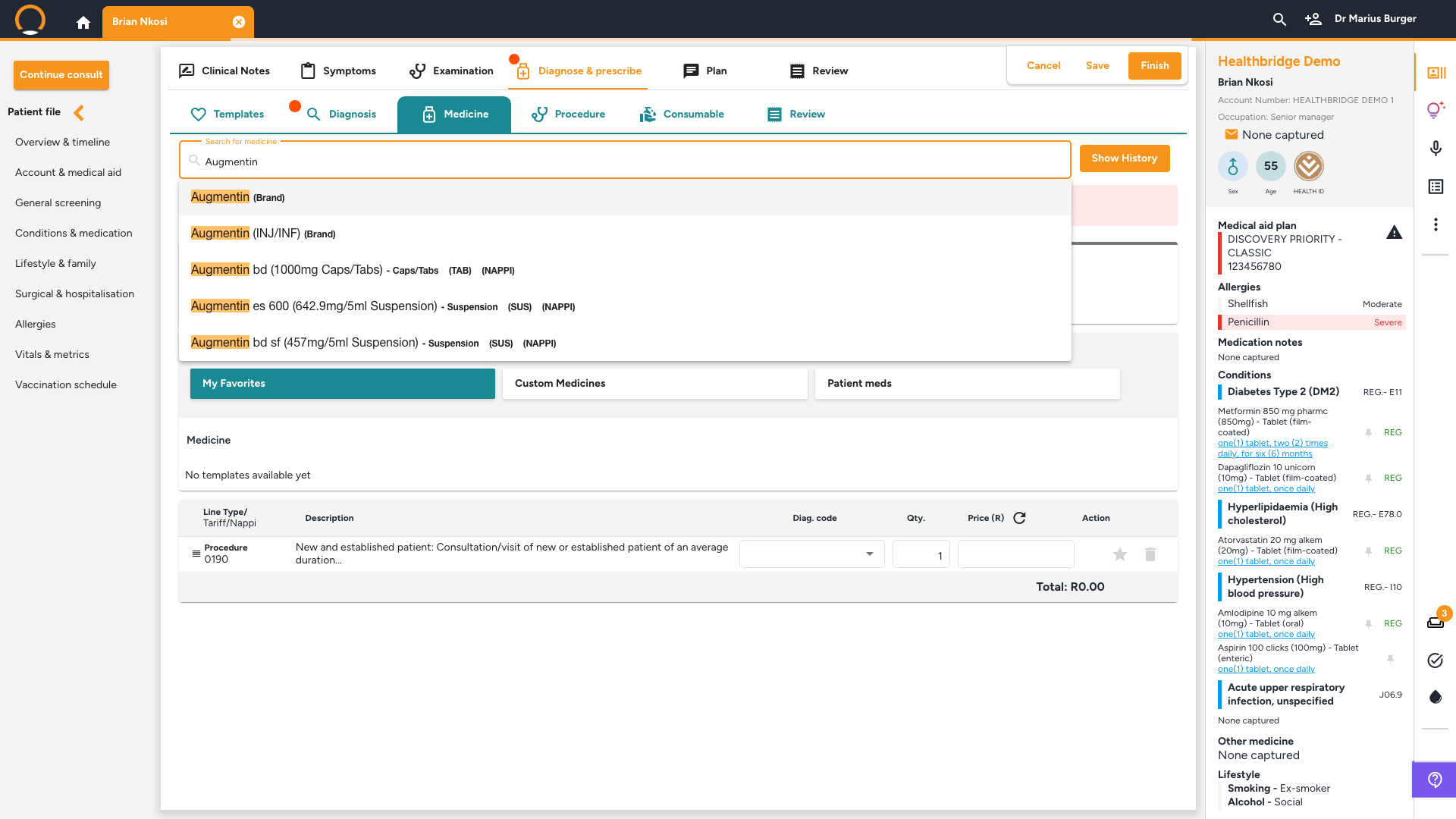
Diagnose and prescribe
Consultation - Diagnose & prescribe tab
Work through the sub-tabs from left to right:- Diagnosis, search and add ICD-10 codes. Star any code to save it to Favourites for faster access next time.
- Medicine (SmartMeds), search medication by name or condition. SmartMeds checks formulary, suggests dosage, and flags drug-to-drug and drug-to-condition interactions. Click the warning to review severity and alternatives before confirming.
- Dis-Chem digital scripts, send the prescription directly to Dis-Chem for patient collection. The patient receives an SMS with their script reference.
- Procedure & Consumable, add procedure codes and materials. These push directly to the Nova invoice for billing.
-
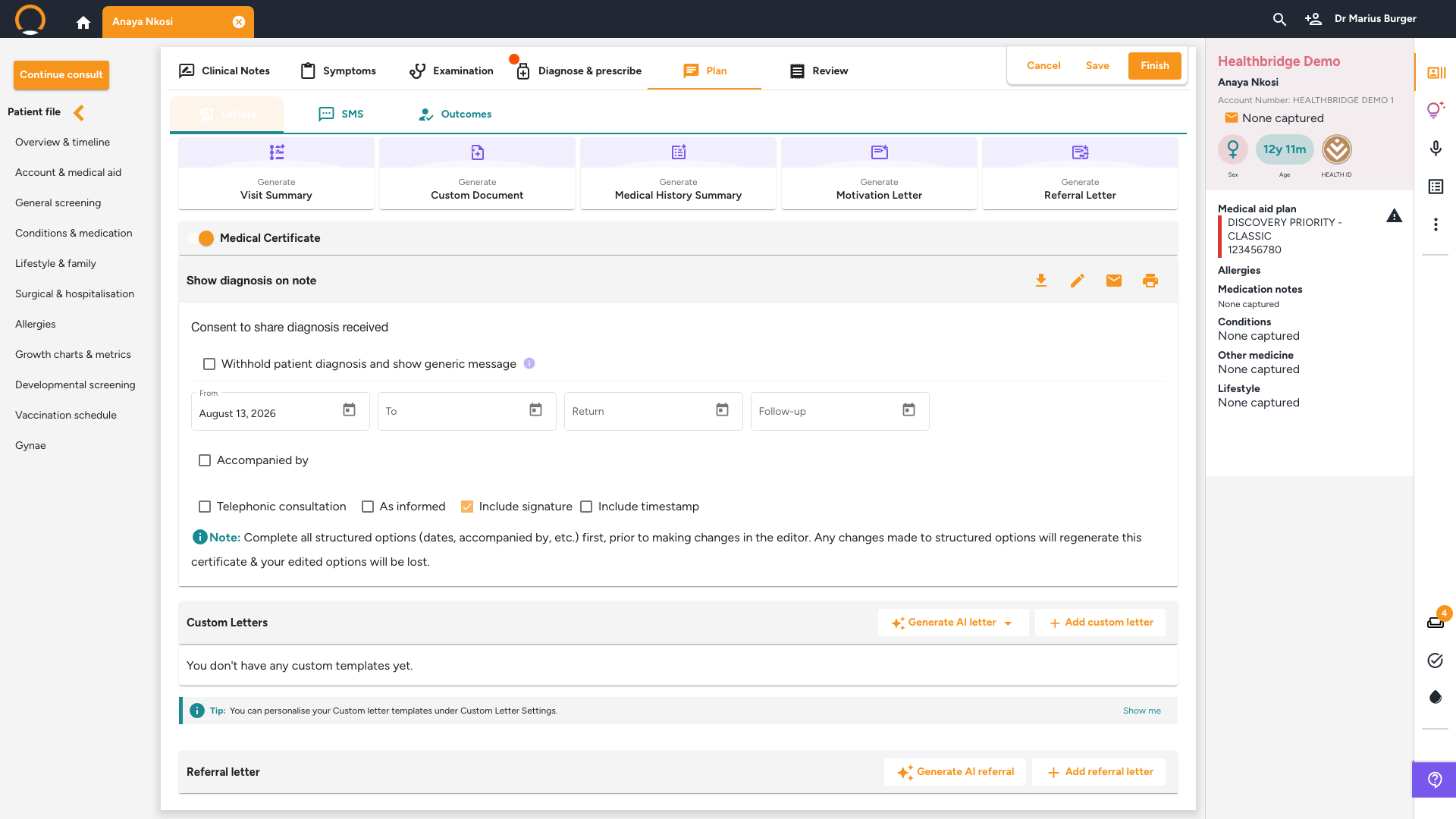
Generate letters, certificates, and plan documents
Consultation - Plan tab - Letters sub-tab
Five AI generators are available:- Visit Summary, a plain-language take-home guide for the patient, sent via WhatsApp immediately after the consult.
- Referral Letter, a structured specialist referral in seconds, pulling relevant history and results for the receiving doctor.
- Motivation Letter, a clinical case for medical aid approvals, formatted to Discovery's requirements.
- Medical History Summary, a full chronological narrative of the patient's medical journey.
- Custom Document, for school letters, medical clearances, and specialist summaries. Describe what you need and the AI drafts it from the patient file.
-
Record outcomes and schedule follow-up
Consultation - Plan tab - Outcomes sub-tab & Tasks panel
Before finishing, close the loop on what was decided and what happens next.- Outcomes sub-tab, tick the checkboxes that apply: Follow-up visit, Path request, Referral, Ultrasound, Radiology, Admitted to hospital, Prescription sent.
- Schedule a follow-up, click the Tasks icon (checkmark) in the right-hand panel. Set task type to Follow-up visit, add a title, and choose a due date: Today, Tomorrow, Next week, 6 Months, or Custom date. Toggle Show on timeline to record it on the patient file.
- SMS sub-tab, send a direct SMS to the patient from within the consultation, useful for post-consult instructions or a quick follow-up reminder.
● Finishing up
-
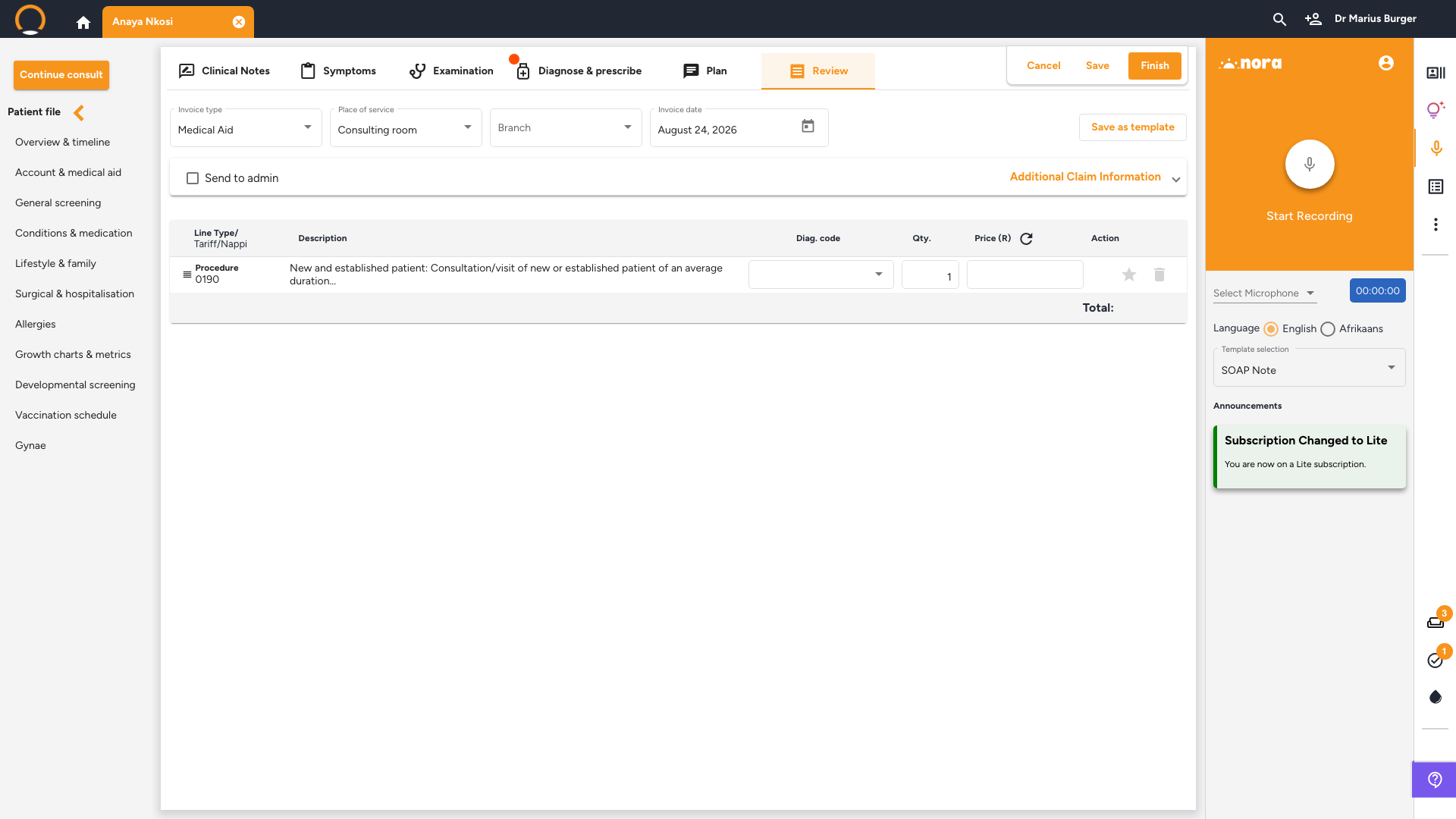
Review and finish
Consultation - Review tab
Click the 'Review' tab, the last tab in the consultation. Verify the invoice line items, invoice type, and place of service. Then:- Tick 'Send to admin' to route the invoice to the practice administrator's inbox in Nova for review and submission.
- Click the orange 'Finish' button to close the consultation. Notes are locked and the full encounter is saved to the patient timeline.
● After the patient leaves
-
Receive and act on pathology results
Top navigation bar - Pathology Centre tab
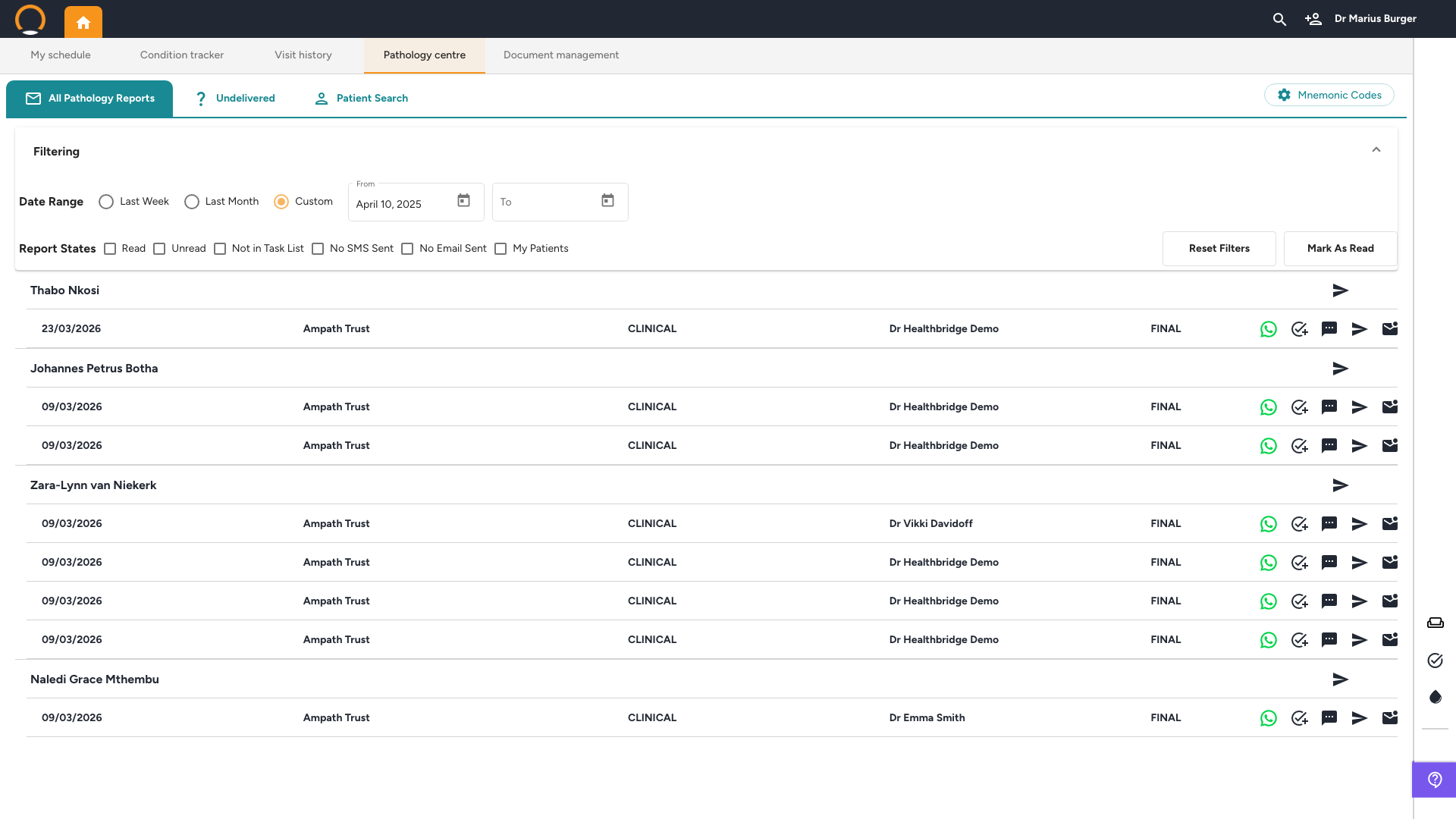
When lab results arrive from Ampath, Lancet, or PathCare, they appear automatically in the Pathology Centre. Click the WhatsApp icon next to any result set to send a pre-formatted notification to the patient, the message is generated from the result values and goes from HBC's system, not the doctor's personal phone. -
Follow-up task reminder fires
Home dashboard - Tasks panel
Any follow-up tasks created during the consultation appear on the doctor's schedule on the due date. Tasks can also be reviewed and managed from the Tasks panel on the home dashboard or any patient file at any time.